 Easy
Easy
What Is Qw/ST?
Go on a quest to learn about Qw/ST - easy solderless I2C for your projects.
Solderless connections are the ideal way to quickly prototype ideas and for newcomers to build their first projects. There are a plethora of ports and connectors to choose from, here at Pimoroni we love Qw/ST.
Qw/ST is our name for a four-pin JST-SH 1mm pitch cable. You may have heard of similar connections from other great maker companies:
- StemmaQT - Adafruit
- Qwiic - SparkFun
- MakerPort - Cytron Technologies
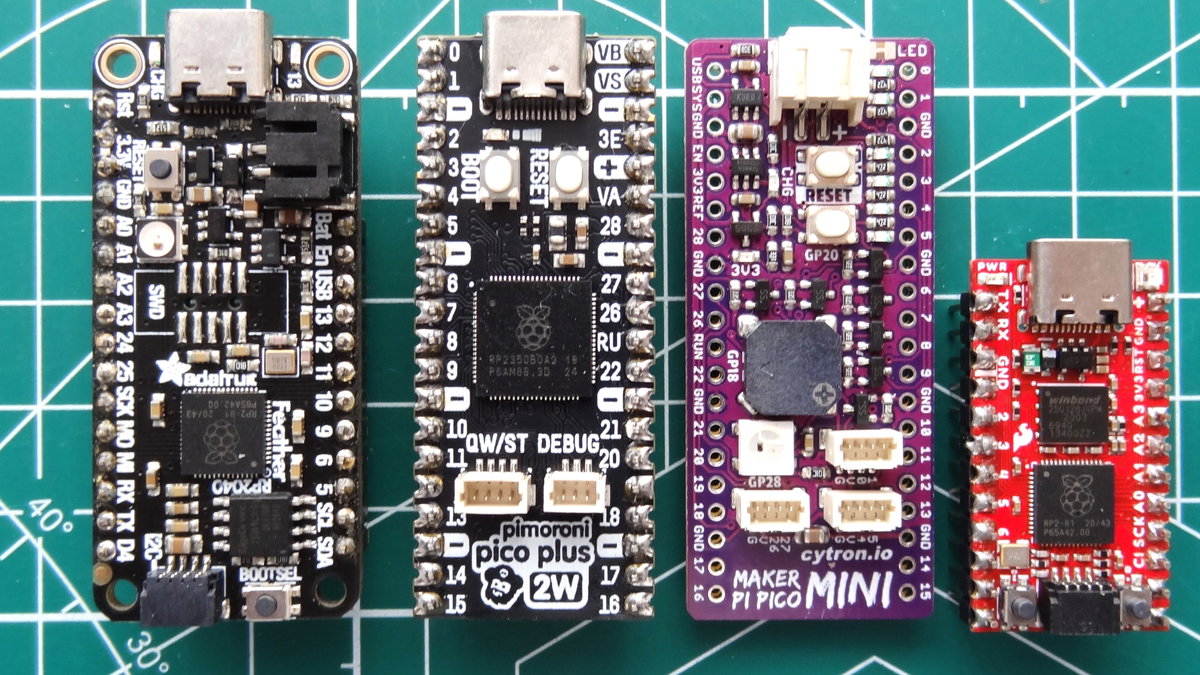 No matter the name, Qw/ST is a solderless connection system for compatible addons and components. If you want to build a project without doing any soldering, then Qw/ST is what you need. The four pin polarised connector is also designed to only go in one-way, making it ideal for quick connections and for educational use.
Qw/ST connectors can be found on many of our boards, including our Badgeware product line. The complete range of Qw/ST compatible boards and accessories can be found here.
All About Qw/ST
What Is It For?
The four pins are typically used to breakout the I2C interface of a microcontroller. I2C (Inter-Integrated Circuit) uses two wires to communicate along a "bus" between the microcontroller and component. Devices on the bus have their own address and up to 128 can be individually accessed. I2C has been around for many years and it is a reliable and easy way to have multiple devices connected to a single interface.
The two data pins can also be used as standard digital IO, PWM, or UART, as essentially they are just GPIO pins in a different package.
How Do I Mount It?
Qw/ST boards and components have mounting holes where they can be screwed into place. This makes them ideal for custom 3D printed projects and for using in outdoor projects.
What's The Pinout?
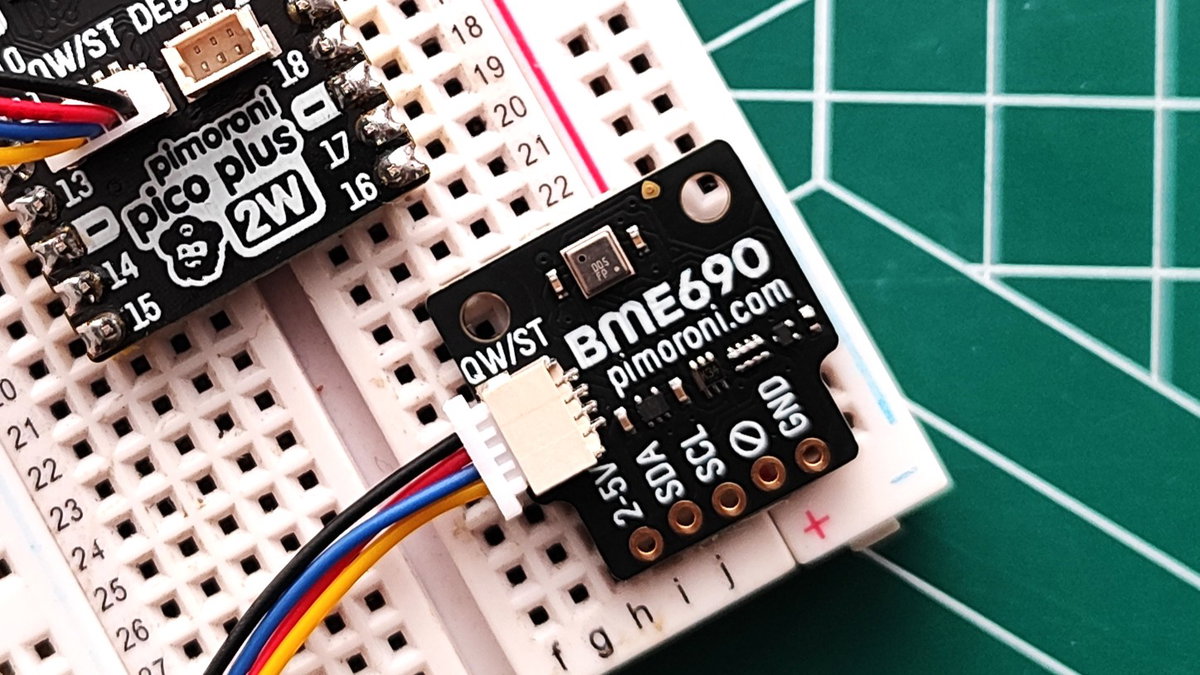
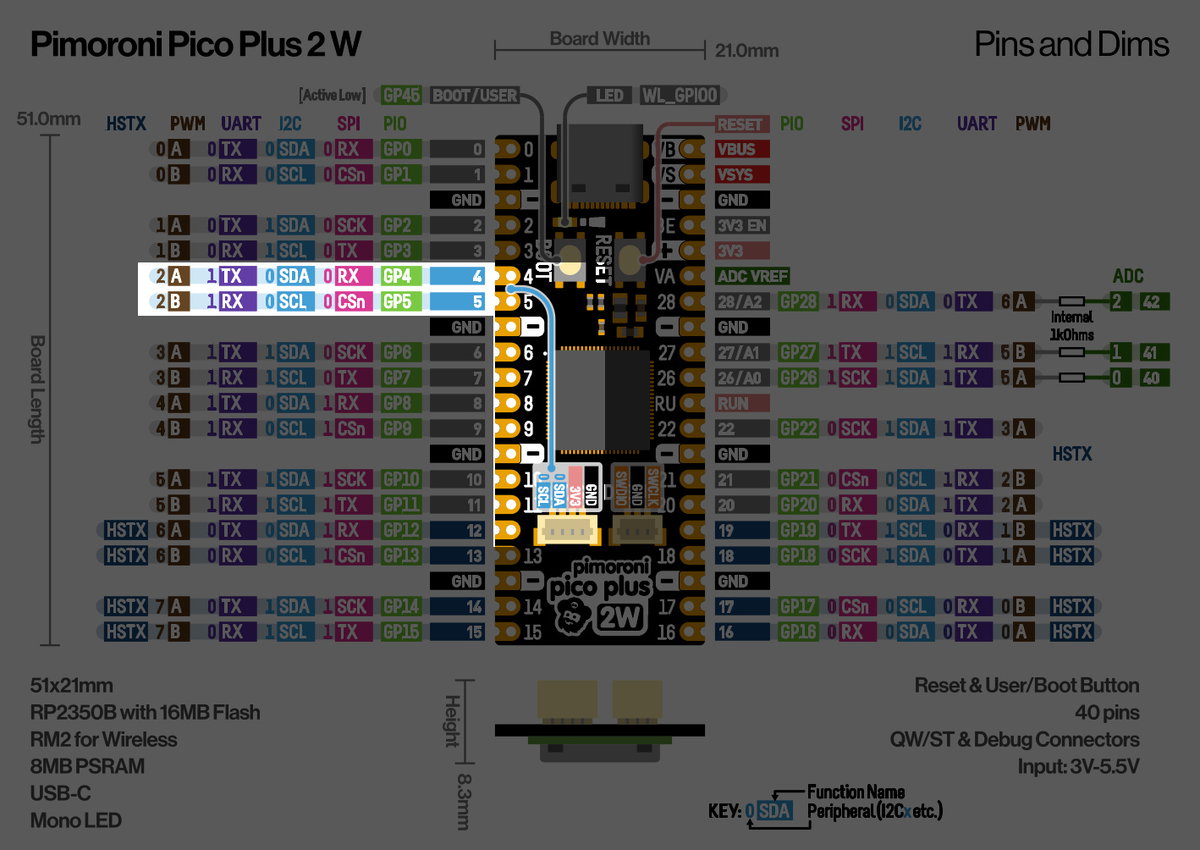 The Qw/ST pinout includes a 3.3V voltage source and a GND pin, plus two I2C-capable data pins. In the above image, Pico Plus 2W uses GPIO pins GP4 for SDA and GP5 for SCL. These pin references are shared across many of our boards. There are a few, like Plasma 2350 W, that map to GP20 and GP21 so always check and tweak your code according to the pins used.
Qw/ST and SparkFun's Qwiic connection support 3.3V devices, Adafruit's STEMMA QT supports both 3.3 and 5V devices. Qw/ST, STEMMA QT, Qwiic and MakerPort are largely compatible, so components from one, will work with the others. But do check before purchasing and connecting.
What's With The Name?
Qw/ST is a mash-up of SparkFun's Qwiic and Adafruit's STEMMA QT. The name also drew inspiration from the Swords web comic by Matthew J Wild. Qwest!
What Can I Do With It?
Glad you asked! Here are three quick demos to show how easy Qw/ST is to use with an environmental sensor, a gamepad input, and as a digital GPIO.
Using A BME690 Environmental Sensor
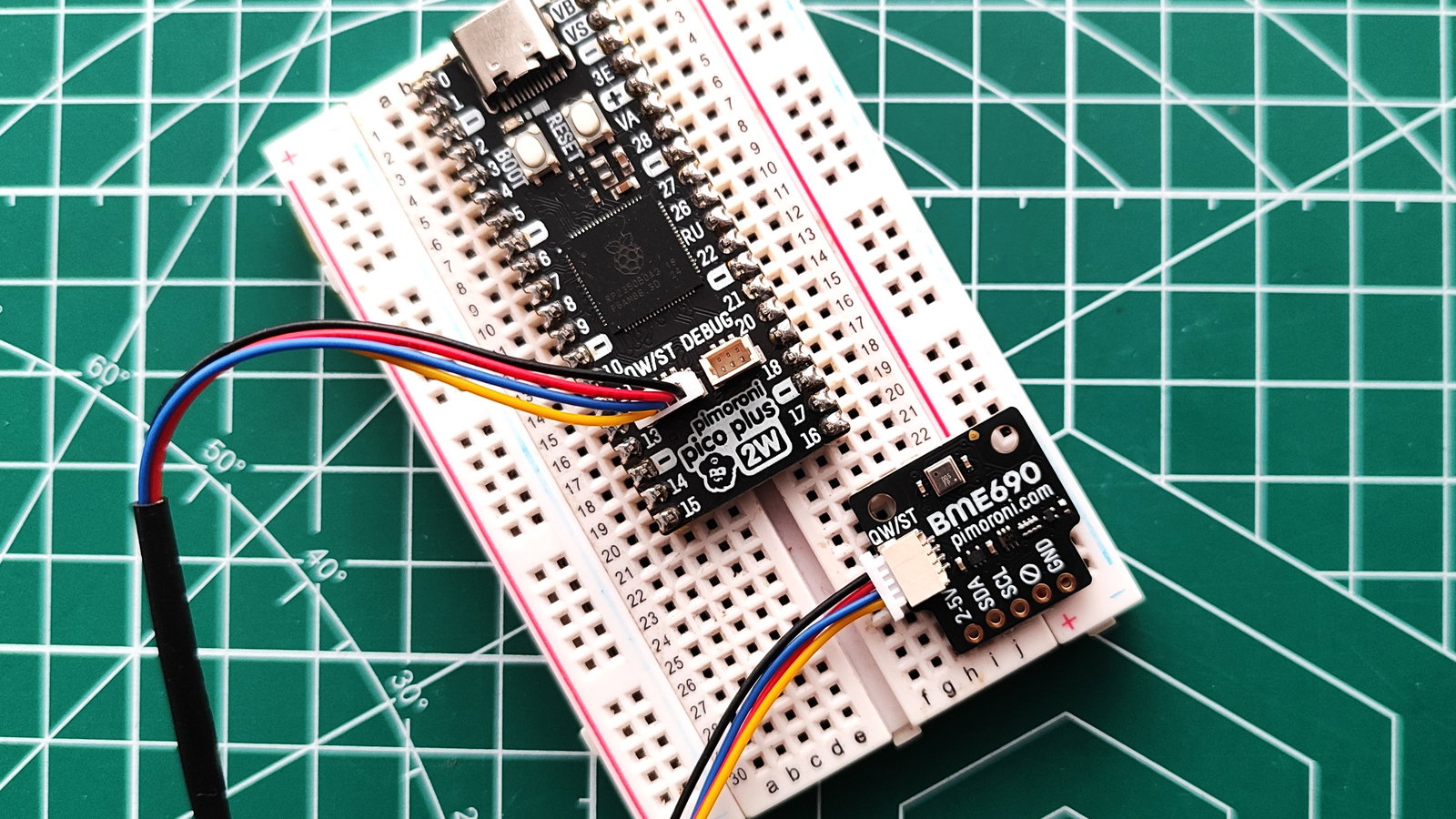
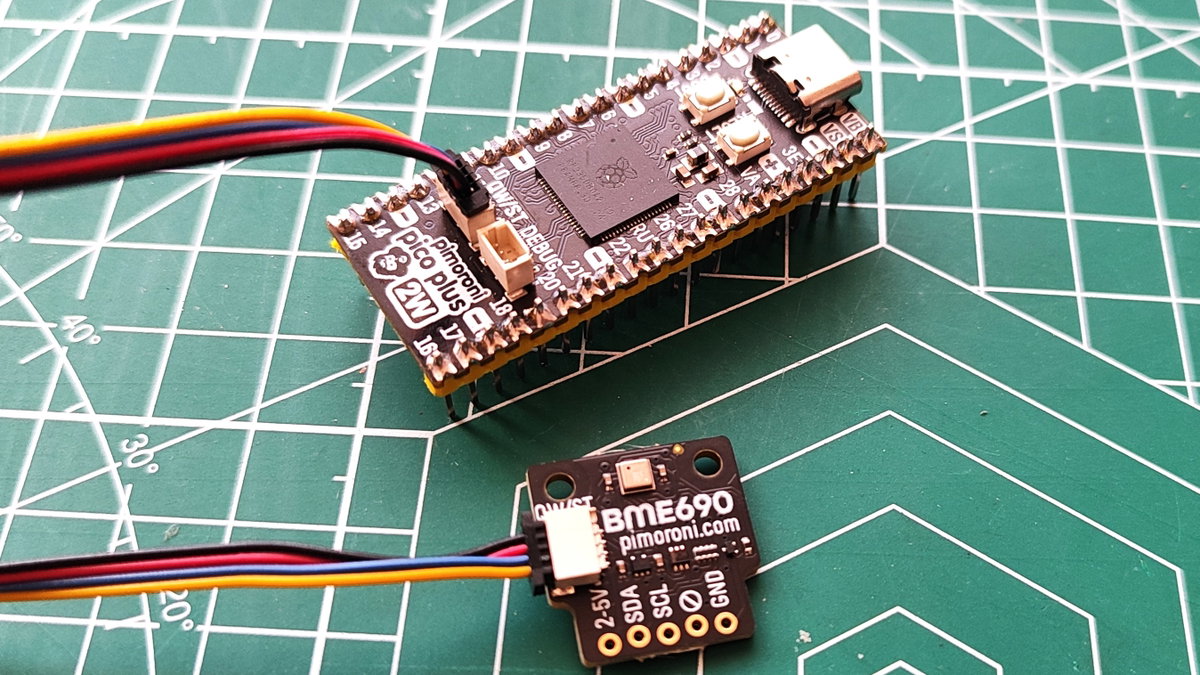 The BME690 enviro sensor packs a lot into a small package. It provides sensors to detect temperature, air pressure, humidity and indoor air quality and it uses Qw/ST for fast connections.
What You'll Need
- BME690 4-in-1 enviro sensor.
- Pimoroni Pico Plus 2 W.
- Qw/ST cable.
- The latest Pico Plus 2W MicroPython firmware flashed onto Pico Plus 2W.
- Thonny installed on your computer.
Coding The Project
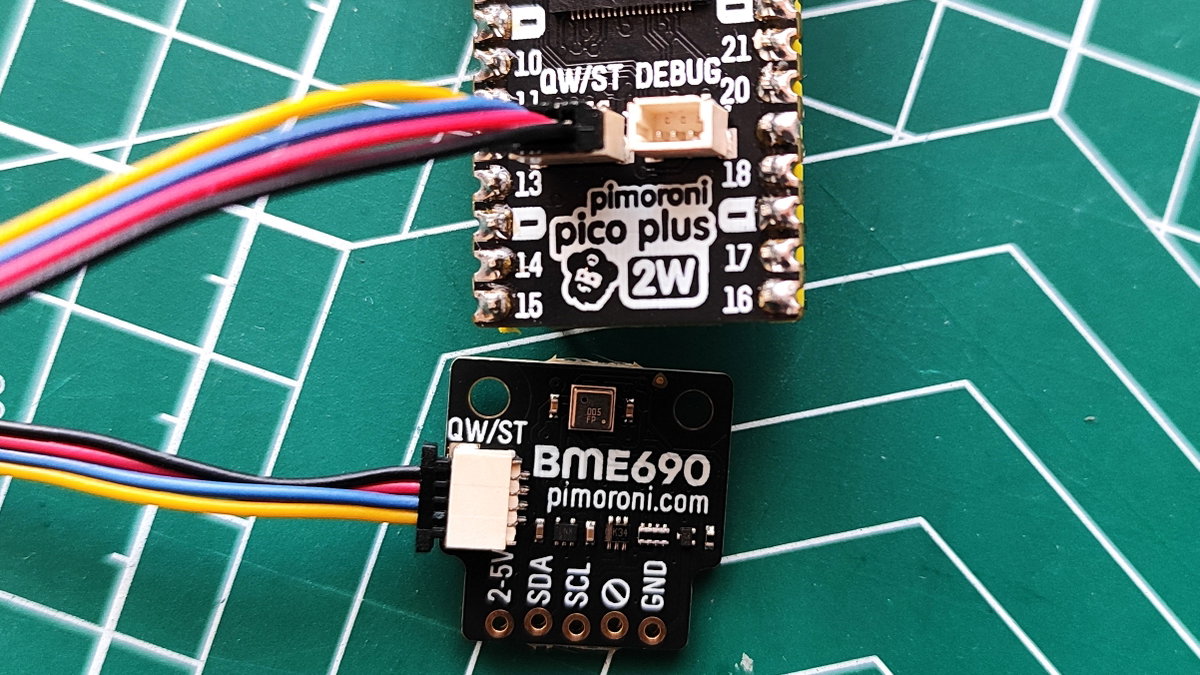
- Connect your Pico Plus 2W to the BME690 via the Qw/ST cable.
- Open Thonny and connect to your Pico Plus 2W by pressing STOP to force a connection reset. You may need to go via Tools >> Options >> Interpreter. and setup the board and COM port
- Copy the code from here and paste it into a blank document.
- Save the file as sensor.py to your Pico Plus 2W.
- Click Run (green button) to run the code.
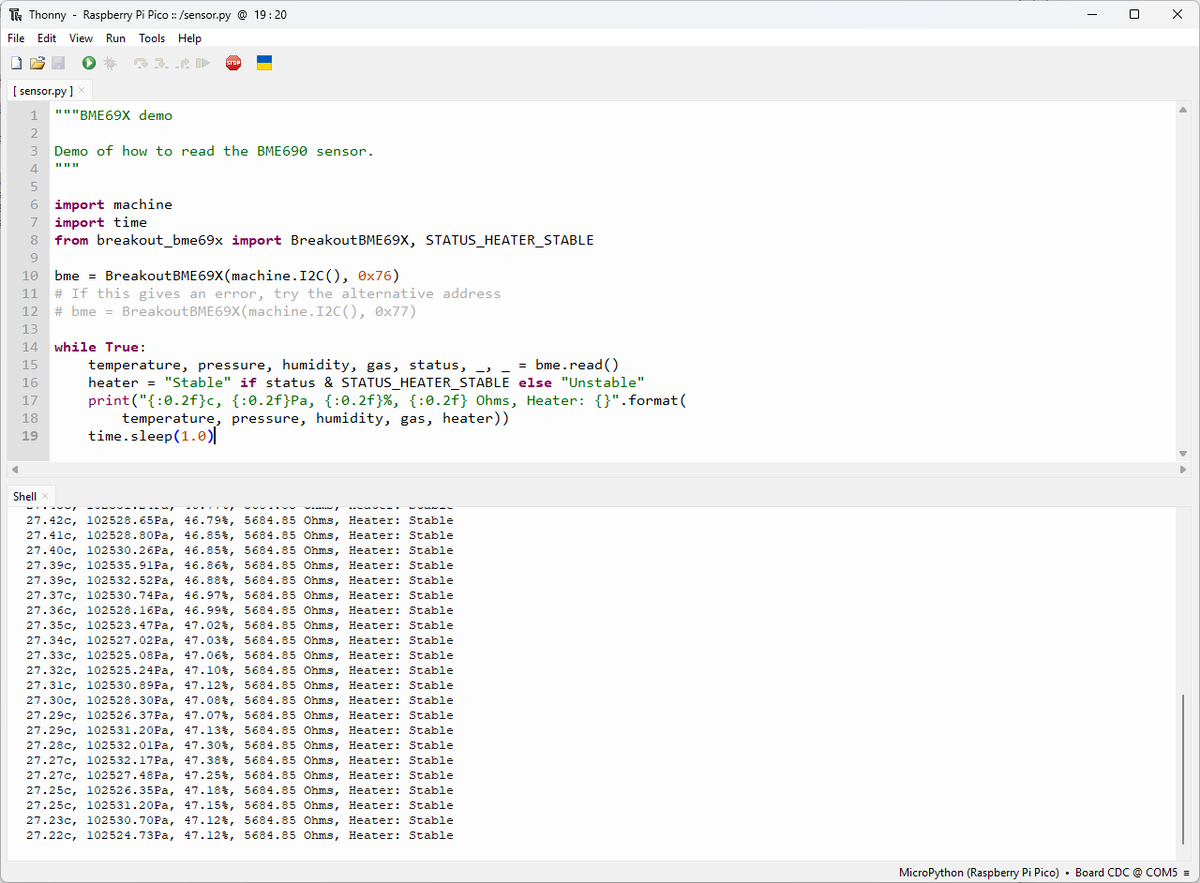
- The temperature, air pressure, humidity and air quality (in Ohms) is printed the Python Shell.
Using A Qw/ST Pad To Control Plasma 2350 W
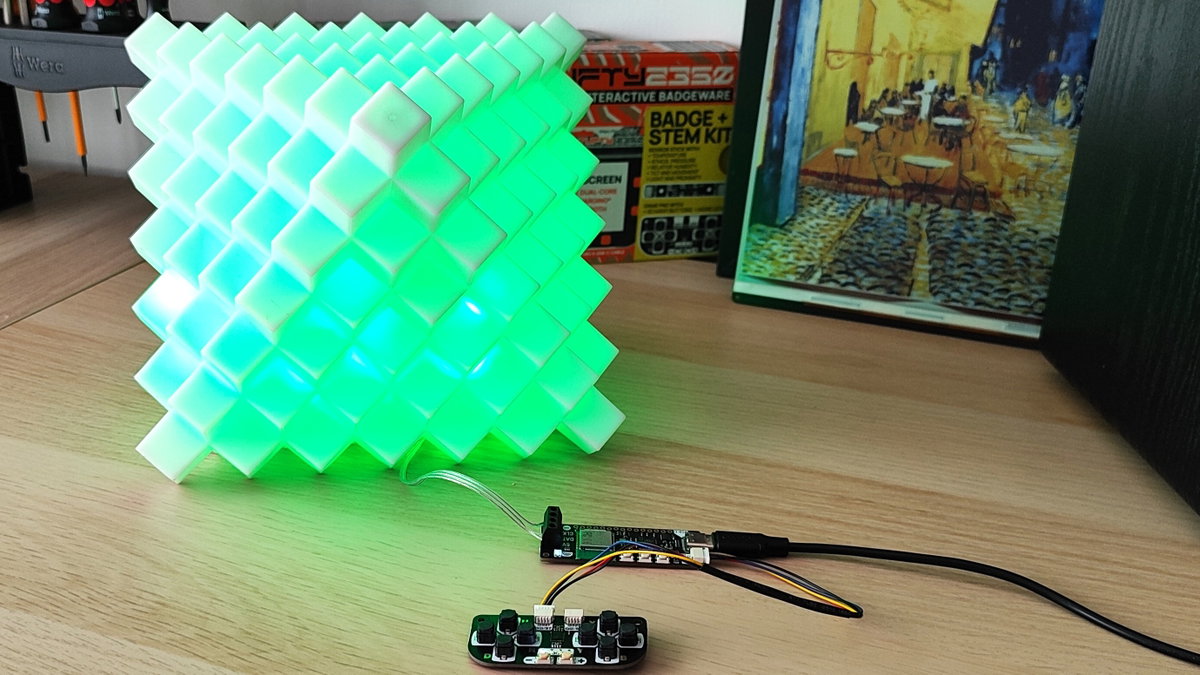
This demo shows how to use the Qw/ST Pad controller to control 50 LEDs which are connected to Plasma 2350 W. We're using Plasma 2350 W for this project for two reasons. One, it is designed for hacking around with RGB LEDs. Two, we are using it to illustrate configuring the GPIO pins for I2C as Plasma 2350 W maps them differently.
What You'll Need
- Plasma 2350 W.
- Qw/ST Pad.
- Qw/ST cable.
- Flexible RGB LED Wire (50 pixels).
- The latest Plasma 2350 W MicroPython firmware flashed on to your Plasma 2350 W.
- Thonny installed on your computer.
- Connect your Qw/ST pad to the Qw/ST port using the Qw/ST cable.
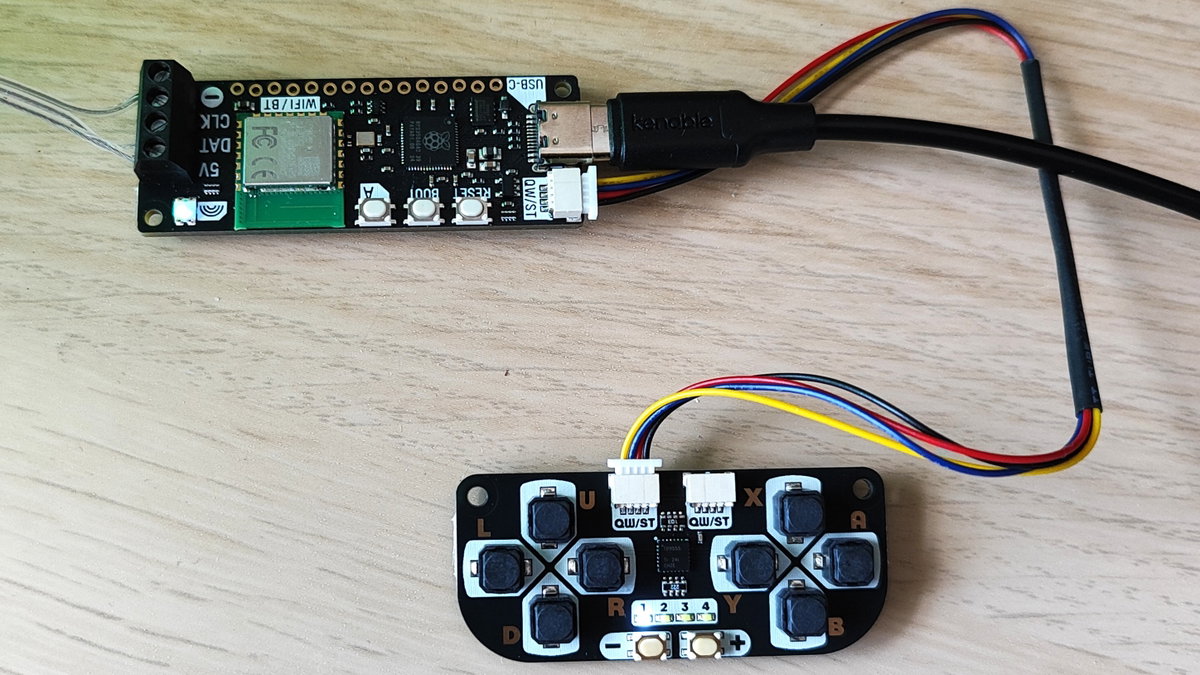
- Connect the RGB LEDs to the screw terminals.
- Open Thonny and connect to your Plasma 2350 W by pressing STOP to force a connection reset. You may need to go via Tools >> Options >> Interpreter. and setup the board and COM port
- Copy the code from here and paste it into a blank document.
- Go to line 19 in the code. In the original version of this code, the I2C pins for SDA and SCL were 4 and 5 respectively. We've changed them to 20 and 21 as that is the pin mapping for Plasma 2350 W.
- Go to line 39 in the code. Between lines 39 and 58 a looped conditional test will check for user input. When a direction is pressed on the Qw/ST pad, it changes the output from 0 to 1 and we use that to trigger an action. For example pressing UP will print "RED" to the Python Shell and then set the RGB LEDs to red. Line 52 is a "secret" easter egg which makes the LEDs go "DISCO" by choosing a random colour.
- Save the code as colour-control.py to your Plasma 2350 W.
- Click Run (green button) to run the code.
- Press the direction keys on Qw/ST Pad and watch the LEDs change colour.
Using Qw/ST As Digital GPIO
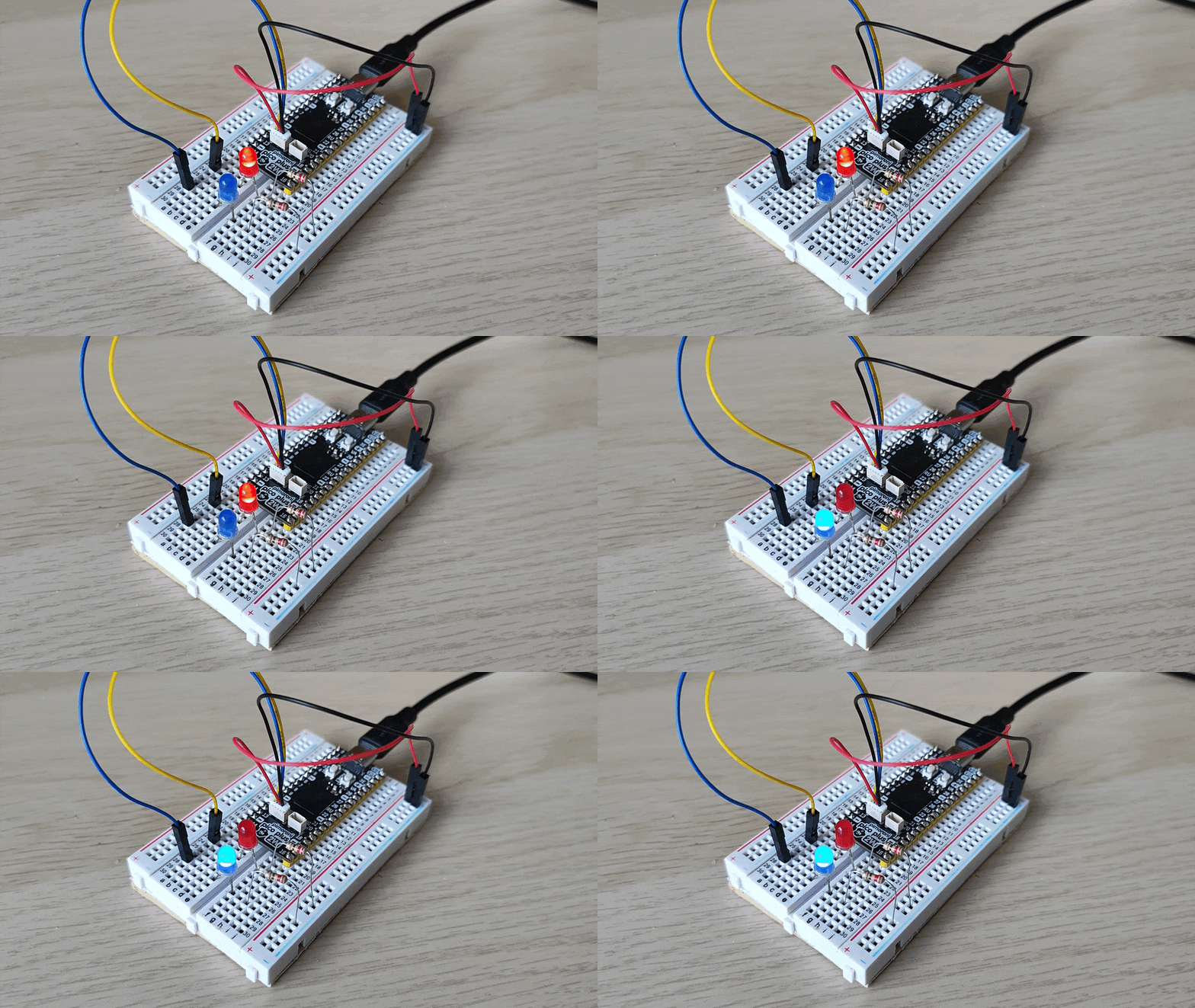 Sometimes you just need to blink an LED, just like we all did at the start of our maker journey. We're going to use both of the spare GPIO pin connections on the Qw/ST port of a Pico Plus 2 W to build a simple flashing light. You could swap the pins for simple sensors like PIR, even ultrasonic sensor like the HC-SR04P or HC-SR04+ are ideal for Qw/ST.
What You'll Need
- Pimoroni Pico Plus 2 W.
- Qw/ST cable to DuPont Pins.
- 1 x Red LED.
- 1 x Blue LED.
- 2 x 220 Ohm resistors (Red-Red-Brown-Gold).
- Half-Size Breadboard.
- The latest Pico Plus 2W MicroPython firmware flashed onto Pico Plus 2W.
- Thonny installed on your computer.
Building The Circuit
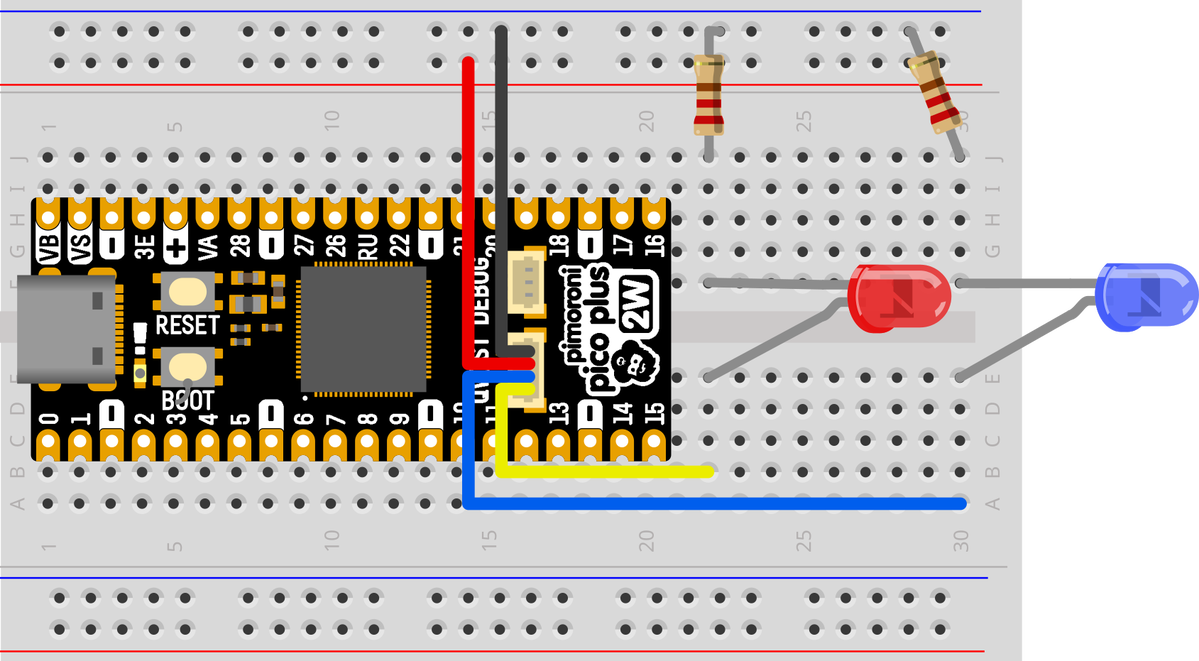
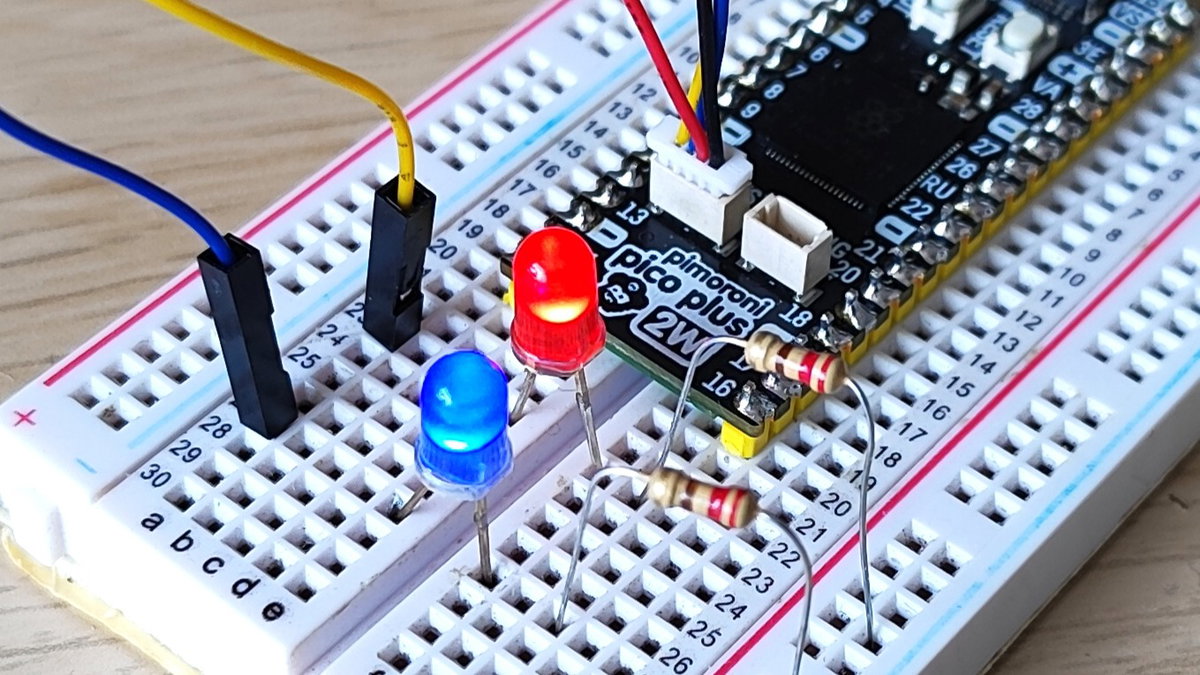
The circuit is simple. We have two pins (GP20 and GP21) broken out via Qw/ST and we are using those pins to connect to the anode (long leg) of the LED, which we will control using code. The cathode (short leg) of the LED is connected to GND via a 220 Ohm resistor.
- Open Thonny and connect to your Pico Plus 2 W by pressing STOP to force a connection reset. You may need to go via Tools >> Options >> Interpreter. and setup the board and COM port
- Create a new blank file and copy, paste this code. After importing the modules to use the GPIO and to add pauses to the code, we then setup two objects, "blue" and "red" which are set to use the Qw/ST GPIO pins. In a loop, we then toggle the GPIO pins on and off with a 0.1 second delay.
from machine import Pin from time import sleep blue = Pin(4, Pin.OUT) red = Pin(5, Pin.OUT) while True: red.toggle() sleep(0.1) red.toggle() blue.toggle() sleep(0.1) blue.toggle() - Save the code as blinky.py to the Pico Plus 2 W.
- Click Run (green button) to run the code.
- The LEDs will now flash on and off.
What Have We Learnt?
We've learnt that
- Qw/ST is a four-pin, polarised connector for easy electronic prototyping.
- Qw/ST is compatible with STEMMA QT, Qwiic, and MakerPort.
- Qw/ST can be used with sensors and game controller inputs.
- Qw/ST can be used for general GPIO projects.