 Easy
Easy
Turn Low-Cost LED Strings into Animated Night Lights
Learn how to use Inventor 2350 W, an NPN transistor and a light sensor to make battery-powered LED strings fade on automatically when it gets dark.
Cheap "dumb" LED strings can be easily sourced at many discount retailers, and while these strings of LEDs may not be the most animated, they do come in a plethora of pretty hues.
We recently picked up 100 Halloween-themed purple, green and orange LEDs for £4 because we wanted to add a splash of colour to the dark nights. These LED strings are powered by two AA batteries, but we can't just connect them to a GPIO pin. This is because the default current that a GPIO pin can supply is far too low for 100 LEDs, so we need to find another way. We will be using the original battery pack to power the LEDs, and controlling everything with a transistor.
Transistors are electronic switches, and we'll use one to connect the GND of the battery pack from our LEDs to the LEDs themselves. The device which will be controlling this project is Inventor 2350 W, our all-in-one board for making battery-powered contraptions.
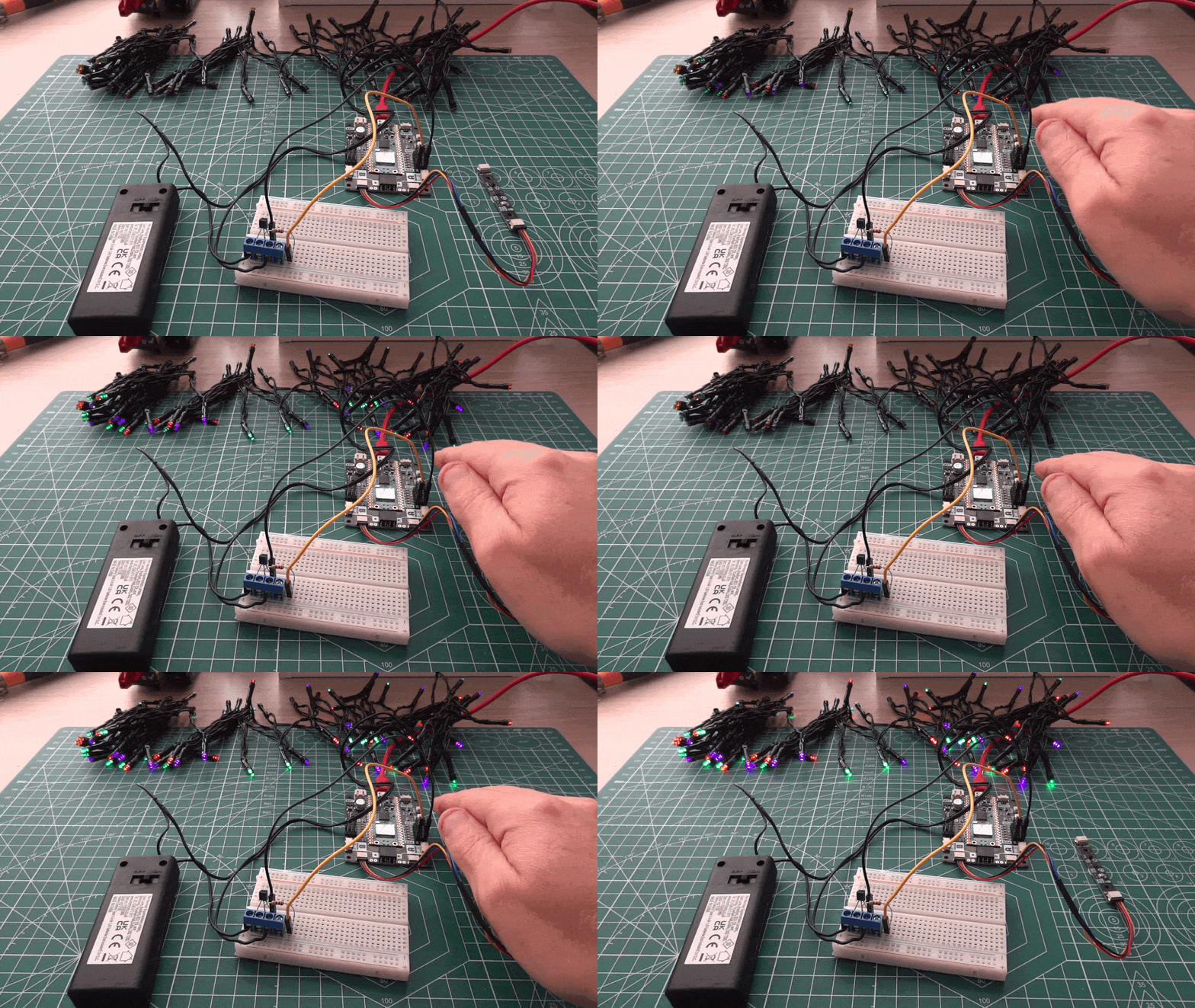
At the end of this project we will turn a string of "dumb" LEDs into a string of gloriously animated LEDs. We could also adapt this project to use motion detecting sensors that turn on the LEDs when movement is detected, or even connect them to the Internet and control them from afar.
What You'll Need
- Inventor 2350 W
- Multi-Sensor Stick
- Qw/ST Cable
- 2N2222 NPN Transistor
- A 1 kΩ Resistor
- 400 Point (Half) Breadboard
- Screw Terminals
- 2 x Pin to Socket Jumper Jerky Wires
- Wire Cutters
- Wire Strippers
- A computer running Thonny
- Optional: Soldering Kit
Building The Circuit
For this circuit we are using a 2N2222 NPN transistor. A transistor is basically a switch that we toggle using an electrical signal. They are used to control a circuit which typically has a higher current flow; in this case the LEDs will use more current than Inventor 2350 W's GPIO pins could supply.
An NPN transistor is used as a low-side switch, and in this case we are using it to connect the GND of the LEDs to the GND of the battery pack.
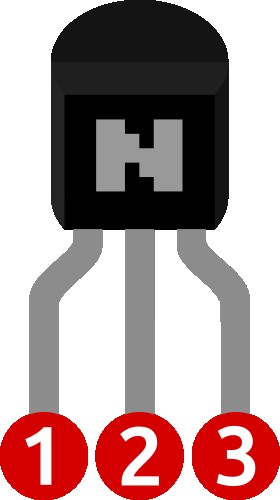
An NPN transistor has three pins and a flat edge. The flat edge is the "face" and the pins are numbered 1 to 3 from left to right of the face.
- Emitter: In this project we use this to connect to the GND connection of the battery pack and Inventor 2350 W.
- Base: Connects to Inventor 2350 W and is used to switch the transistor on and off.
- Collector: Connects to the GND of the LEDs.
Here are the steps to build this circuit on a breadboard.
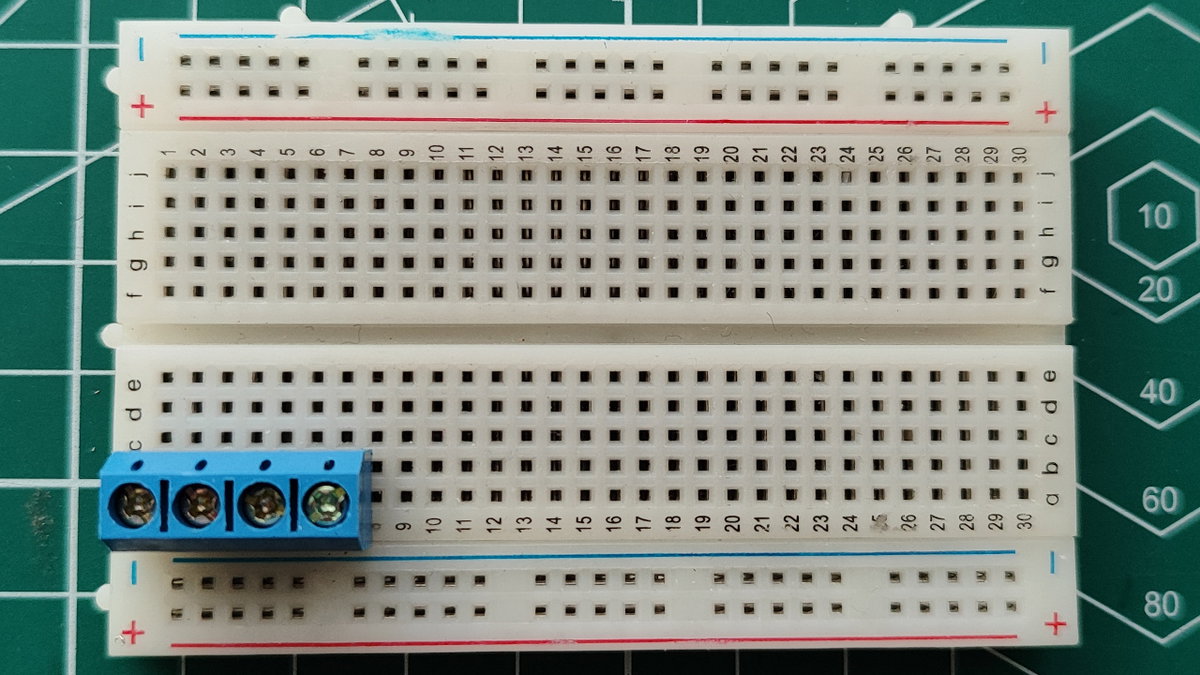
Insert the screw terminal into the breadboard.
Insert the NPN transistor into the breadboard with the flat edge facing towards you. You will need to spread the left and right legs out to match the screw terminal. Top tip: look at the smaller hole on each screw top; this will match the position on the breadboard.
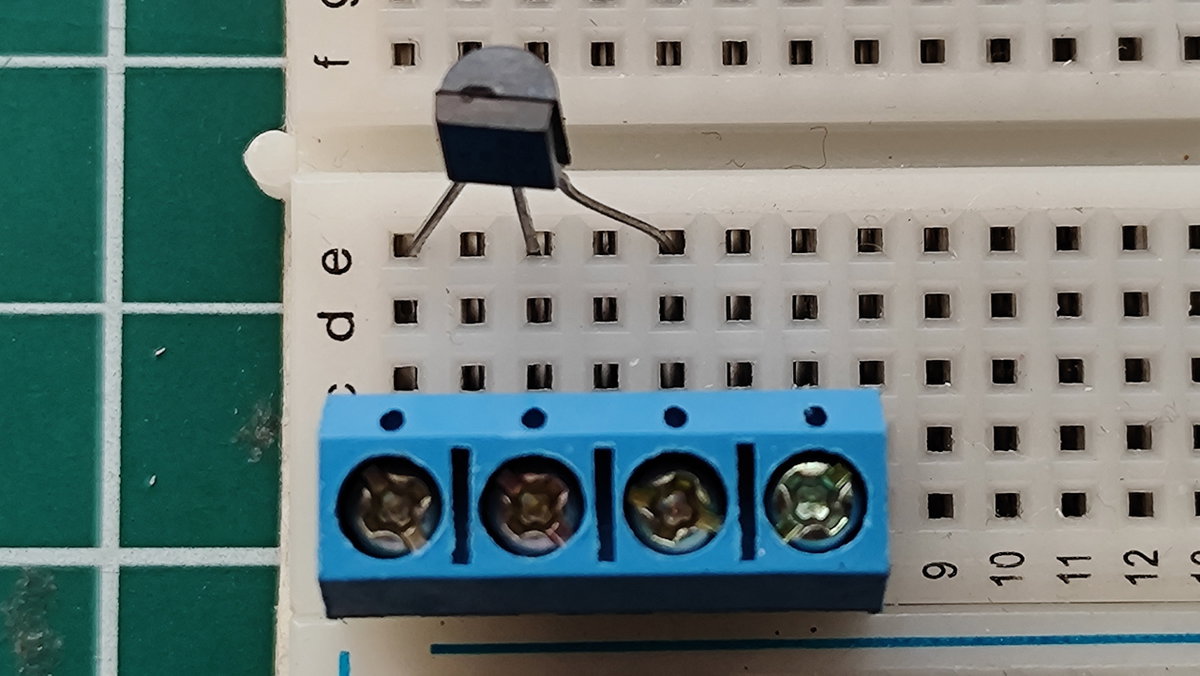
Insert the resistor into the row that matches the centre pin (Base) on the NPN transistor and then insert the other end into a spare point on the breadboard.
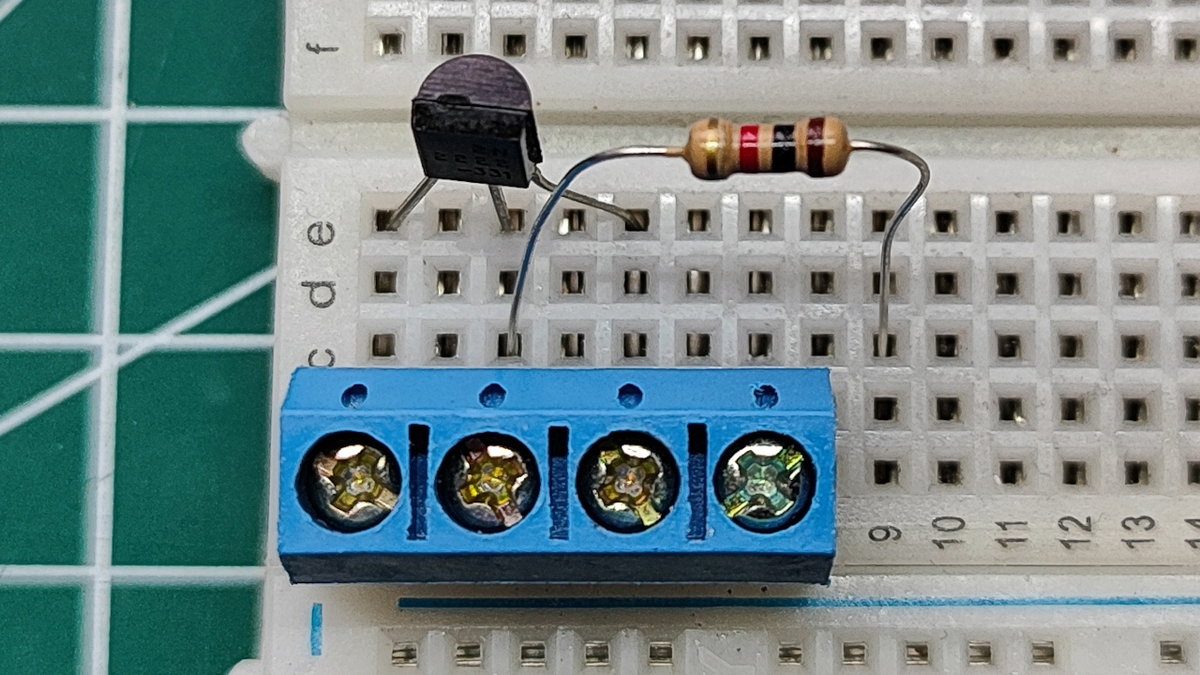
Insert the pin end of a jumper wire into the same row as the resistor, then connect the socket end to
SIGof GPIO 0.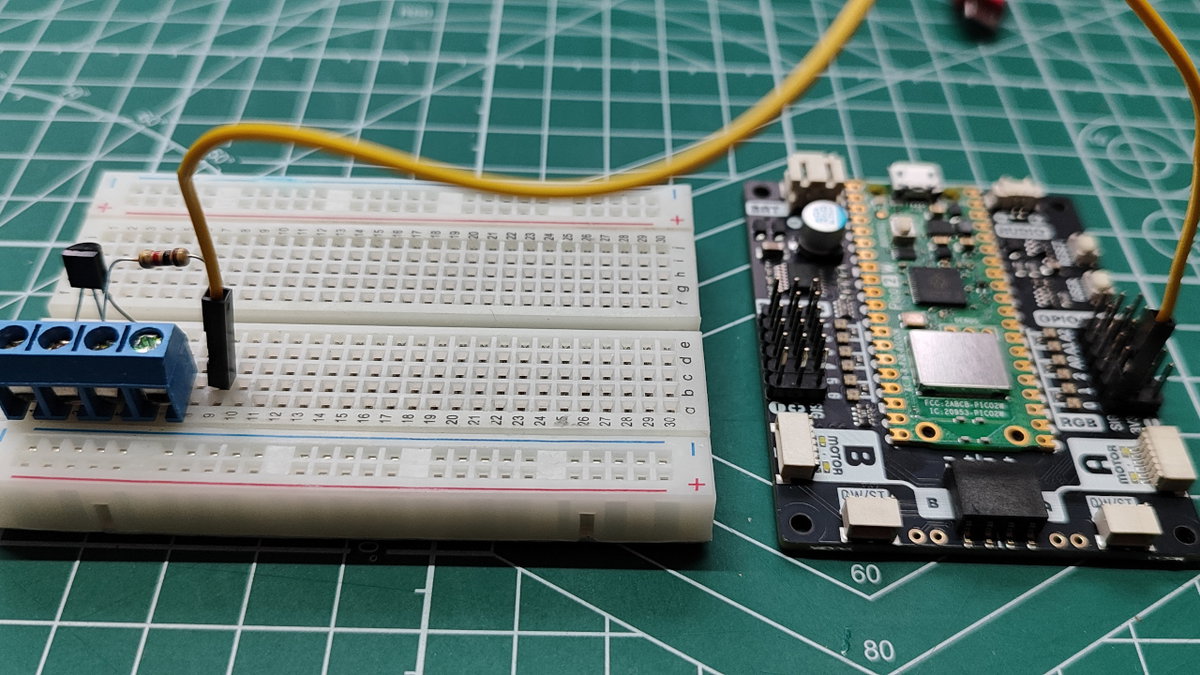
Using a pin to socket jumper wire, connect GPIO 0's GND connection to the row that is level with the first screw terminal from the left.
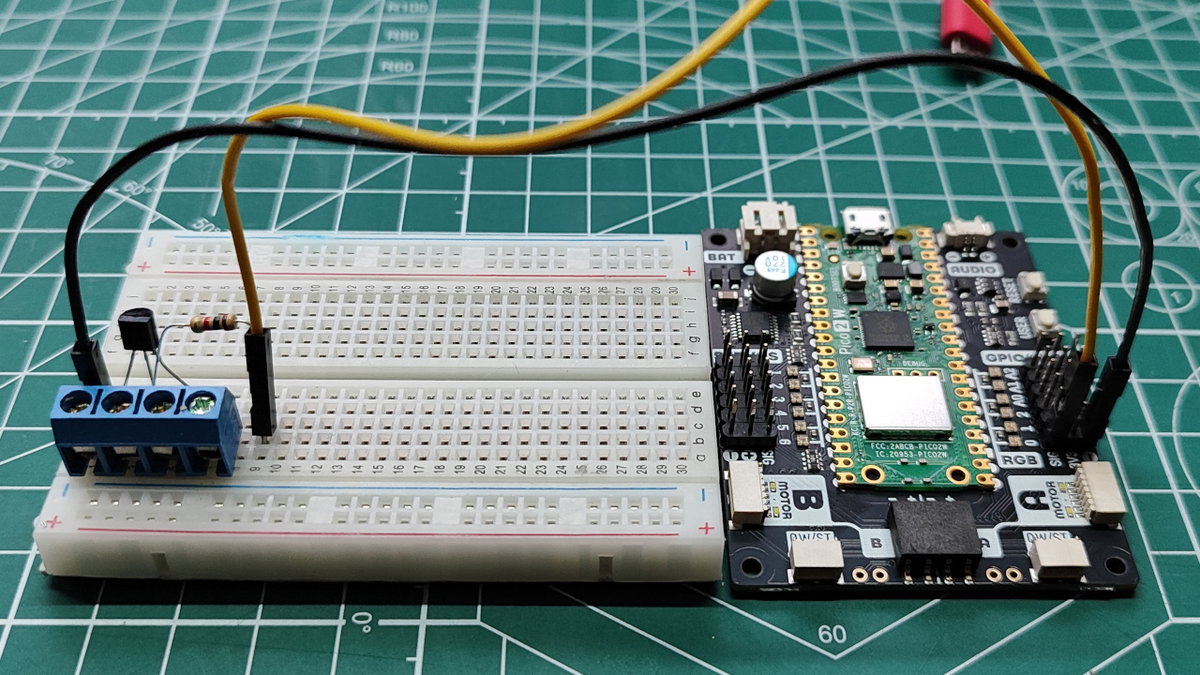
Turn your attention to the battery pack of the LED lights. Identify the GND wire and cut the wire. You will need to follow the connections from the battery pack to correctly identify GND. It is typically marked as "-". We had to take our battery pack apart to identify the wires.
Using wire strippers, strip approximately 5 mm of bare wire. Twist each of the wires to give them strength. You can also "tin" the wires with a little solder to keep them solid, but this is not essential.
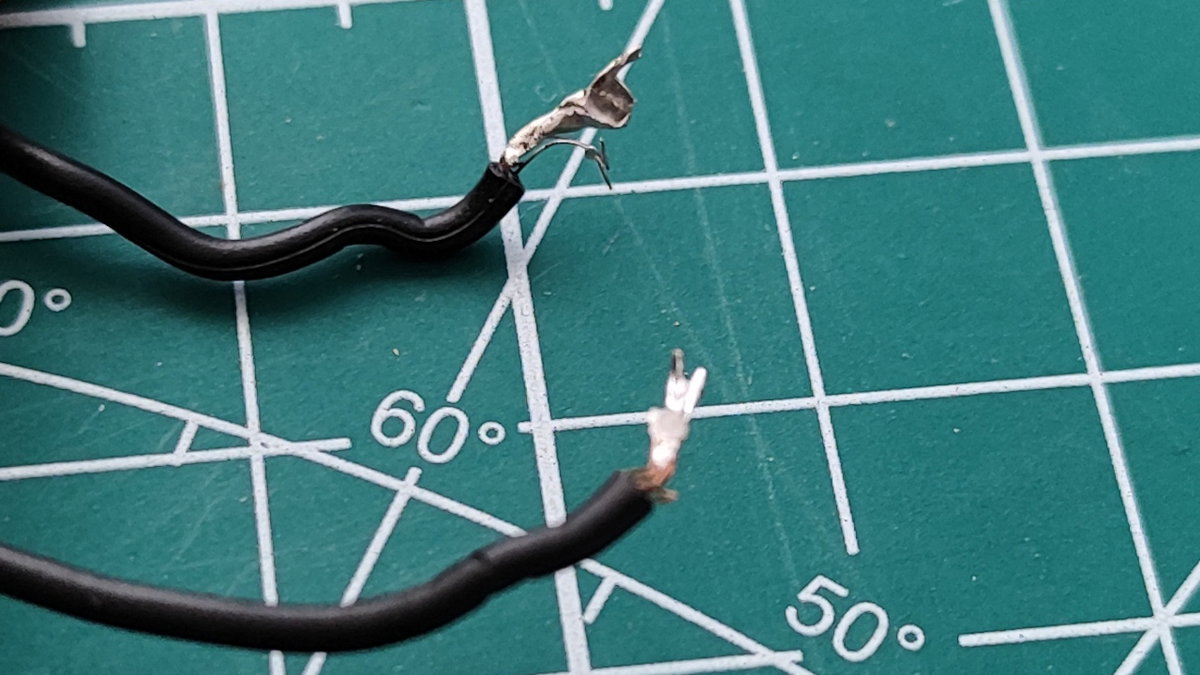
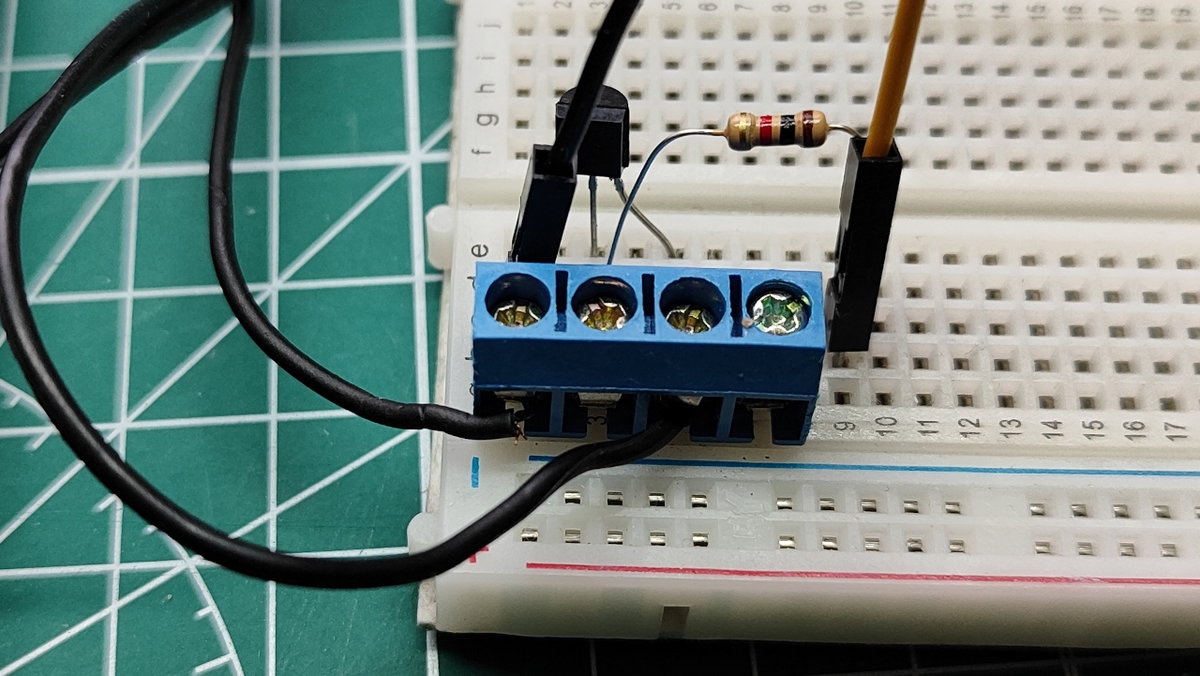
Insert a GND wire from the battery pack into the first screw terminal from the left.
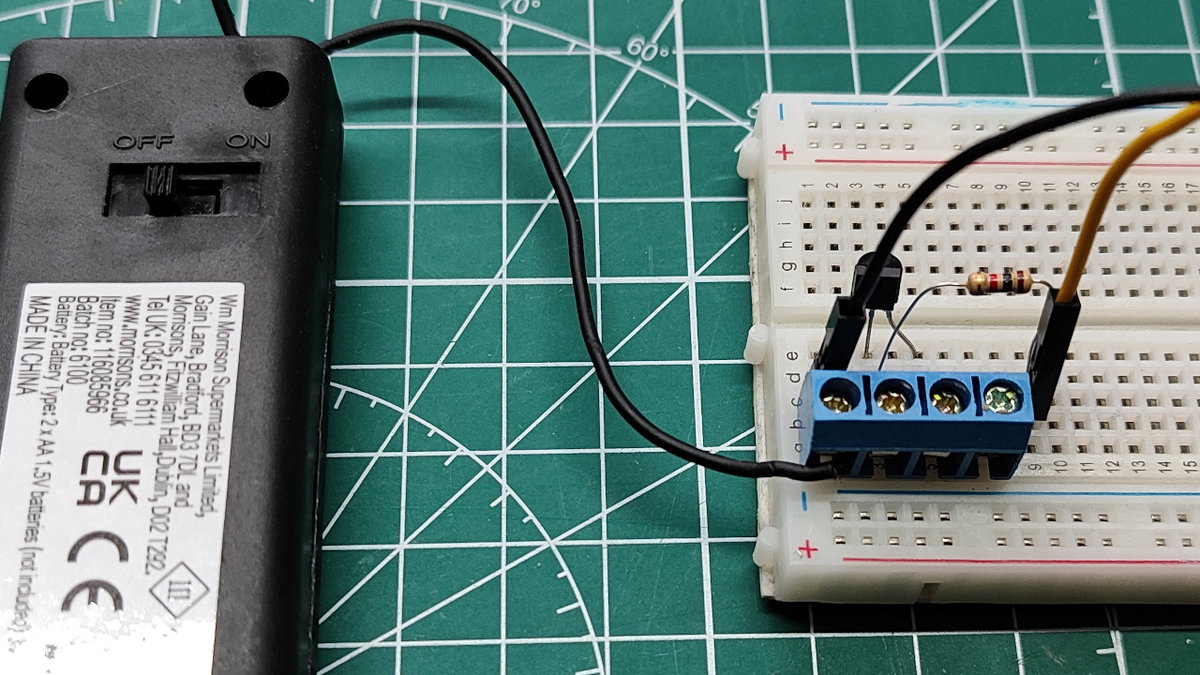
Insert the other GND wire into the third screw terminal, which is in line with the third pin (Collector) of the NPN transistor. There is always a connection between the GND of the battery pack and Inventor 2350 W. Switching the transistor on completes the LED circuit, connecting everything together.
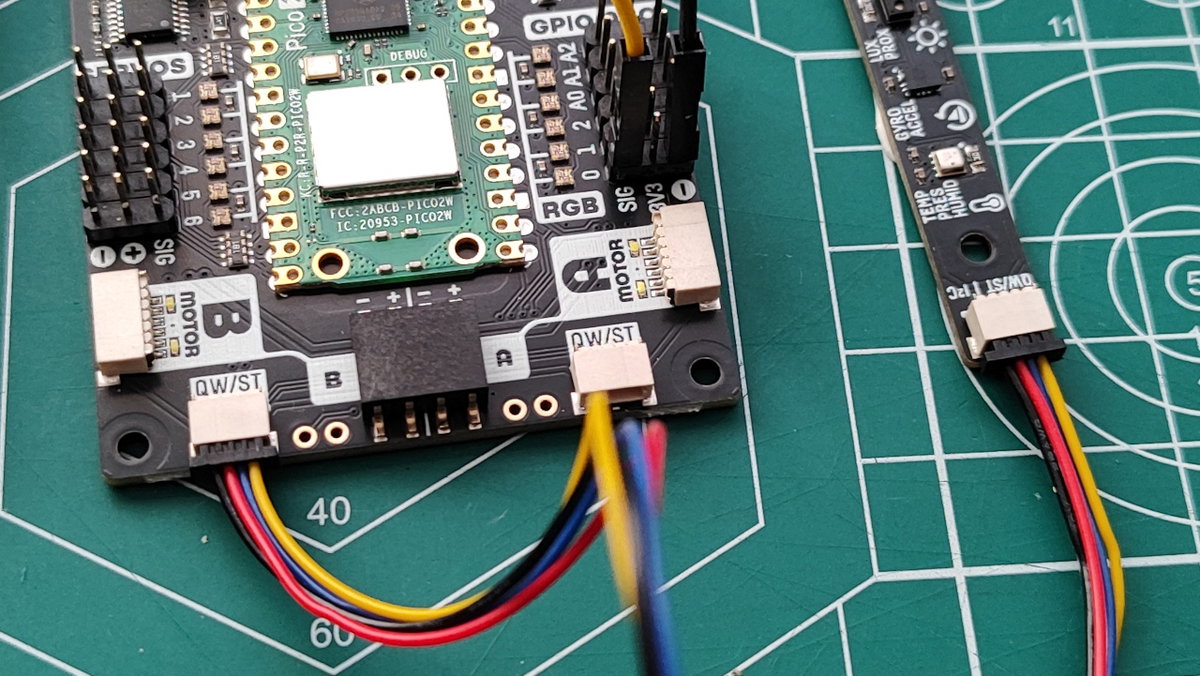
Using the Qw/ST cable, attach the Multi-Sensor Stick to Inventor 2350 W's left Qw/ST port. The cable can only go in one way.
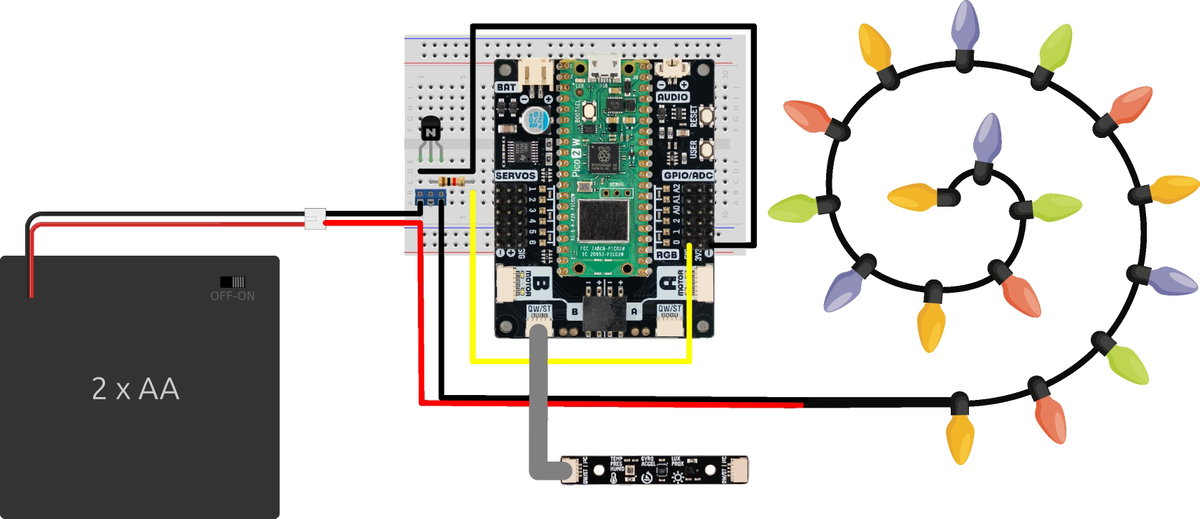
Check that your circuit looks like this.
Writing The Code
With Inventor 2350 W connected to your computer, open Thonny. By default, Inventor 2350 W will appear as a device named Board in FS mode ready to talk to Thonny.
Click on
Tools >> Options >> Interpreterto open the options for connecting to external devices. You can also go to the bottom right of the Thonny window, under the Shell, and from the dropdown menu select "Configure Interpreter". Both ways are correct.From the Interpreter list, select MicroPython (Raspberry Pi Pico).
From the Port list, select your Inventor 2350 W board and click OK. Your Inventor 2350 W should appear and be assigned a communications (COM) port. If not, try using auto-detect. Linux and Mac users will see the port as
/dev/ttyXXXXwith theXXXXreferring to the port. For example,/dev/ttyACM0or/dev/ttyUSB0.Check the Python Shell, which is at the bottom of Thonny, and you should see something like this.
MicroPython v1.26.1 on 2025-12-08; Raspberry Pi Pico2 W (Inventor 2350 W) with RP2350
Type "help()" for more information.
>>>
In a new blank file, import a series of modules (pre-written code) to add the following features to the code.
- Time: Used to control the pace at which the code runs.
- Pimoroni_i2c: A helper module that makes using the I2C interface much easier.
- Breakout_ltr559: Used to interface with the LTR559 lux / proximity sensor on the Multi-Sensor Stick.
- from machine import Pin, PWM: Imports two classes from MicroPython's hardware module. Pin controls a GPIO pin and PWM enables us to control the fade in and out of the LEDs.
import time
from pimoroni_i2c import PimoroniI2C
from breakout_ltr559 import BreakoutLTR559
from machine import Pin, PWM
Create two constants (data storage objects that are set once and never updated) for the GPIO pins used for I2C (Qw/ST) and
DARK_THRESHOLDwhich is the trigger point for turning on the LEDs.QWST_PINS = {'sda': 4, 'scl': 5} DARK_THRESHOLD = 50Create the I2C connection between Inventor 2350 W and the LTR559 on the Multi-Sensor Stick.
i2c = PimoroniI2C(**QWST_PINS) ltr = BreakoutLTR559(i2c)Set up the PWM pin (0) to operate at 1 kHz (1,000 times per second) and then set the duty cycle to zero. Pin 0 is where the signal pin on Inventor 2350 W connects to the Base pin of the NPN transistor via a resistor. Setting the PWM pin to operate at 1 kHz means that we don't see a flicker when the LEDs are being faded on and off. The duty cycle ranges from 0 (off) to 65535 (fully on). By setting it to zero when the code starts we prevent any accidental operations.
pwm = PWM(Pin(0)) pwm.freq(1000) pwm.duty_u16(0)Using a
try/finallysafety net, we attempt to run the main body of code, which starts with a loop to continuously run the code within it.try: while True:Take a lux (light) level reading and store the value in a variable,
reading.reading = ltr.get_reading()Check that the light level is not a
Nonevalue. There is a chance that the first reading may beNonewhich means that there is no value stored in the variable. If we don't include this check, then the code will error.if reading is not None:Store the lux level reading in a variable called
luxand then print the value to the Python Shell. Printing the value is more of a debug step, and to enable us to see the light levels, should we need to tweakDARK_THRESHOLDfor our location.lux = reading[BreakoutLTR559.LUX] print('Lux:', lux)If the lux level is less than
DARK_THRESHOLDthen the LED fade sequence is triggered. First it goes from zero to full brightness, then it fades back down. All of this is controlled usingforloops that square the PWM value so that the fade looks smooth. A shorttime.sleepin the for loops gives the LEDs time to show their colours, and provides additional smoothing for our sensitive eyes. The finaltime.sleepis used to stop the main loop from iterating too fast.if lux < DARK_THRESHOLD: for i in range(0, 256): pwm.duty_u16(i * i) time.sleep(0.003) for i in range(255, -1, -1): pwm.duty_u16(i * i) time.sleep(0.003) time.sleep(0.1)In the
finallysection ensure that the pin used for LED control is turned off, which triggers the transistor to switch off and breaks the GND connection to the battery, turning off all the LEDs.finally: pwm.deinit() Pin(0, Pin.OUT, value=0)Save the code as
main.pyto Inventor 2350 W and when ready, press RESET on the board. Make sure that the LED battery pack has batteries and that it is switched on.If you are in a bright room, the code will appear to do nothing. On the Multi-Sensor Stick, cover the
LUX PROXsensor with your finger. The LEDs should start fading on and off.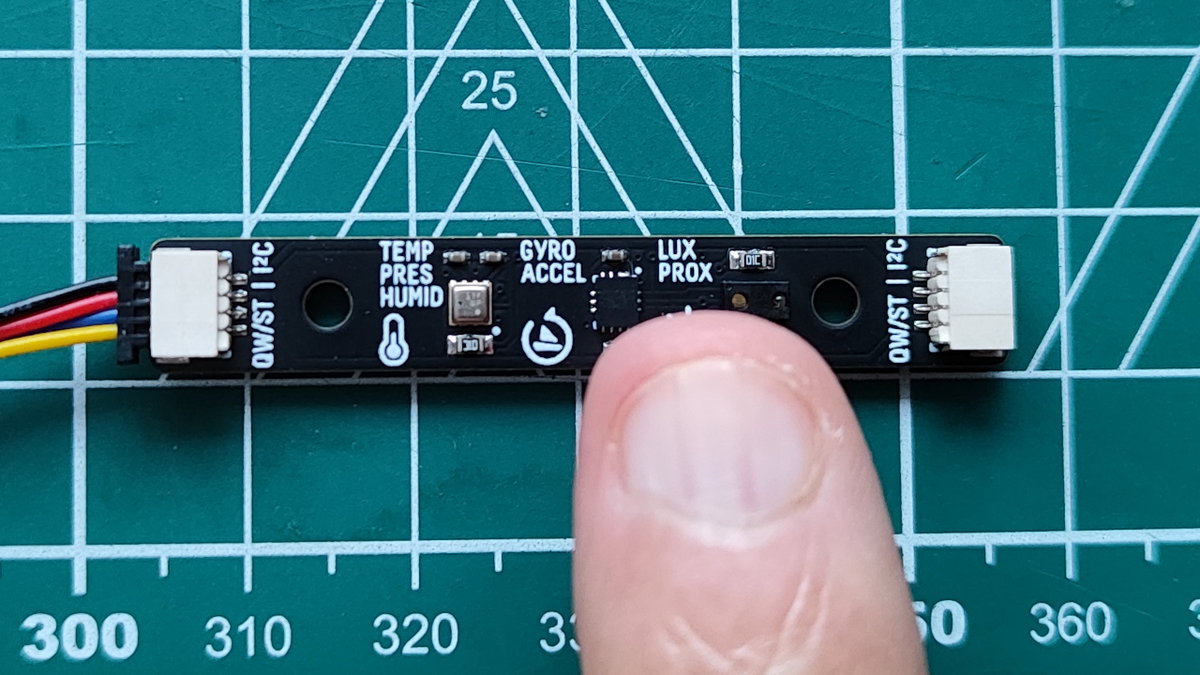
Complete Code Listing
import time
from pimoroni_i2c import PimoroniI2C
from breakout_ltr559 import BreakoutLTR559
from machine import Pin, PWM
QWST_PINS = {'sda': 4, 'scl': 5}
DARK_THRESHOLD = 50
i2c = PimoroniI2C(**QWST_PINS)
ltr = BreakoutLTR559(i2c)
pwm = PWM(Pin(0))
pwm.freq(1000)
pwm.duty_u16(0) # start at 0% so the LEDs stay off
try:
    while True:
reading = ltr.get_reading()
if reading is not None:
            lux = reading[BreakoutLTR559.LUX]
            print('Lux:', lux)
            if lux < DARK_THRESHOLD:
                for i in range(0, 256):
                    pwm.duty_u16(i * i)
                    time.sleep(0.003)
                for i in range(255, -1, -1):
                    pwm.duty_u16(i * i)
                    time.sleep(0.003)
        time.sleep(0.1)
finally:
    pwm.deinit()
    Pin(0, Pin.OUT, value=0)
What Have We Learnt?
- How to use a transistor in a circuit.
- How to connect LED strings to a microcontroller.
- How to read light levels using a sensor.
- How to fade LEDs using PWM.
The music used in the video for this guide is Circus Tent - Netherworld Shanty by Kevin MacLeod and it is licensed under a Creative Commons Attribution 4.0 licence.
Artist: incompetech.com