 Intermediate
Build an RGB LED Doorbell with Home Assistant
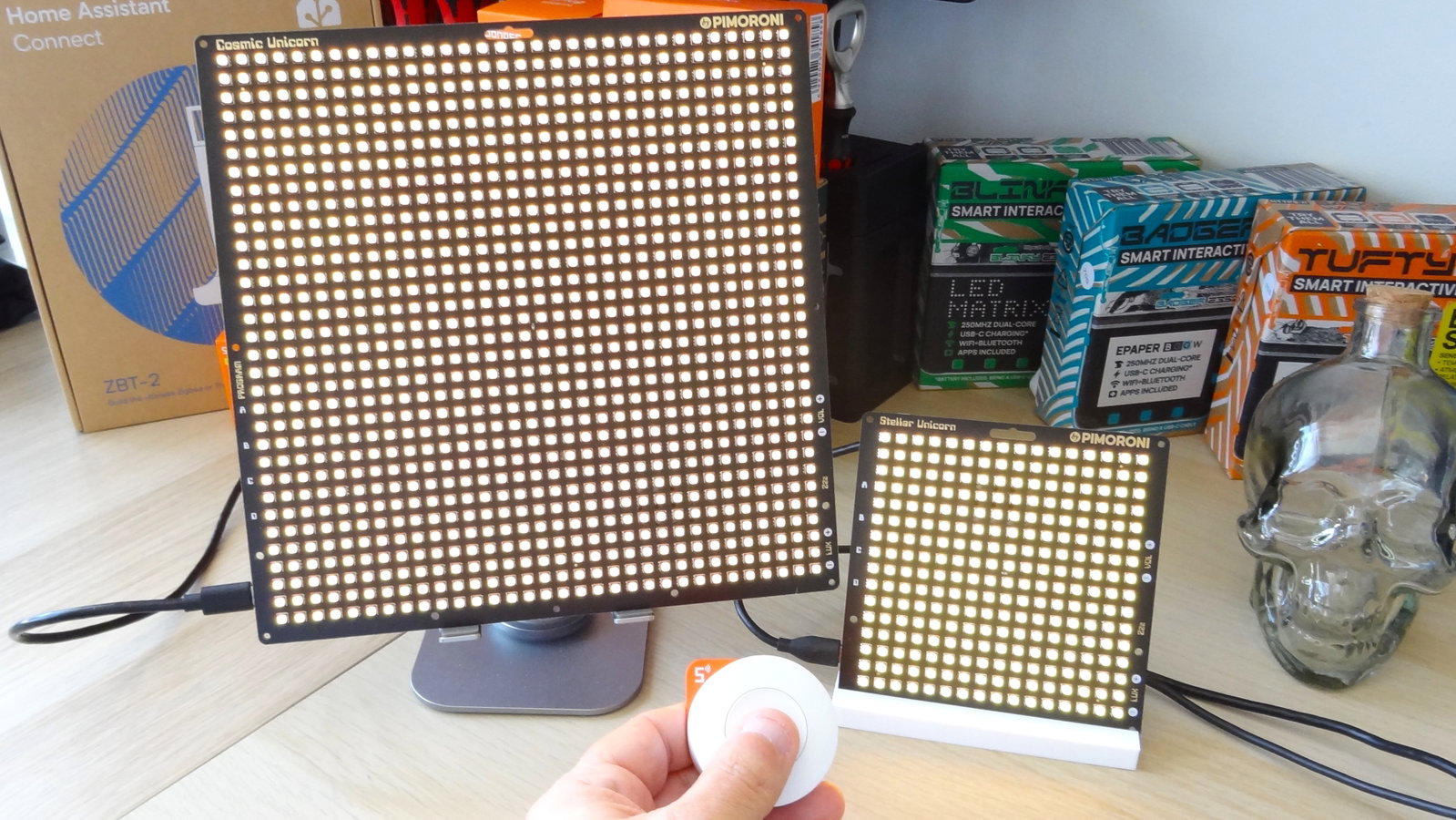
Learn how to create a custom doorbell with colourful light effects triggered by a wireless Zigbee button.
I wanted a custom doorbell for my home, and with a fresh Home Assistant install ready for action, I did what every self respecting geek would do. I made myself a doorbell.
Using a Stellar Unicorn as a doorbell may seem unusual, but the mix of a Raspberry Pi Pico 2 W, 256 RGB LEDs and built-in speaker makes it ideal as a discrete, yet alerting doorbell.
In this tutorial we will use a Sonoff Zigbee wireless switch as a doorbell button to trigger audio playback and all of Stellar Unicorn's 256 LEDs, alerting us to another delivery of maker toys!
This project can also be used with Cosmic and Galactic Unicorns. We tested it with Stellar and Cosmic at the same time. Just remember to adapt the Stellar modules to Cosmic and Galactic respectively.
What You'll Need
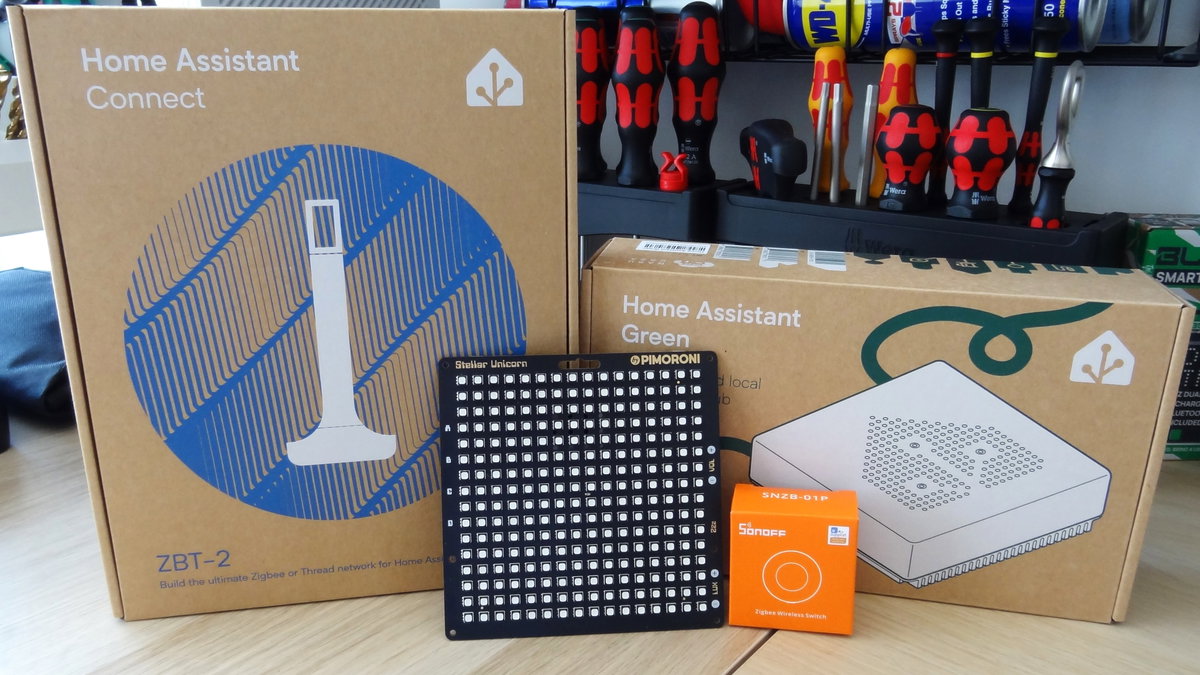
Sonoff Zigbee Wireless Switch Home Assistant Green or a Raspberry Pi 5 running Home Assistant Home Assistant Connect ZBT-2 for Zigbee / Matter / Thread connectivity Stellar Unicorn, Galactic Unicorn or Cosmic Unicorn
The Process
At a glance, this project is quite involved, but breaking it down into sections, we can achieve our goal with no issues.
- Setup a Sonoff Zigbee wireless switch.
- Setup MQTT in Home Assistant
- Setup a Mosquitto MQTT Broker.
- Create an MQTT user.
- Configure an MQTT device.
- Configure what a button press will trigger.
- Publish a message on a specific MQTT topic that Stellar Unicorn will listen for.
- Write an MQTT subscriber MicroPython app on Stellar Unicorn
What is MQTT?
Message Query Telemetry Transport (MQTT) is a lightweight messaging protocol for resource constrained devices including microcontrollers. Created in 1999 by Andy-Stanford-Clark and Arlen Nipper, MQTT was originally designed to send data from remote locations, over less than reliable networks. Over the years, it has been used in popular projects such as Facebook Messenger, but it is the Internet of Things (IoT) where MQTT has made its mark.
In principle, MQTT works in a similar way to YouTube. There are publishers, subscribers and a broker.
- Publishers are content creators. In MQTT a publisher will send messages using a topic to identify its purpose. In this project we use "pirate remote" to identify the project on a public MQTT network.
- Broker is YouTube's platform. Content creators publish their content to YouTube, and subscribers subscribe to consume the content. In MQTT, a broker handles passing the messages between the Publishers and the Subscribers.
- Subscribers are YouTube viewers. MQTT subscribers have told the broker (subscribed) that they want to receive messages on a certain topic and the broker will route their messages to them.
In this project, the Sonoff Zigbee wireless switch is the trigger to publish, and the Home Assistant device is the broker, and Stellar Unicorn is the subscriber which listens on a specific MQTT topic.
Home Assistant Setup
We're going to assume that you have already setup a Home Assistant, if not we have a great guide on getting started. That guide also details how to connect the Sonoff Zigbee Wireless Switch to your Home Assistant device.
We'll jump right into setting up MQTT in Home Assistant.
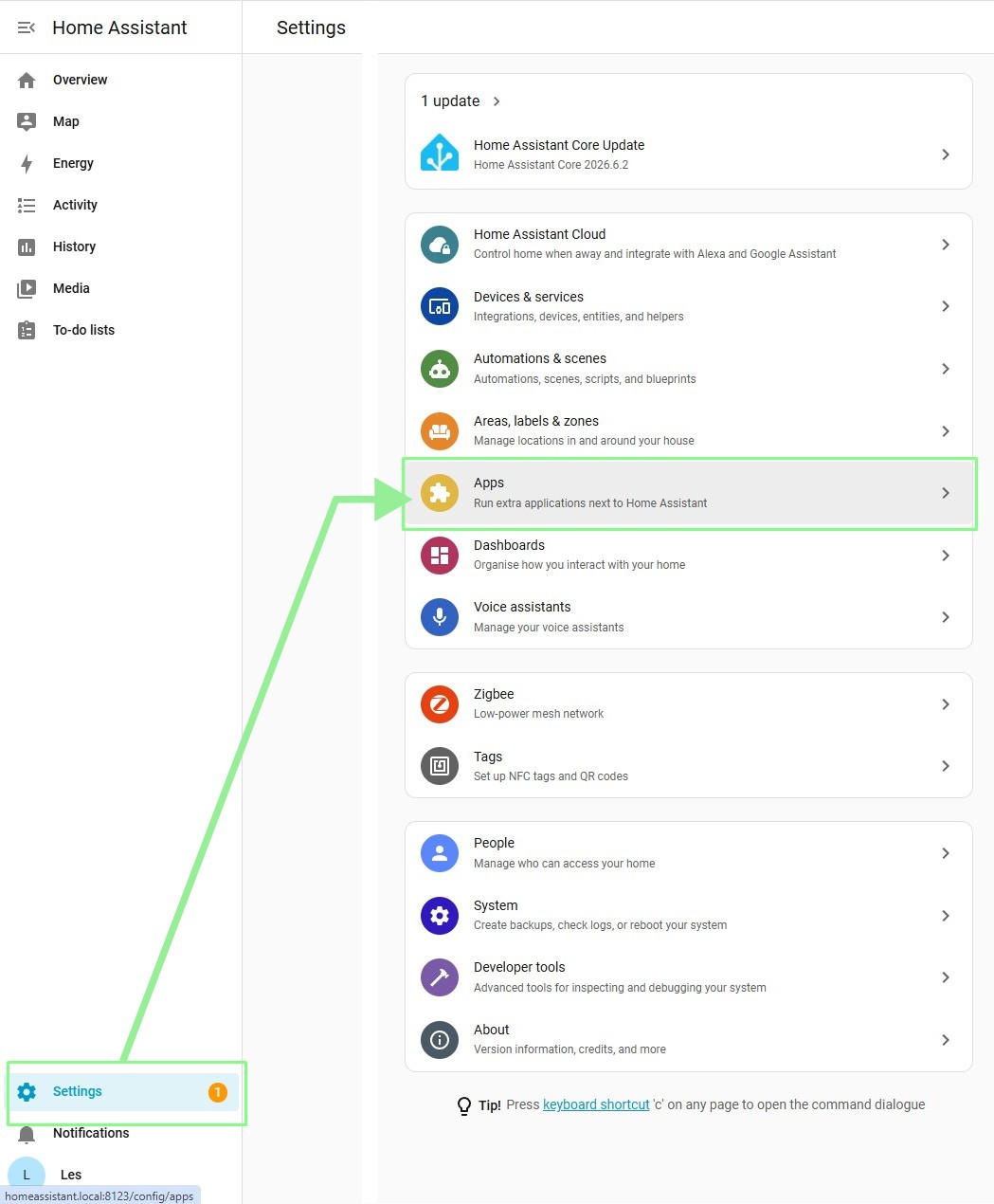
- Open Home Assistant in a browser and go to Settings >> Apps.
- Click on Install App.
- Search for Mosquitto and click to open the app page.
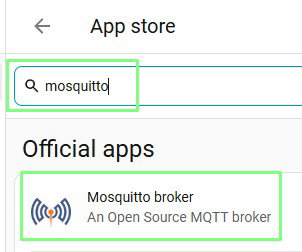
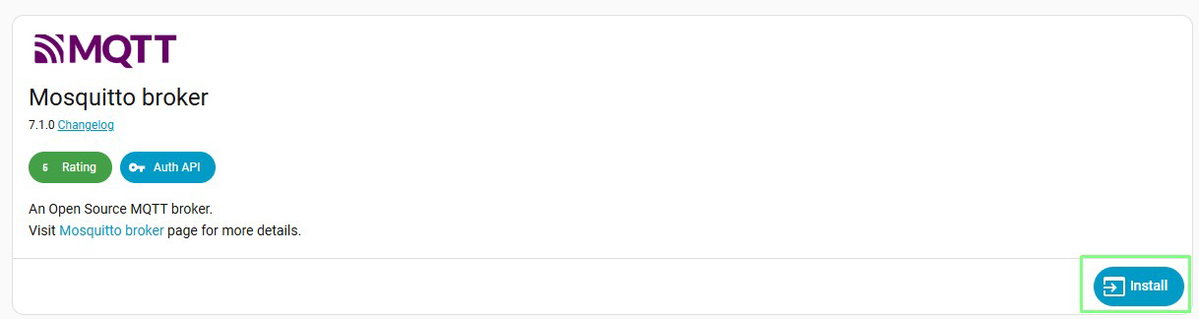
- Click on Install.
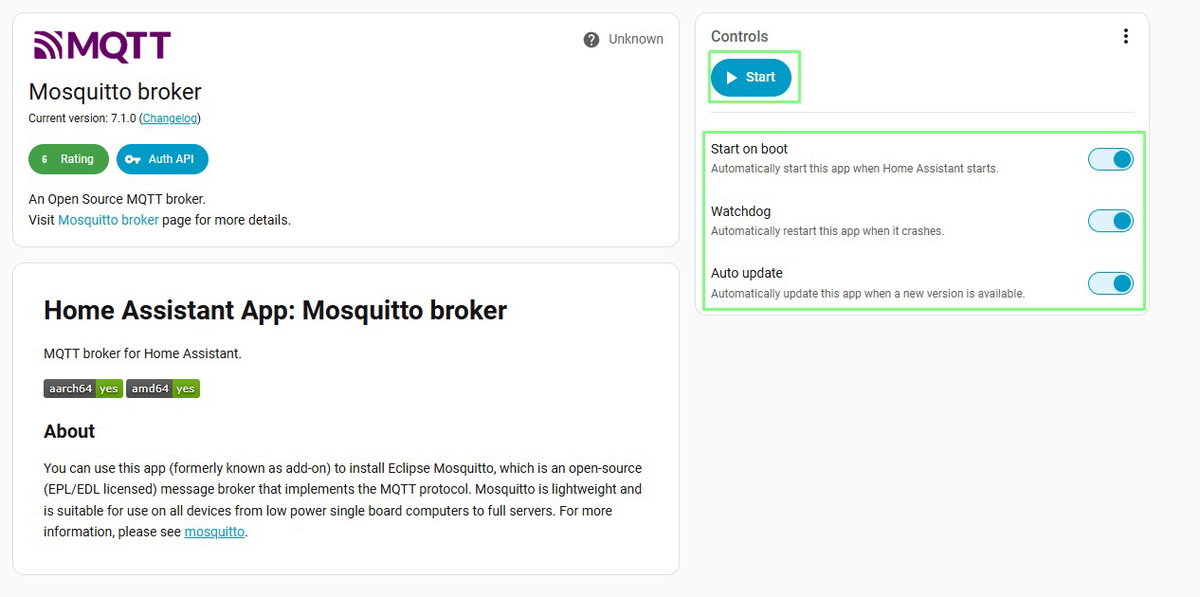
- Set Mosquitto to start on boot, run a watchdog (to restart if it crashes) and to auto-update. Then click on Start to activate the Mosquitto MQTT broker.
- Now go to Settings >> People.
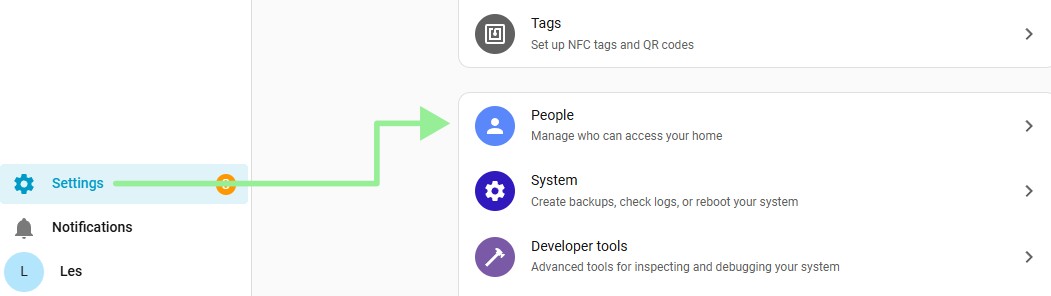
- Click on Users.
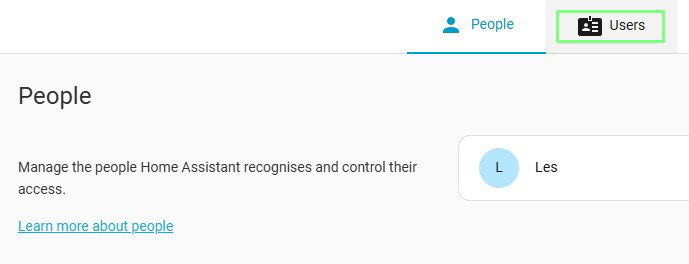
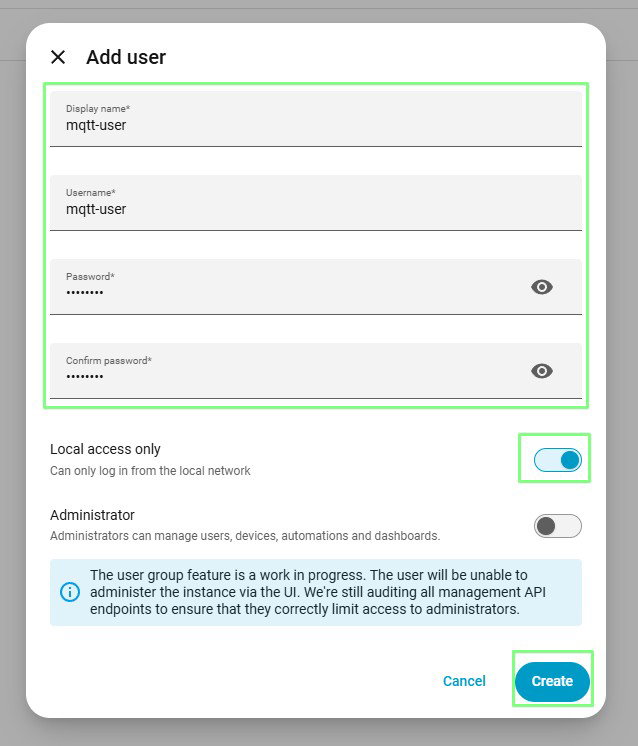
- Click on Add User

- Create a new mqtt-user and give the account a strong password. Set the user to have local access. Click Create when done.
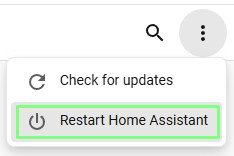
- Click on Settings and in the top right of the screen are the dots. Click on that and Restart Home Assistant. Doing this ensures that our changes are freshly updated and ready for use.
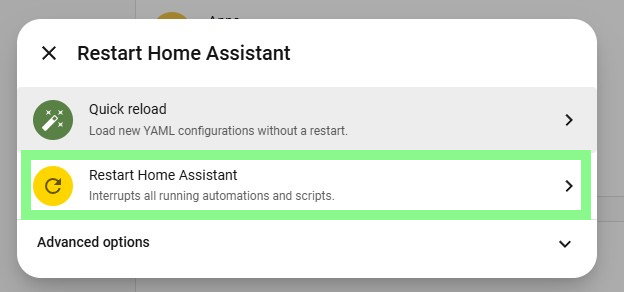
- Select a full restart of Home Assistant. Wait for the restart to finish before moving on. This can take a couple of minutes
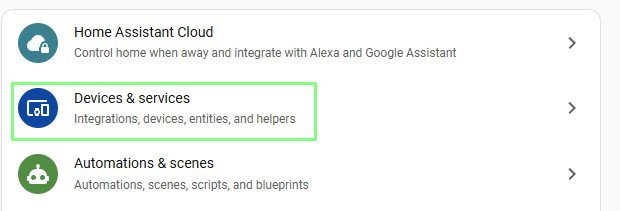
- Click on Settings >> Devices & Services.
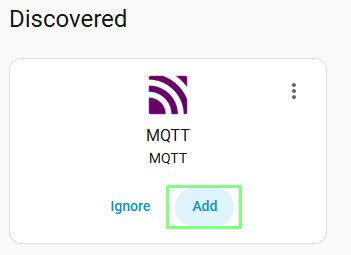
- MQTT should automatically be discovered, click on Add.
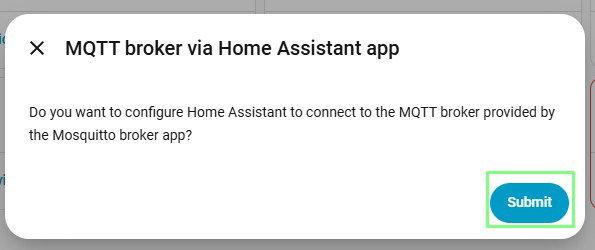
- Click on Submit to automatically configure the MQTT broker. Click Finish when prompted.
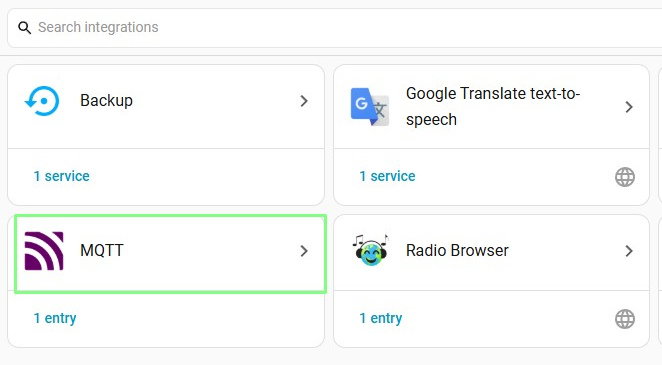
- Click on Settings >> Devices & Services and then MQTT.
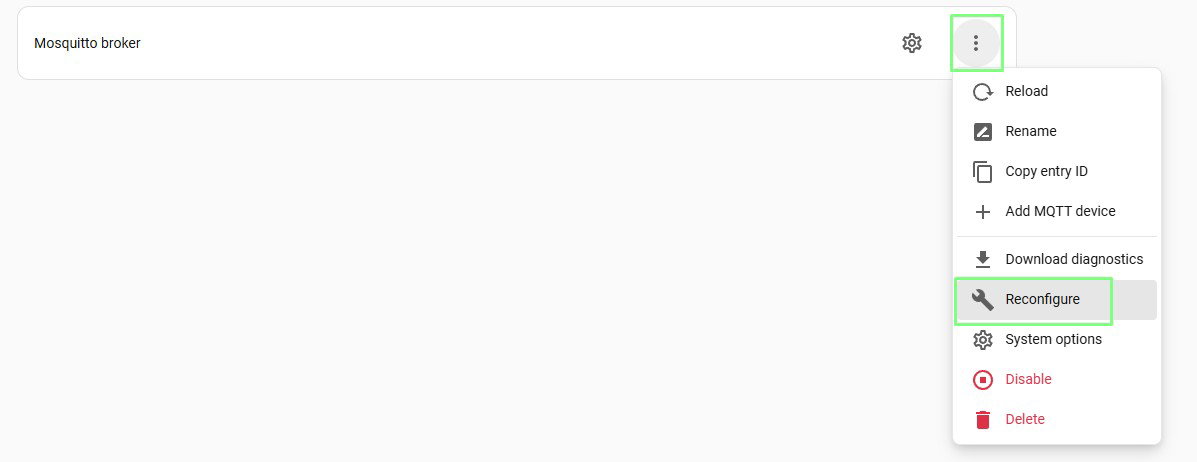
- Click on the three dots and select Reconfigure.
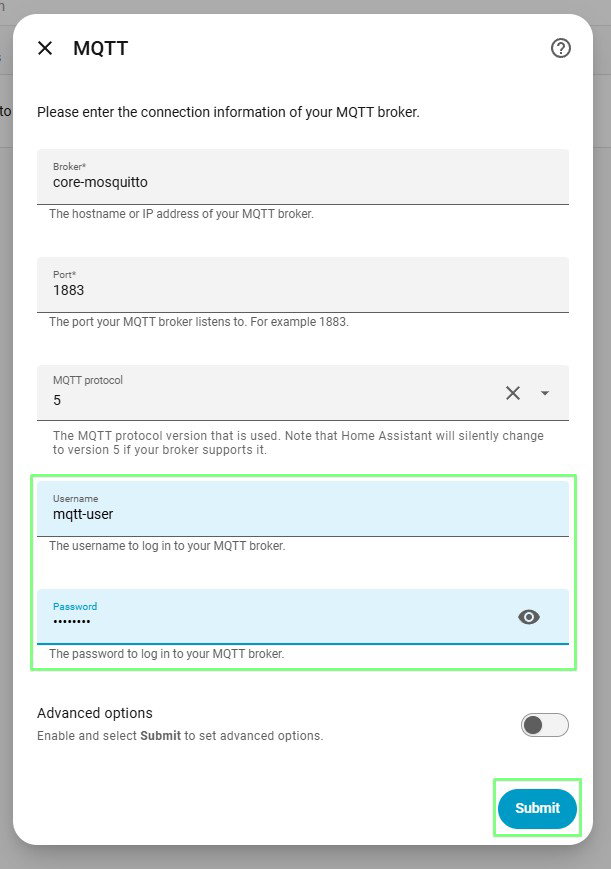
- Change the MQTT username and password to the user account that we created earlier and then click Submit.
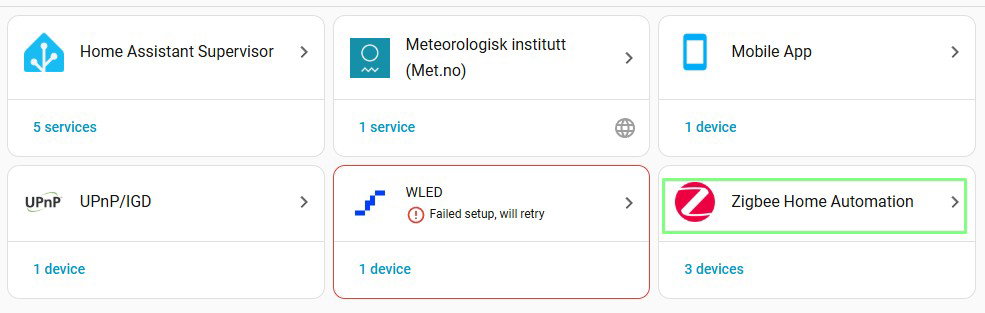
- Click on Settings >> Devices & Services.

- Select Zigbee Home Automation.
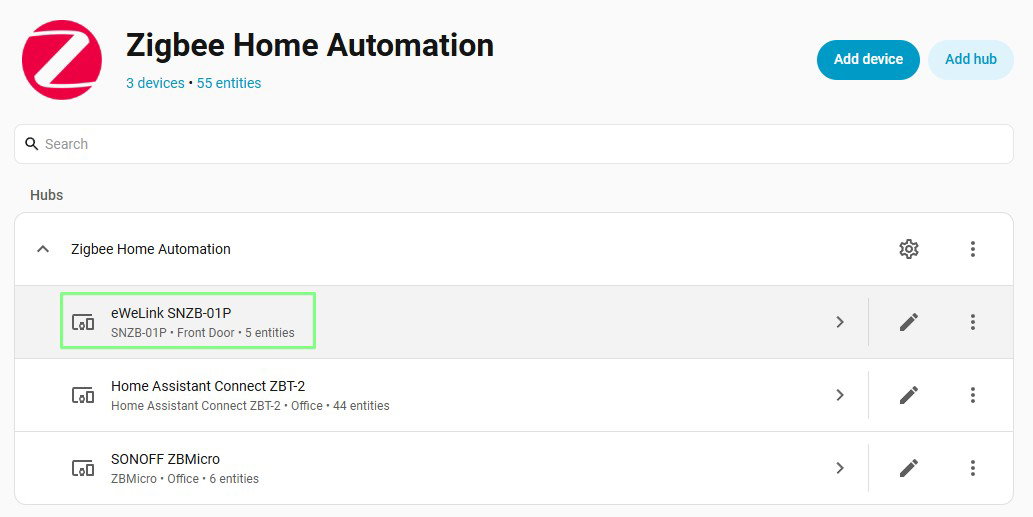
- Select the eWeLink SNZB-01P (Sonoff SNZB-01P) button.
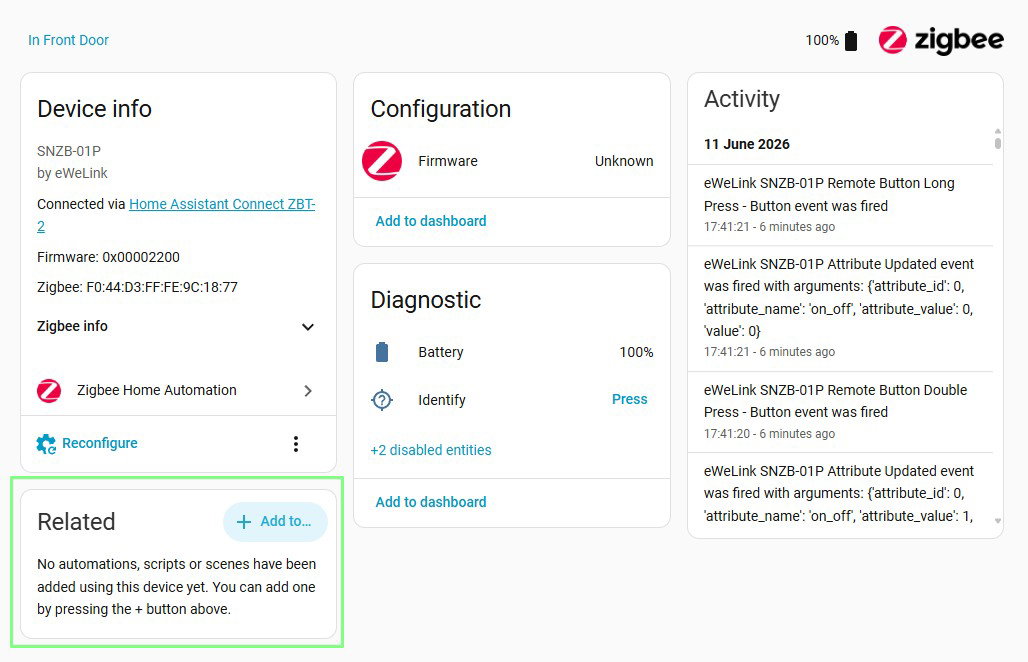
- Under Related, click on Add to.
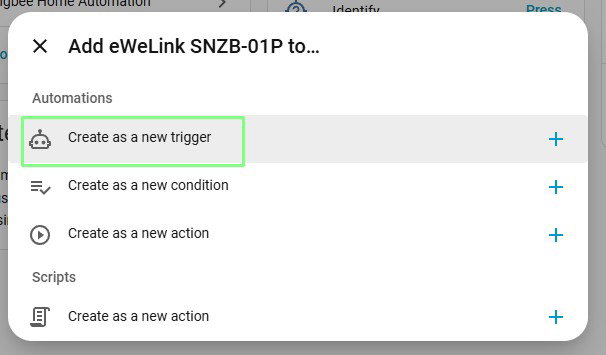
- Click on Create a New Trigger. In Home Assistant parlance, this is called an Automation.
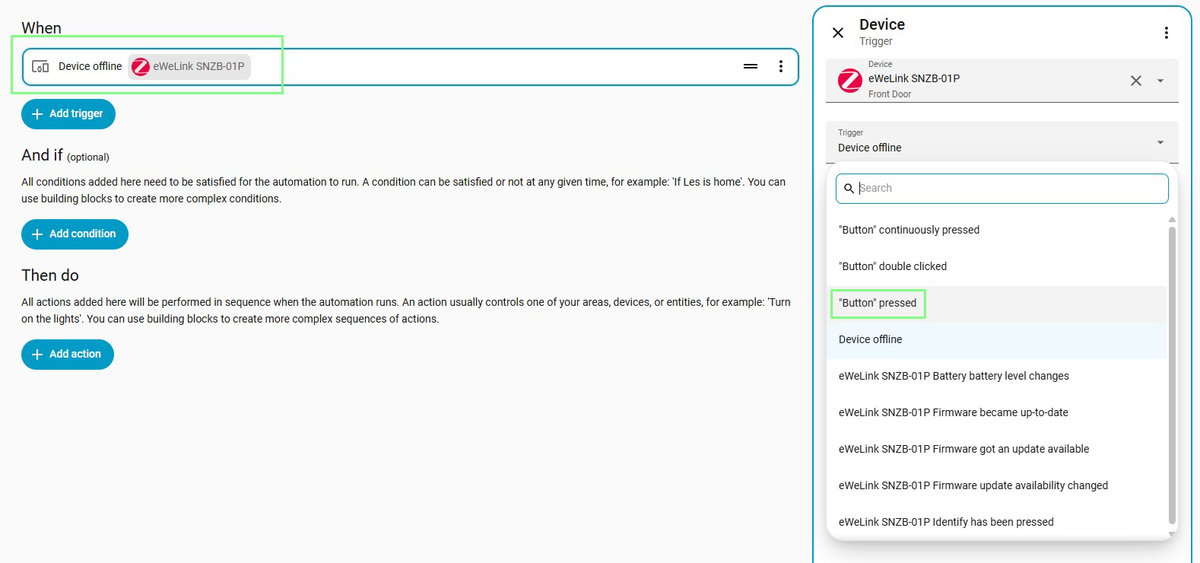
- Set "When" the button is pressed.
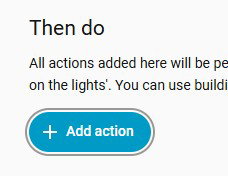
- Click on Add Action which is under "Then Do".
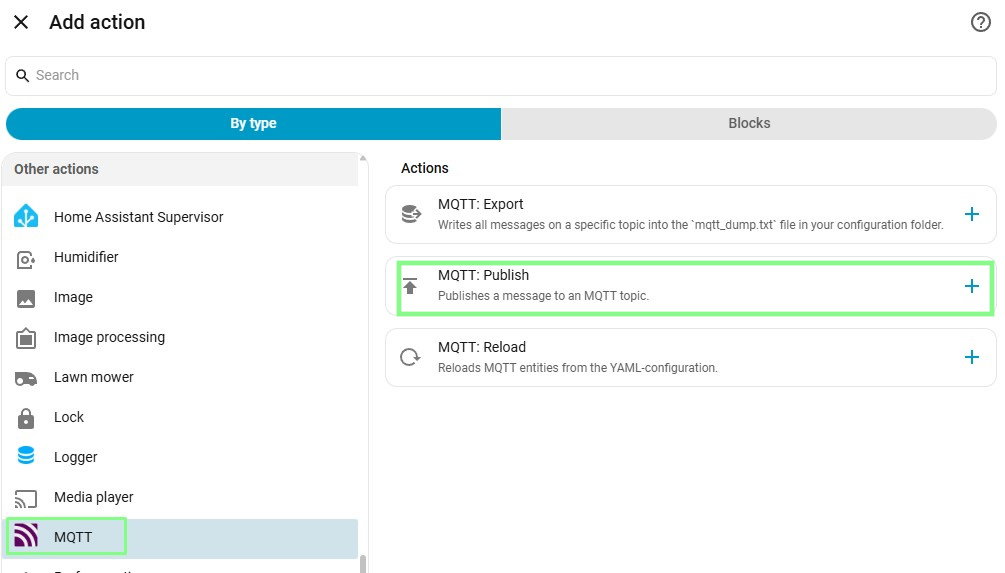
- Scroll down the list to MQTT and select MQTT Publish
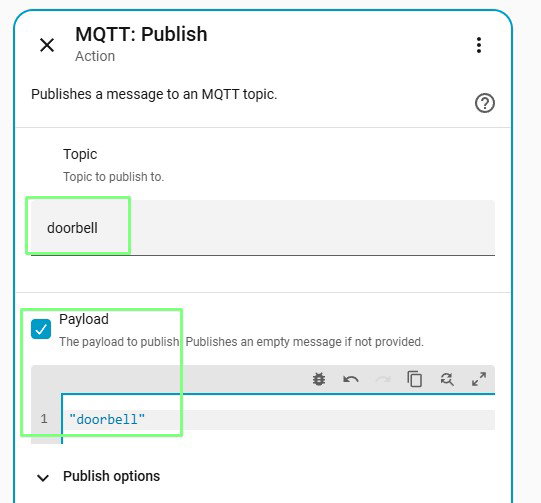
- Set the topic to doorbell and the payload to doorbell. Click on Save.
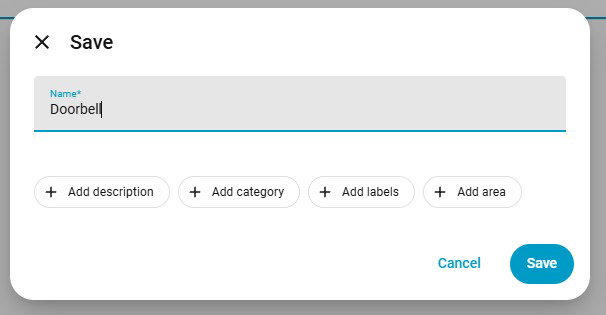
- Name the automation "Doorbell" and click Save.
That is all of the MQTT broker setup complete. We have a device, our Sonoff button, which when pressed will trigger Home Assistant to publish an MQTT message to the broker. Now our task is to write the MicroPython code for our Stellar Unicorn RGB LED doorbell, so that it subscribes to the MQTT broker and listens for messages.
Stellar Unicorn Setup
Stellar Unicorn (or any of the other Space Unicorns) is our doorbell. The grid of RGB LEDs will visually alert us to a doorbell press, and the onboard speaker provides us with a jingle to get our attention.
- Download and install the latest firmware for your Stellar Unicorn. Note that since December 2024, Stellar and the other space unicorns use a Raspberry Pi Pico 2 W. Older boards (such as mine) use the Raspberry Pi Pico W. Choose the correct firmware for your board.
- Open Thonny and connect to your Stellar Unicorn.
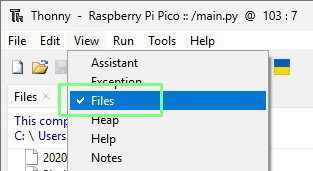
- Click on View >> Files to see the files on Stellar Unicorn and your computer. We will be moving files from our PC to Stellar Unicorn and Thonny's file manager is the easiest way to do so.
- Download audio.py and doorbell.wav from this GitHub repository.
- Using Thonny's file manager, copy the downloaded files to Stellar Unicorn by right clicking on the file and selecting "Upload to /".
- Create a new file on Stellar Unicorn and add four variables. The first two are the SSID and password for your Wi-Fi. The next is your MQTT user name, which we set to "mqtt-user" and the final entry is your MQTT password. These variables are the secrets username and passwords that we don't want to share.
SSID = "YOUR SSID"
PASSWORD = "YOUR WIFI PASSWORD"
MQTT_USERNAME =  "MQTT USERNAME"
MQTT_PASSWORD = "YOUR MQTT PASSWORD"
- Save the file to the root of Stellar Unicorn as secrets.py.
- On Stellar Unicorn, open main.py and delete the contents, and then press Save. MicroPython runs main.py when the board is powered up and it will automate the doorbell's connection to our Home Assistant setup.
- Import a series of modules that will be used in the project.
- Stellar: This module enables communication between our code and the underlying hardware.
- Picographics: Used to update the RGB LED matrix.
- UMQTT: A microcontroller version of MQTT which is used to subscribe to the MQTT broker.
- Time: To control delays / pauses in the code.
- Network: To create a Wi-Fi connection.
- Audio: Simple WAV file audio playback via the audio.py file that we downloaded earlier.
- Secrets: The Wi-Fi and MQTT login details that we want to keep out of our main.py code.
from stellar import StellarUnicorn
from picographics import PicoGraphics, DISPLAY_STELLAR_UNICORN
from umqtt.simple import MQTTClient
import time
import network
from audio import WavPlayer
import secrets
- Create an object sound which creates a connection between our code and the I2S audio chip on Stellar Unicorn.
sound = WavPlayer(0, 10, 11, 9, amp_enable=22)
- Create objects graphics and su to make it easier to work with Stellar Unicorn's RGB LED matrix.
graphics = PicoGraphics(display=DISPLAY_STELLAR_UNICORN)
su = StellarUnicorn()
- Create objects to store the RGB colour values for black, red, yellow and green. We're using PicoGraphics to set the colour of all the pixels in the matrix. Black is used to turn off all of the RGB LED pixels.
BLACK  = graphics.create_pen(0,0,0)
RED    = graphics.create_pen(128,0,0)
YELLOW = graphics.create_pen(118,92,26)
GREEN  = graphics.create_pen(0,128,0)
- Using the details stored in secrets.py create objects for the SSID and Wi-Fi password.
SSID     = secrets.SSID
PASSWORD = secrets.PASSWORD
- Create a function connect_wifi() that takes three arguments (SSID, password and a connection timeout in seconds). The function creates an object called wlan that creates a bridge between our code and the Wi-Fi radio device. We then use that to turn on the Wi-Fi radio and then connect to Wi-Fi.
def connect_wifi(ssid, password, timeout=20):
    wlan = network.WLAN(network.STA_IF)
    wlan.active(True)
	wlan.connect(ssid,password)
- Print the connection details to the Python Shell. This is a debug step and is not essential.
    print(f"Connected! IP: {wlan.ifconfig()[0]}")
    return wlan
- Create a function show_colour() that takes two arguments, the colour and the duration that it should be shown (it defaults to two seconds). The function takes the colour as the pen colour and using a clear command it will set all the pixels to that colour. Then it sleeps for a duration, before turning all the pixels off by setting them to black.
def show_colour(pen, duration=2):
    graphics.set_pen(pen)
    graphics.clear()
    su.update(graphics)
    time.sleep(duration)
    graphics.set_pen(BLACK)
    graphics.clear()
    su.update(graphics)
- Using try, make a connection to your Wi-Fi, if successful it will use the show_colour function to set all the LEDs to green for two seconds. If it fails, all of the LEDs will go red and the error is printed to the Python Shell for debug.
try:
    connect_wifi(SSID, PASSWORD)
    show_colour(GREEN)
except RuntimeError as e:
    print(e)
    show_colour(RED, duration=0)
- Setup the MQTT details into a series of variables. You can use the hostname (typically homeassistant.local) or you will need to know the IP address of the Home Assistant device. You can find the IP address via your router or via Home Assistant's Settings >> System >> Network page under Network Adapter. The MQTT port is by default 1883, and the CLIENT_ID should be unique. We set ours to living room which is where this doorbell will live but if you intend to replicate this on other boards, give them all unique names otherwise they will disconnect each other. Finally you will need to use secrets for your MQTT username and password, and set the topic to b"doorbell".
MQTT_BROKER   = "homeassistant.local"
MQTT_PORT     = 1883
CLIENT_ID     = "living-room"
MQTT_USERNAME = secrets.MQTT_USERNAME
MQTT_PASSWORD = secrets.MQTT_PASSWORD
TOPIC         = b"doorbell"
- Create a function on_message() that has two arguments, the subscribed topic and the message. The function will print the topic and the message to the Python Shell and then trigger the doorbell audio file. While the doorbell sound is playing, it will use the show_colour() set the RGB LEDs to yellow and then turn off the LEDs when playback stops.
def on_message(topic, msg):
    print(f"Topic: {topic.decode()}, Message: {msg.decode()}")
    sound.play_wav("doorbell.wav", False)
    while sound.is_playing():
        show_colour(YELLOW)
- Create a function, main() which handles the MQTT connection using an object called client.
def main():
    client = MQTTClient(
        client_id=CLIENT_ID,
        server=MQTT_BROKER,
        port=MQTT_PORT,
        user=MQTT_USERNAME,
        password=MQTT_PASSWORD,
    )
- Use the client to set the MQTT callback function (which runs when an event such as a message occurs) to call the on_message() function.
client.set_callback(on_message)
- Using the client, connect to the MQTT broker, print the connection details and then subscribe to the doorbell topic. Then print that it has successfully connected.
    client.connect()
    print(f"Connected to MQTT broker {MQTT_BROKER}")
    client.subscribe(TOPIC)
    print(f"Subscribed to: {TOPIC.decode()}")
- Using a try and a loop, wait for MQTT messages, with a short pause to prevent the CPU from working too hard. If an error or exception occurs, the except trap will catch and print the error message to the Python Shell.
    try:
        while True:
            client.wait_msg()
            time.sleep(0.5)
    except OSError as e:
        print(f"MQTT connection lost: {e}")
- Finally, call the main() function to run the code.
main()
- Save the code as main.py.
- Click on the green run icon (it looks like a play button) to run the code. Doing it from Thonny enables us to see any errors or issues.
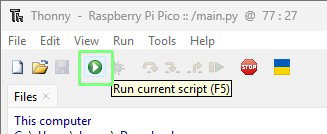
- You should see the RGB LED matrix flash green, wait a couple of seconds and then grab your Zigbee button and press it to trigger the doorbell. You should hear a "ding dong" and see the matrix light up yellow.
Complete Code Listing
from stellar import StellarUnicorn
from picographics import PicoGraphics, DISPLAY_STELLAR_UNICORN
from umqtt.simple import MQTTClient
import time
import network
from audio import WavPlayer
import secrets


sound = WavPlayer(0, 10, 11, 9, amp_enable=22)
graphics = PicoGraphics(display=DISPLAY_STELLAR_UNICORN)
su = StellarUnicorn()

BLACK  = graphics.create_pen(0,0,0)
RED    = graphics.create_pen(128,0,0)
YELLOW = graphics.create_pen(118,92,26)
GREEN  = graphics.create_pen(0,128,0)


SSID     = secrets.SSID
PASSWORD = secrets.PASSWORD

def connect_wifi(ssid, password, timeout=20):
    wlan = network.WLAN(network.STA_IF)
    wlan.active(True)
    wlan.connect(ssid,password)
    print(f"Connected! IP: {wlan.ifconfig()[0]}")
    return wlan

def show_colour(pen, duration=2):
    graphics.set_pen(pen)
    graphics.clear()
    su.update(graphics)
    time.sleep(duration)
    graphics.set_pen(BLACK)
    graphics.clear()
    su.update(graphics)

try:
    connect_wifi(SSID, PASSWORD)
    show_colour(GREEN)
except RuntimeError as e:
    print(e)
    show_colour(RED, duration=0)


MQTT_BROKER   = "homeassistant.local"
MQTT_PORT     = 1883
CLIENT_ID     = "living-room"
MQTT_USERNAME = secrets.USERNAME
MQTT_PASSWORD = secrets.MQTT_PASSWORD
TOPIC         = b"doorbell"

def on_message(topic, msg):
    print(f"Topic: {topic.decode()}, Message: {msg.decode()}")
    sound.play_wav("doorbell.wav", False)
    while sound.is_playing():
        show_colour(YELLOW)

def main():
    client = MQTTClient(
        client_id=CLIENT_ID,
        server=MQTT_BROKER,
        port=MQTT_PORT,
        user=MQTT_USERNAME,
        password=MQTT_PASSWORD,
    )
    client.set_callback(on_message)
    client.connect()
    print(f"Connected to MQTT broker {MQTT_BROKER}")
    client.subscribe(TOPIC)
    print(f"Subscribed to: {TOPIC.decode()}")

    try:
        while True:
            client.wait_msg()
            time.sleep(0.5)
    except OSError as e:
        print(f"MQTT connection lost: {e}")

main()
What Have We Learnt?
This was a big project, so give yourself a pat on the back! During the project we covered
- Setting up a Zigbee button as a trigger.
- Got to grips with Home Assistant.
- Installed and configured an MQTT broker in Home Assistant.
- Created an automation triggered by a button press.
- Created code on Stellar Unicorn which triggers the LEDs to light up and sound to play from the onboard speaker.