 Easy
Easy
Lights and Sound with Tiny FX W and Infrared
Learn how to add nifty remote controlled light and sound effects to your favourite model.
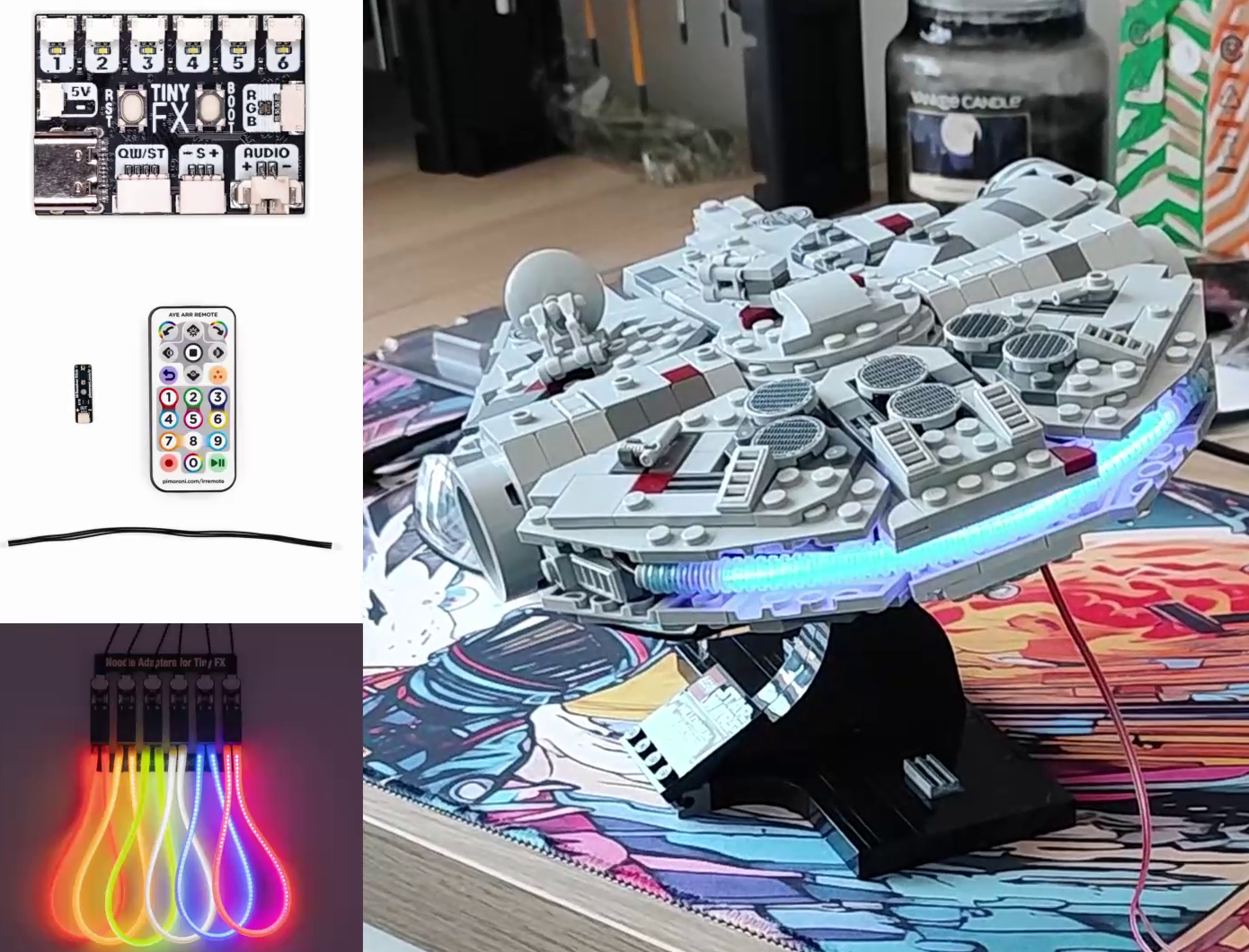
The Tiny FX range brings light and sound to your models and dioramas. Combining it with our new IR Receiver Stick + Remote Kit lets us remotely control our models and scenes via infrared from the comfort of our sofa. In this tutorial we’ll guide you through the process of wiring up and coding the project.
Watch on YouTube
What you'll need
- A Tiny FX W Starter Kit
- Infrared Receiver Stick + Remote Kit
- LED Noodles
- Noodle Adapters
- A model kit (we chose a Lego Millennium Falcon)
Substitutions
We'll be using a Tiny FX W in this project, but if you have the version without Wi-Fi you'll be able to wire it up in exactly the same way. You could use one of the mono LED dots or strips in the starter kit instead of the LED noodle (or multiple mono LEDs, if you connect them up using an expansion board).
Wiring up the project
With the components in the Starter Kit and the new IR receiver kit your project will soon be lighting up your bookcase and making lots of noise! And we don’t even have to whip out a soldering iron (unless you really want to).
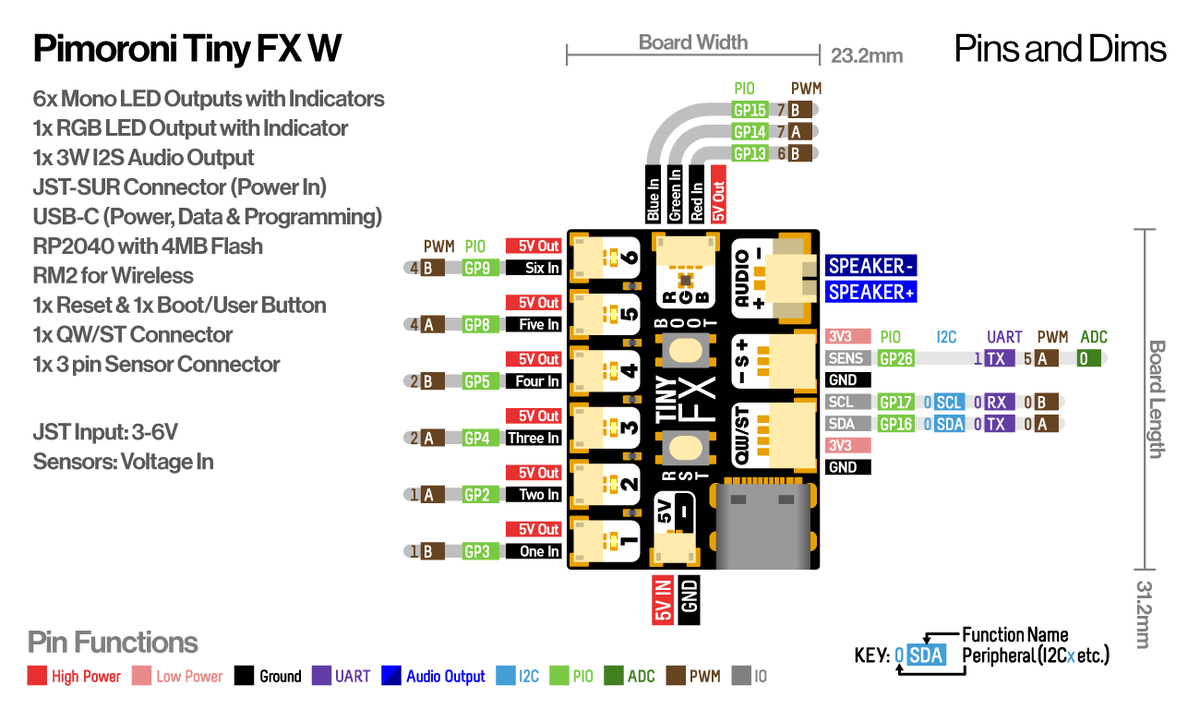
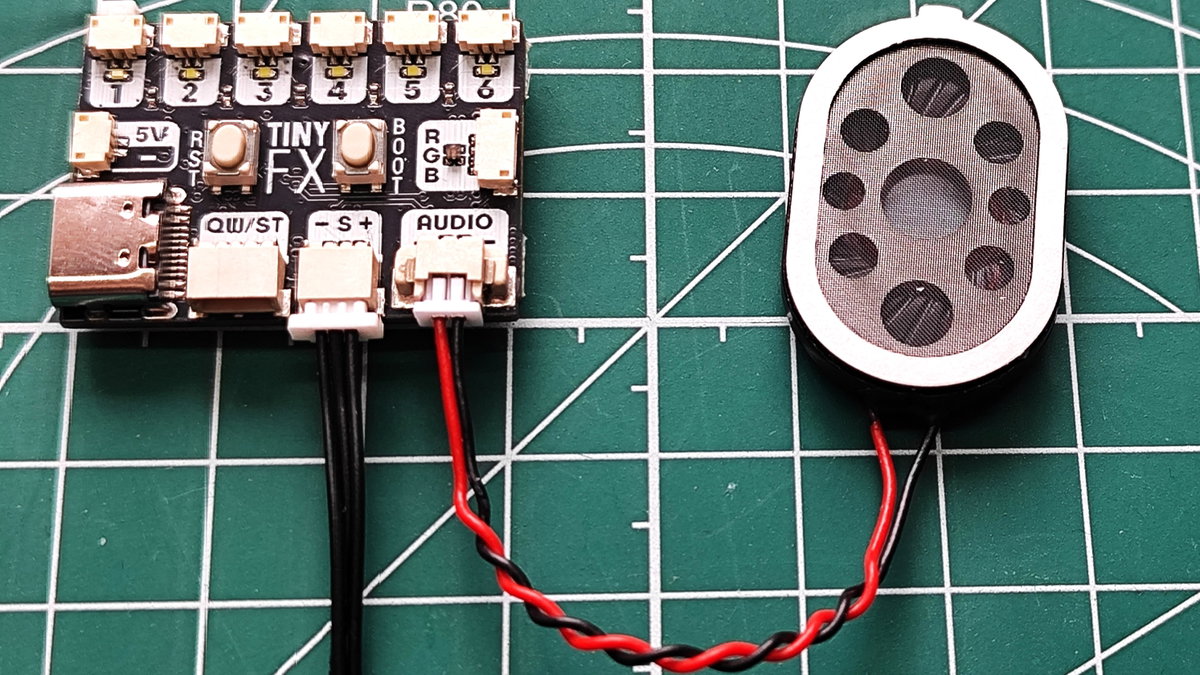
Tiny FX W has purpose built connections for input and output devices. For this project we will be using the following.
- LED Noodle
- Speaker
- IR Receiver
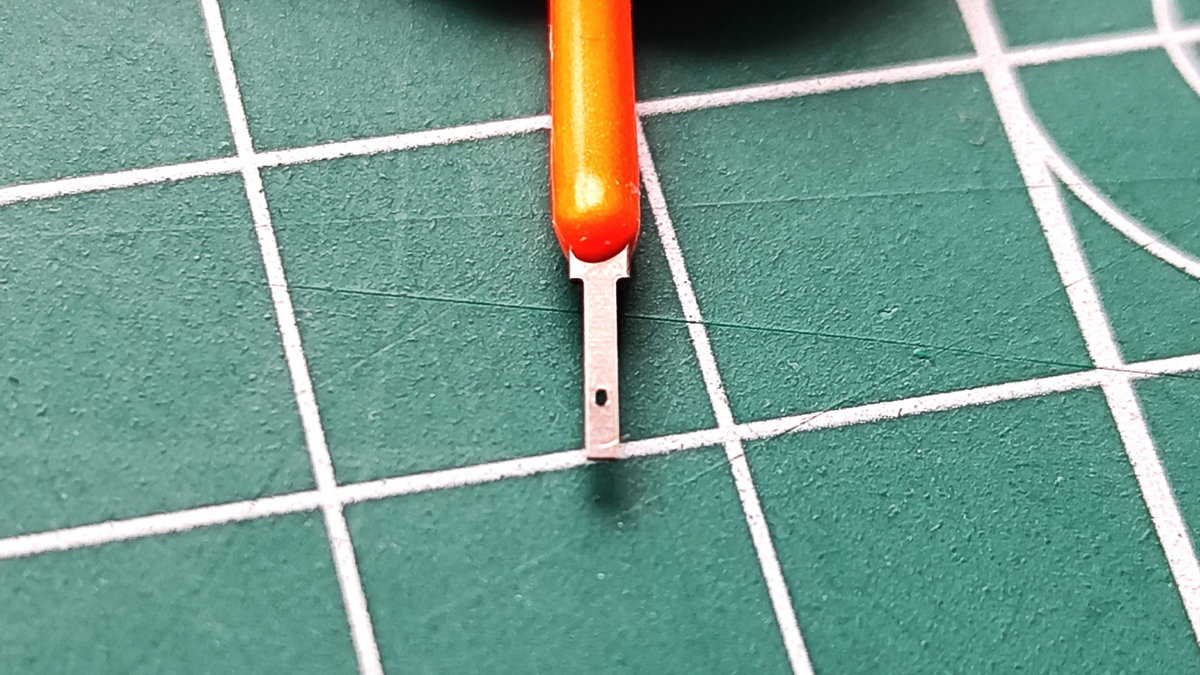
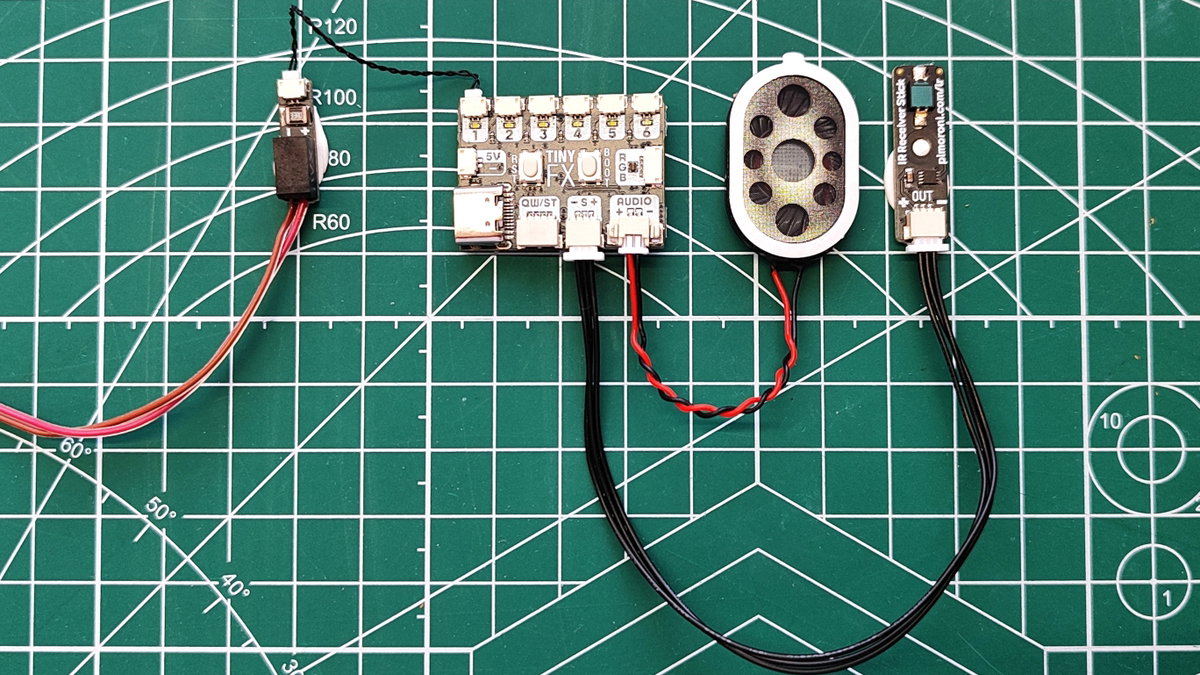
- Connect the LED Noodle to port 1 via the noodle adapter. The adapter board has two connections, + and -. The + end of the noodle is marked with a small hole in the metal tab. Insert that into the + connection.
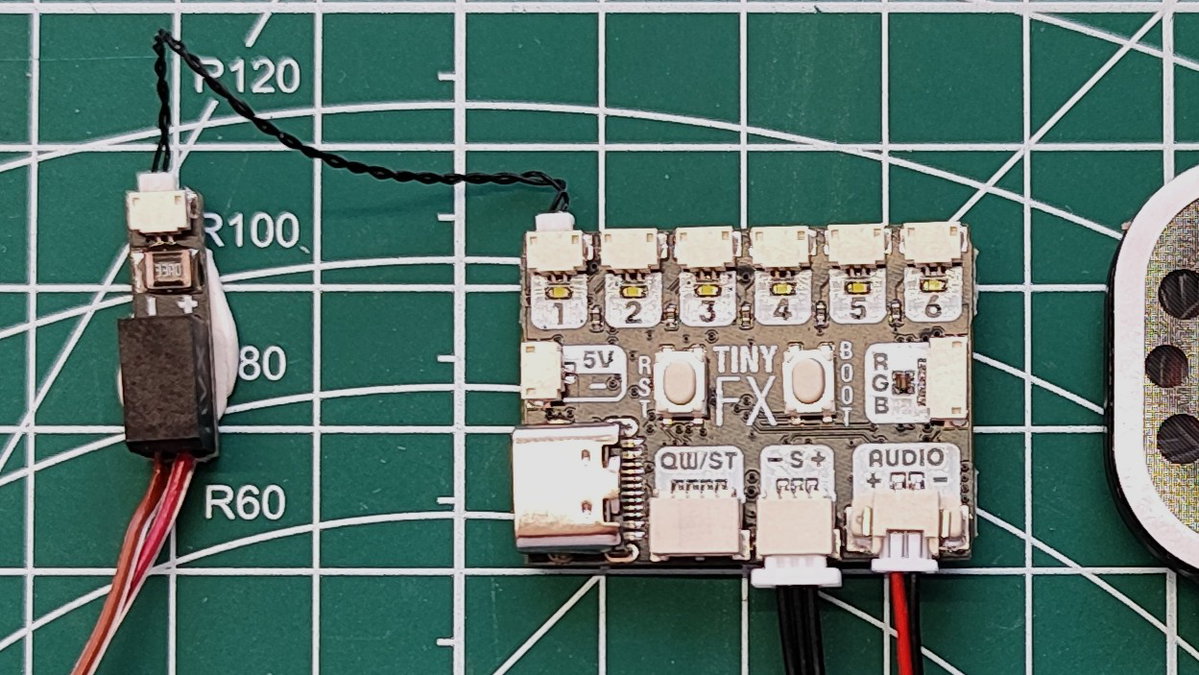
- Connect the speaker to the 'AUDIO' port.
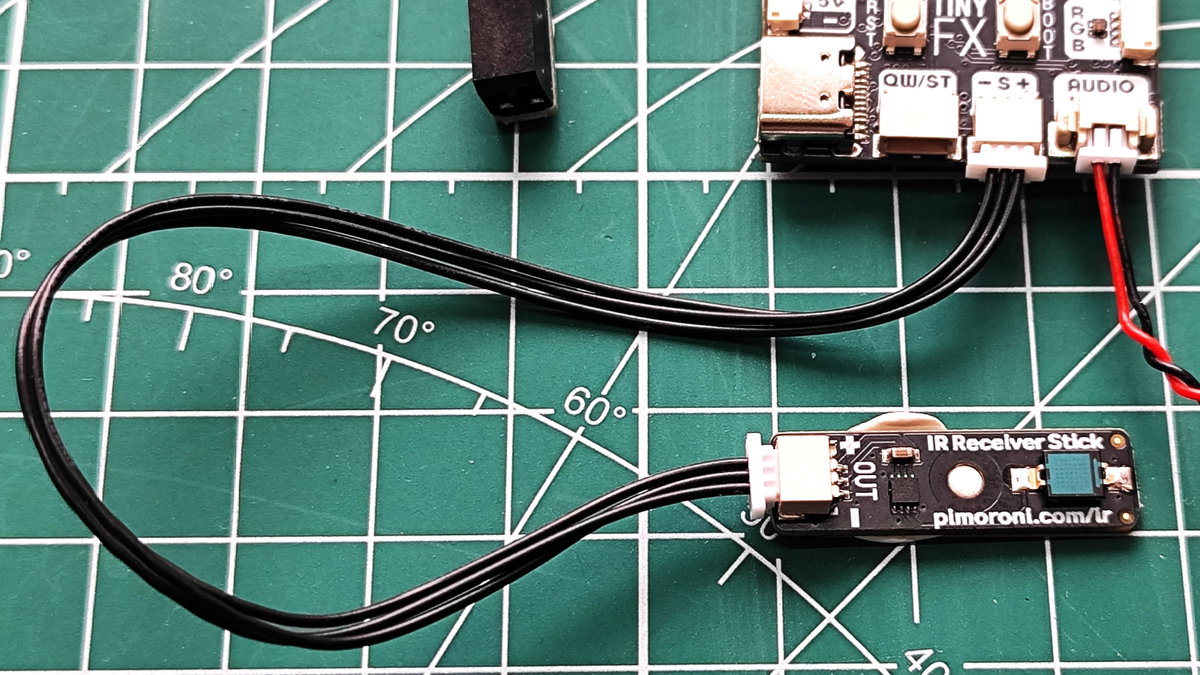
- Connect the IR receiver stick to Tiny FX W’s 'S' port.
- Check all of your connections before moving on.
Coding Tiny FX W
We’re using Thonny, an easy to use Python editor for this project. With Thonny we can write code directly onto Tiny FX W, and move files to the device. In this first section we will write the code that reacts to our remote control input. Then we will use Thonny to transfer an audio file that we wish to play as part of the diorama.
- Connect Tiny FX W to your computer using a good quality USB C data cable.
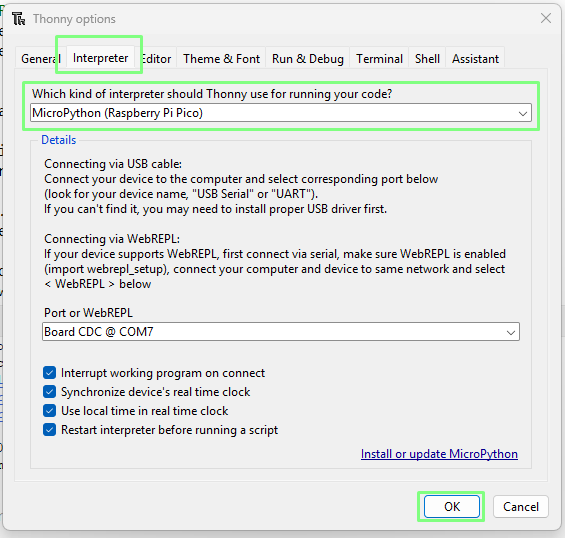
- Open Thonny and go to Tools >> Options.
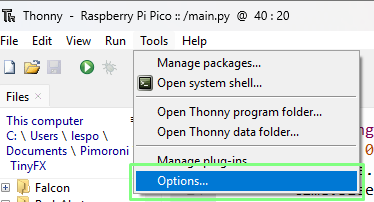
- Click on Interpreter, and select MicroPython (Raspberry Pi Pico) from the dropdown. Click OK to close the dialog box.
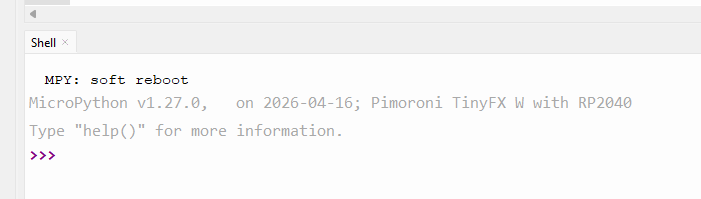
- The Python Shell will update and confirm that we can communicate with Tiny FX W. If nothing happens, click on Stop to force the board to restart and reconnect. If the issue remains, try another USB cable.
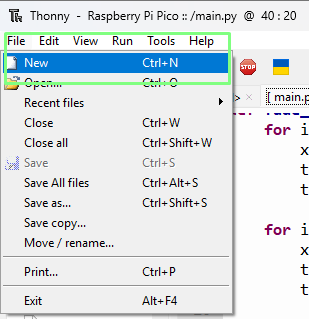
- Click on File >> New to create a blank file in Thonny. You'll need to copy and paste the following bits of code into this new tab - we'll be explaining what each part does along the way.
- Import a series of modules to work with Tiny FX W and the new remote control.
import time from tiny_fx import TinyFX from picofx import MonoPlayer from aye_arr.nec import NECRemoteReceiver from aye_arr.nec.remotes import PimoroniRemote - Create an object to easily interact with TinyFX W and to specify where sound effects will be stored. We will get to that part later.
tiny = TinyFX(wav_root="/falcon") - Create a function to handle fading the LEDs connected to Tiny FX W’s first output (1). The function has two for loops. One will increment the brightness from 0 to 1 in 0.01 increments. The other for loop will decrease the brightness from 1 to 0 by 0.01 each time.
def fade_led(): for i in range(110): x = i * 0.01 tiny.one.brightness(x) time.sleep(0.01) for i in range(110, -1, -1): # count down from 110 to 0 x = i * 0.01 tiny.one.brightness(x) time.sleep(0.01) - Next, create a function called
flight()and use it to play an audio file. We’re using a mono 11KHz WAV audio file to keep the file size small. We only have 4MB of flash storage, so keeping file sizes small is important.def flight(): tiny.wav.play_wav("flight.wav") - Create a
remoteobject, that we'll use to interact with the IR receiver’s Python module.remote = PimoroniRemote() - Configure button 1 on the remote so that a single press will call the “flight” function to play the audio.
remote.bind("1_RED", on_press=flight, on_repeat=None) - Create an object that links the code to the IR receiver, and then binds the receiver to look for a signal.
receiver = NECRemoteReceiver(TinyFX.SENSOR_PIN, 1, 0) receiver.bind(remote) - Start the receiver. This will make it ready to receive a signal.
try: receiver.start() - While the Boot button is not pressed, set the receiver to decode any IR signals from the remote. Pressing the Boot button will exit the code.
while not tiny.boot_pressed(): receiver.decode() - Using an
ifconditional, check If the audio file is playing. If it is, thefade_ledfunction is called and will fade the LEDs in the Millennium Falcon to mimic a thrusting engine. The audio file is played if the IR receiver decodes that button 1 has been pressed. The audio playback is the trigger for the fading LEDs.if tiny.wav.is_playing(): fade_led() - In the
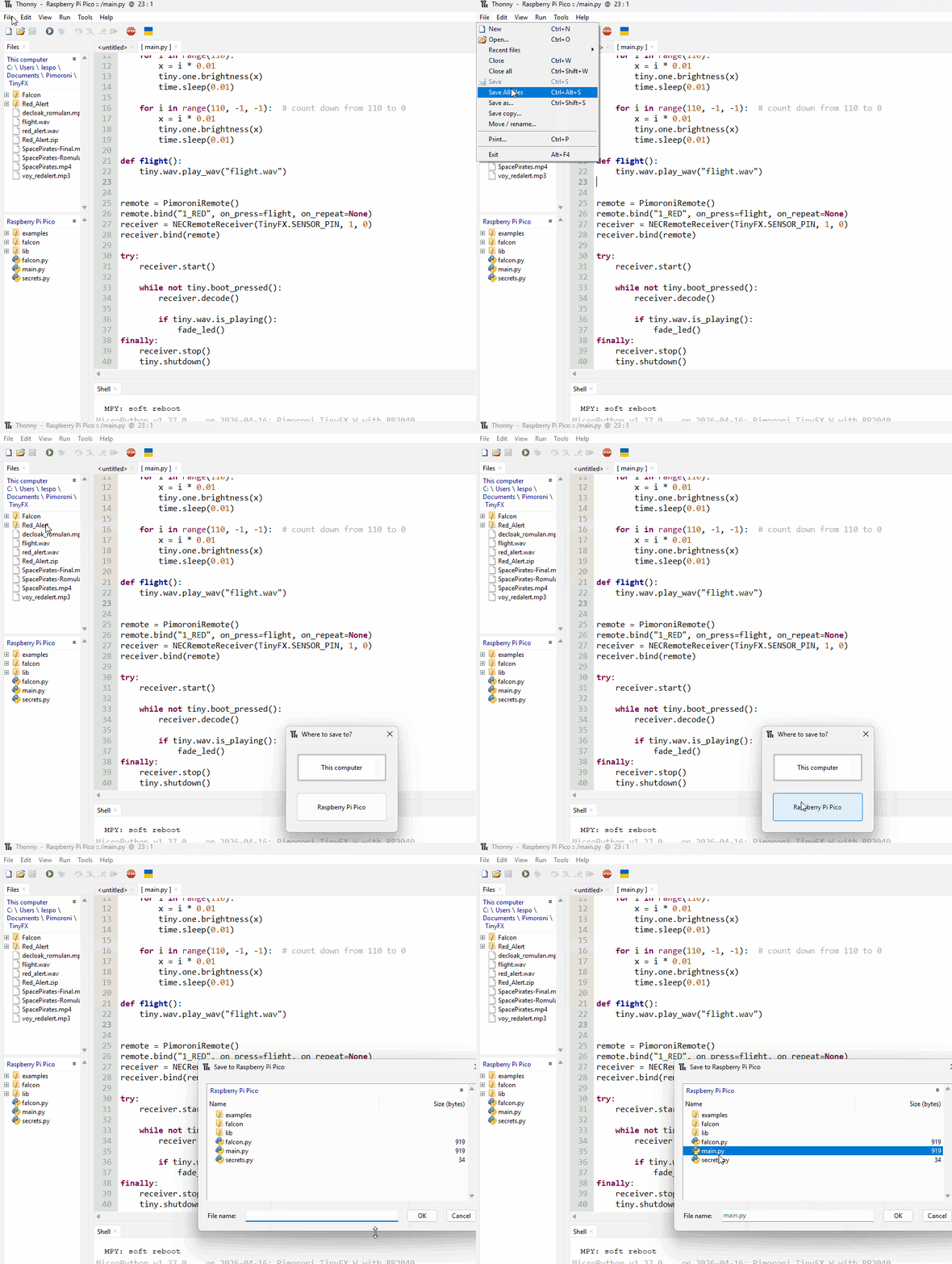
finallyblock, we stop the receiver and shutdown Tiny FX W. This section is only called when the user presses Boot to stop the running code.finally: receiver.stop() tiny.shutdown() - Save the code to the Tiny FX W as
main.py. Thonny refers to the board as a Raspberry Pi Pico.
Adding an audio file
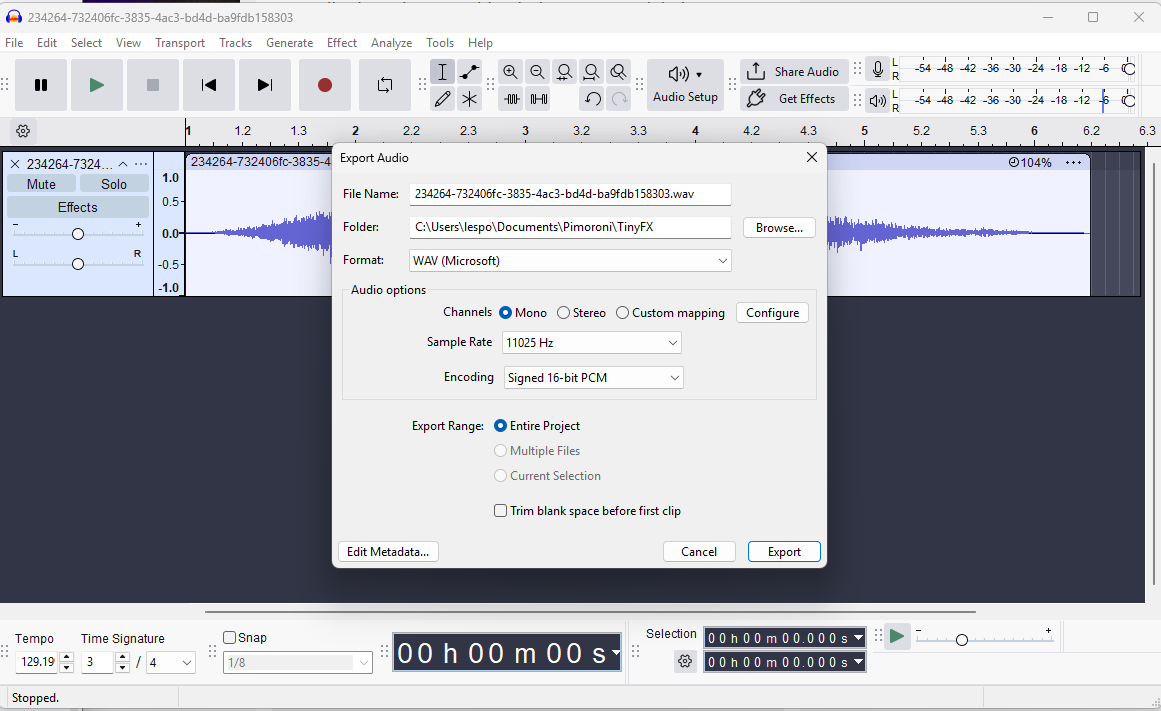 For this project, we used a 16-bit, 11025 Hz, Mono WAV audio file of a space engine. You can easily find audio files via your search engine. Using software such as Audacity, we can edit the audio to meet our needs.
To get the audio file onto the Tiny FX W, we need to use Thonny.
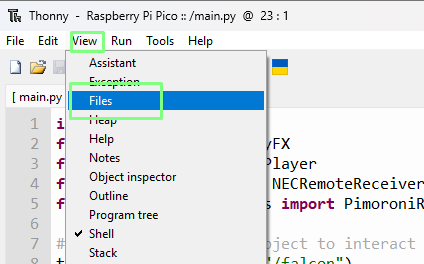
- Click on View >> Files.
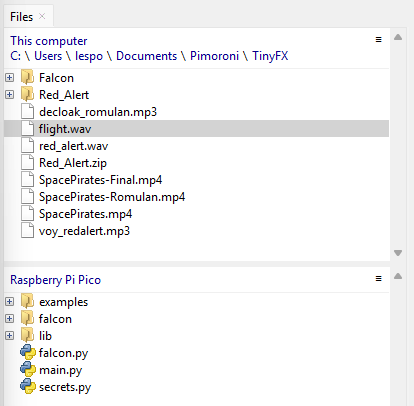
- Note that the Files window is split into two areas. At the top are the files on our computer. At the bottom are the files on the Tiny FX W (Raspberry Pi Pico).
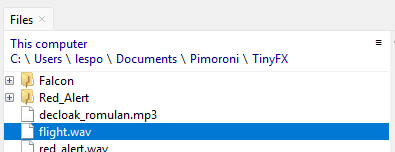
- In the top area, navigate to where your audio file is located.
- In the bottom area navigate to the folder where you want to store the audio file.
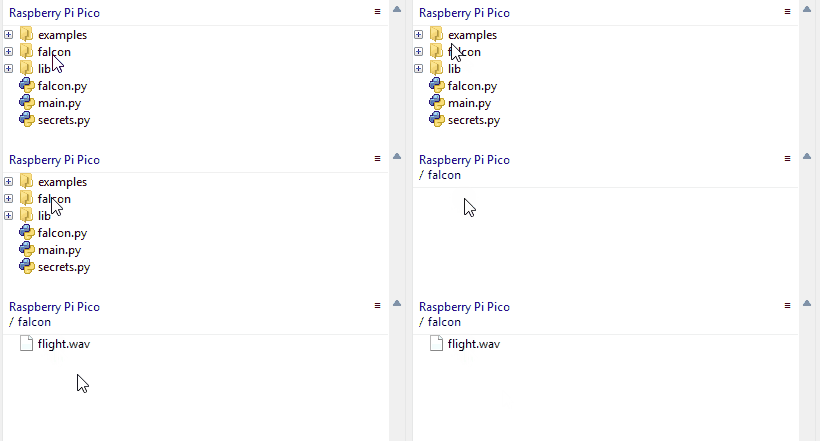
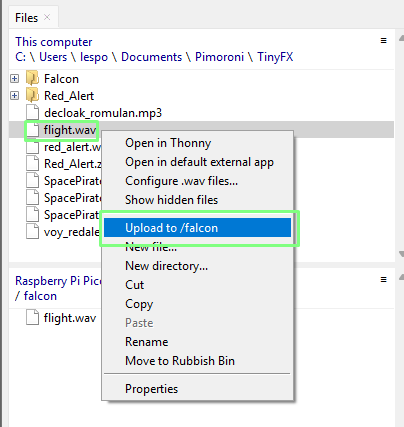
- In the top area, right click on the file that you wish to send, and select 'Upload to'. This will copy the file over the USB interface to Tiny FX W.
Testing the project
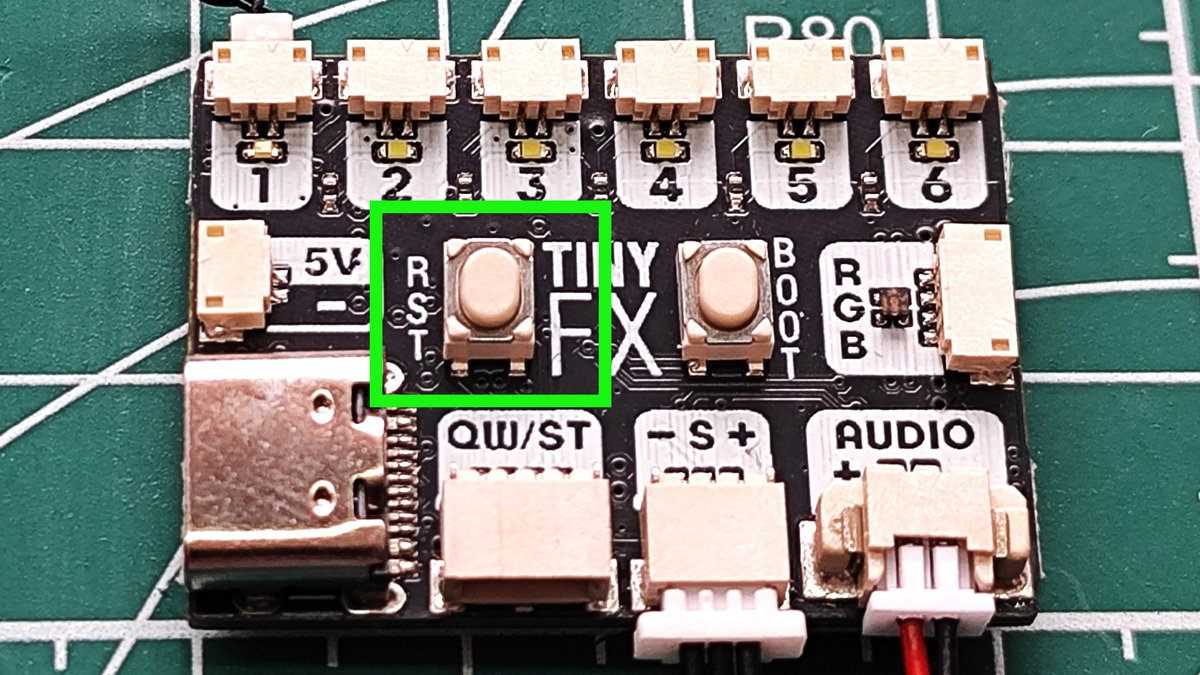
- Ensuring that all the connections are correct, press Tiny FX W’s reset button to start the code. MicroPython automatically runs any file called main.py.
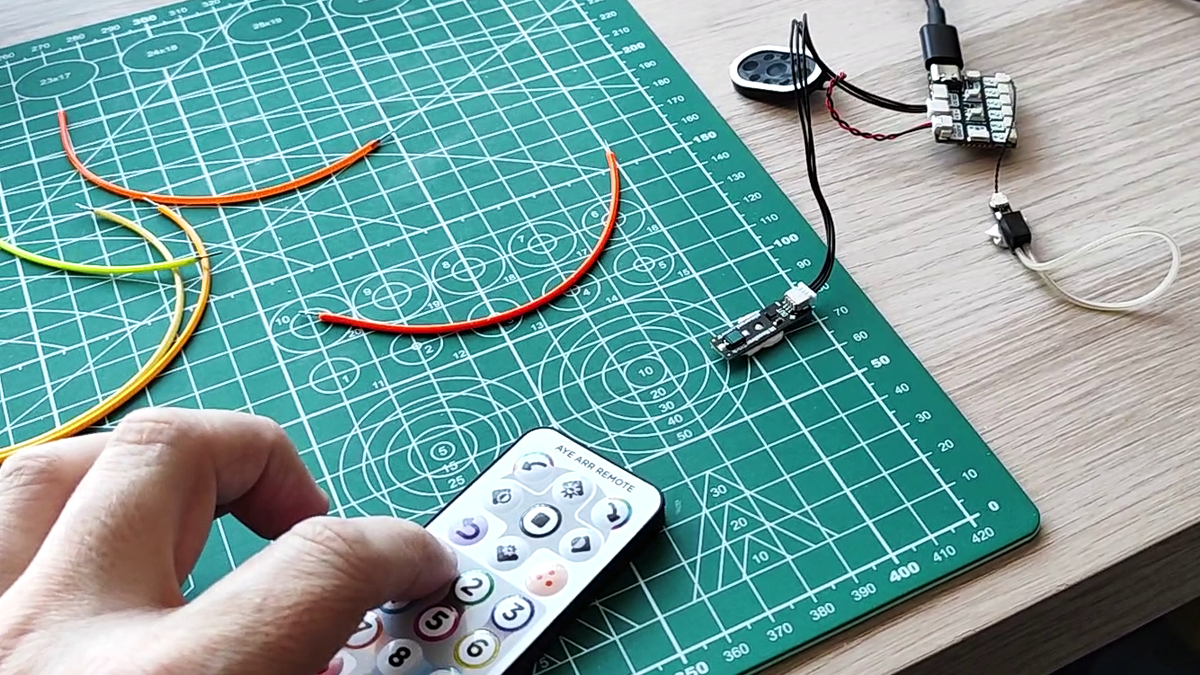
- Point the remote control at the receiver and press 1. You should hear the audio play, and the LEDs should illuminate. If nothing happens, check that you have pulled the plastic tab from the remote control’s battery compartment.
Conclusion
Using Tiny FX W, and a range of accessories including the IR receiver, you’ve just added light and sound to a diorama scene. This project could be expanded to use other IR remote inputs to trigger other effects. Laser fire, explosions, alarms, all are possible with Tiny FX W.