Getting Started with Pimoroni Explorer
Want to learn how to control Pimoroni Explorer with MicroPython?
Experiments are a great way to learn. They're written in MicroPython, a simplified version of the Python Language designed for microcontrollers. If you're new to Python, you can start with this introduction.
In this article you'll learn how to:
- Identify what the different parts of the board do
- Run code on the board using Thonny
- Display text
- Draw graphics
- Play tones and tunes on the speaker
1. Explorer tour
Board overview
Here's the front of the Explorer:
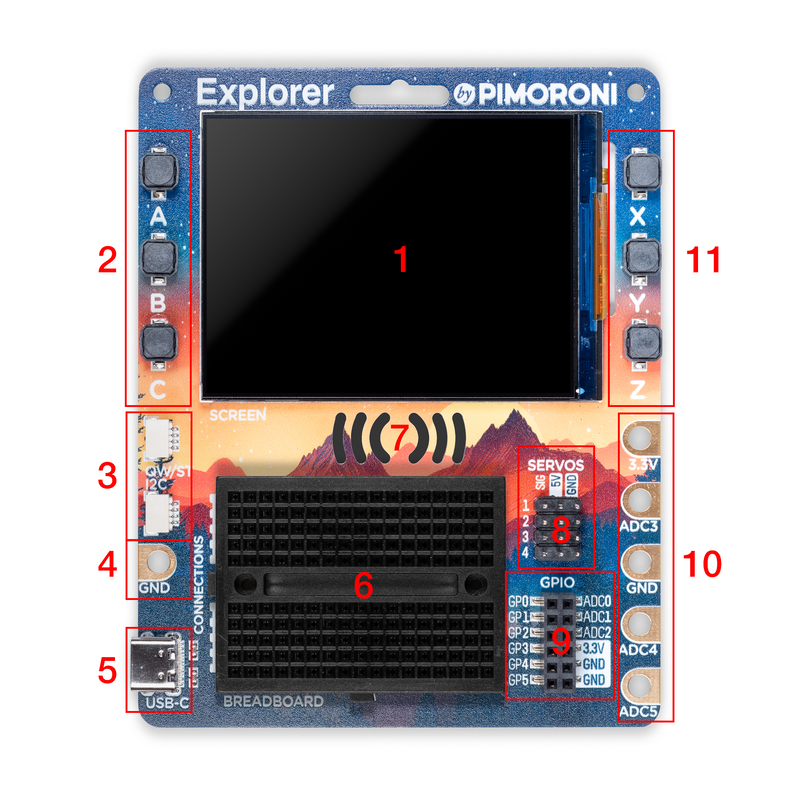
- LCD screen to monitor what your project is doing
- (and 11.) Six chunky buttons to control what your project is doing
- Two 'Qw/ST' connectors for attaching I2C breakouts
- (and 10.) Connectors for attaching crocodile leads (sold separately)
- A USB-C connector for connecting the Explorer to your computer
- A mini breadboard for wiring up components
- Speaker output (the speaker is on the back)
- Pin headers for attaching 3 wire hobby servos
- Plenty of general purpose inputs/outputs and analogue inputs
Here's the back:
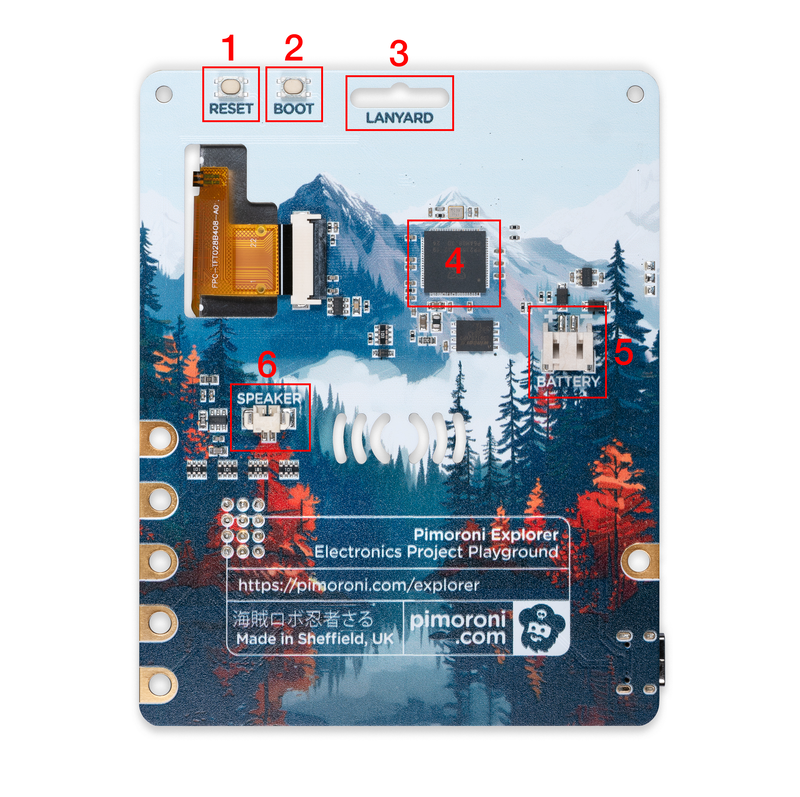
- Reset button
- Boot button (used for updating the MicroPython firmware on the board)
- Lanyard hole for wearing your Explorer, or hanging it up
- The RP2350 microcontroller chip - the brains of the operation!
- Connector for plugging in the battery holder
- Connector for attaching the speaker (yours will come with the speaker pre-attached)
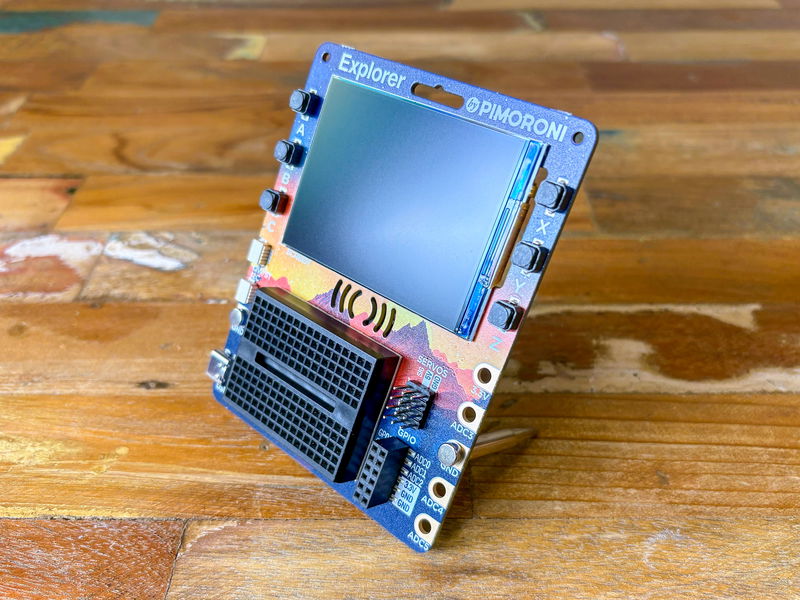
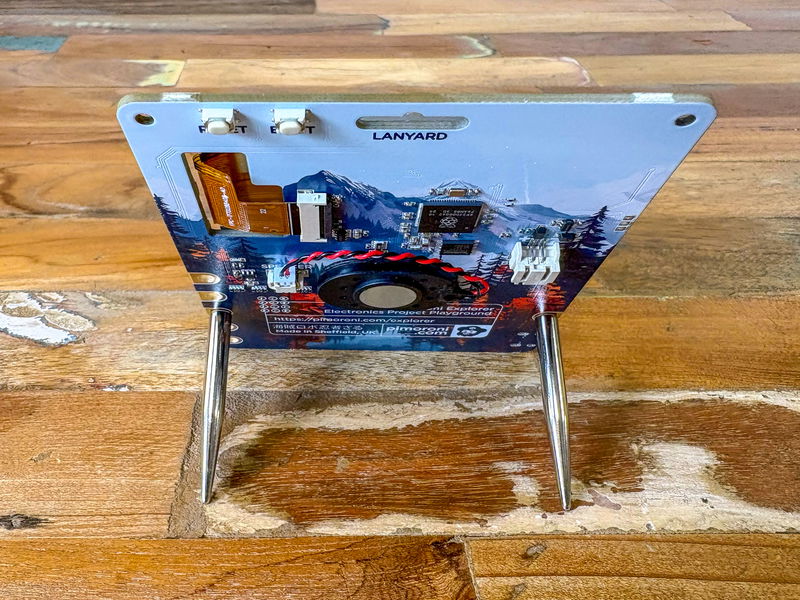
Attaching the legs
Explorer comes with some little legs, so you can prop it up at an angle. They can be attached to the 'GND' holes. It's best to avoid letting the Explorer lie flat, as pushing one of the buttons on the front can press the Explorer down and depress the reset button at the back!
Extra components
The Starter Kit includes some extra components:
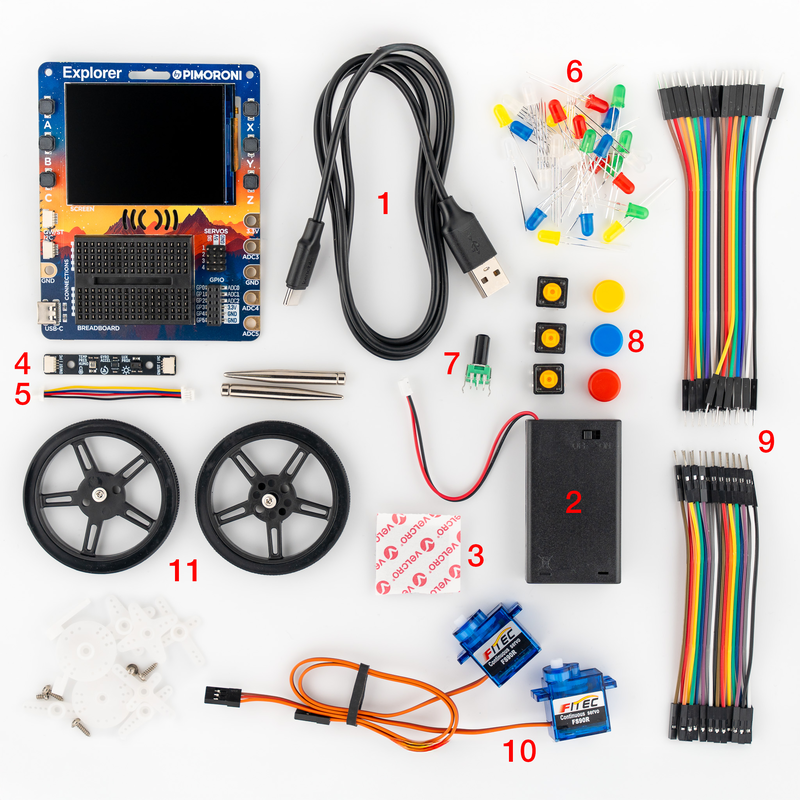
- A USB-C cable
- an AAA battery holder (you'll need to supply your own batteries)
- Velcro to stick the battery holder to the back of Explorer
- A Multi-Sensor Stick - a three-in-one I2C sensor suite for environmental, light and movement sensing
- Qw/ST cable to plug in the Multi-Sensor Stick
- A selection of different coloured LEDs to get blinky with (including red, yellow, green, blue, white and RGB)
- A potentiometer
- 3x 12 mm switches (buttons) with different coloured caps
- 20x pin to pin and 20x pin to socket jumper wires for making connections on your breadboard
- 2x continuous rotation servos (this type of servo will rotate all the way round, so you can use them like motors)
- 2x 60 mm wheels you can attach to your servos
You won't need to do any soldering to use these components, but some of them come with leads (wires) that are longer than you need, so you might find it useful to get a pair of wire cutters if you don't already have one.
Pimoroni offer an excellent pair of nippers: https://shop.pimoroni.com/products/precision-micro-nippers?variant=14245843975
Finding the code
Explorer comes ready-made, preloaded with pirate brand MicroPython (which includes drivers for the screen and some other helpful features for working with Explorer) and a selection of examples that show off what it can do. Once you've plugged in the USB cable a menu program should pop up, which you can navigate with the X and Z buttons. Press Y to open up an example, and RESET to return to the menu. You can find all the pre-loaded examples on GitHub.
However, you might like to start with the experiments in this guide if you're a beginner. Click here to download a .zip file containing the code examples mentioned in this guide. Once it's downloaded, unzip it somewhere on your computer and make a note of the location - we'll need it in a moment.
Now that you've learned your way around the Explorer, it's time to get coding!
2. Introducing the display
In this section, you'll start by installing and exploring Thonny, the program you'll use to write and run your code.
After that, you'll use the explorer module to display text and graphics on the LCD screen of the Explorer.
The first experiment shows you how to print text on the display.
The second experiment continuously updates the display, creating the animation of bouncing balls.
Installing Thonny
Thonny is a Python IDE (Integrated Development Environment) designed for beginners. It’s user-friendly and comes with built-in support for MicroPython.
If you're programming your Explorer from a Raspberry Pi running the desktop version of Raspberry Pi OS, Thonny should be installed already.
If you're not using a Raspberry Pi, you can download Thonny using the links on the Thonny website. It's available for Windows, Mac and Linux computers.
Using Thonny
Once Thonny is installed, start it up and connect your Explorer to your computer using the supplied USB cable. Make sure you have 'Raspberry Pi Pico' selected as your interpreter, at the bottom right.
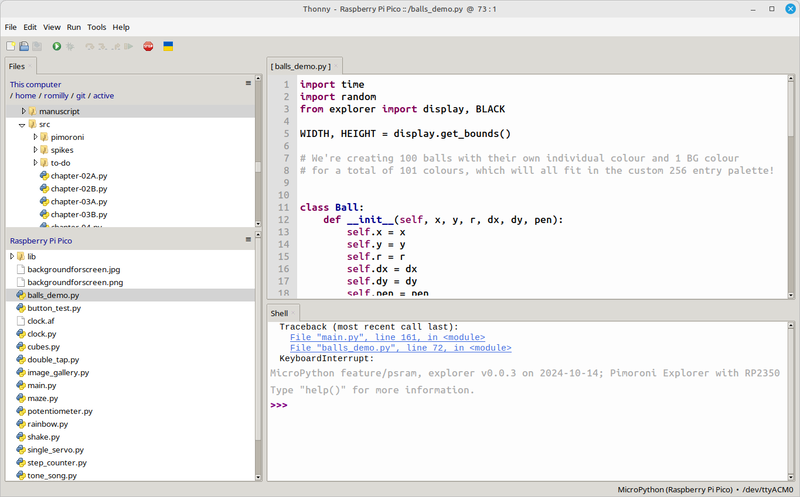
You should see a screen like this:
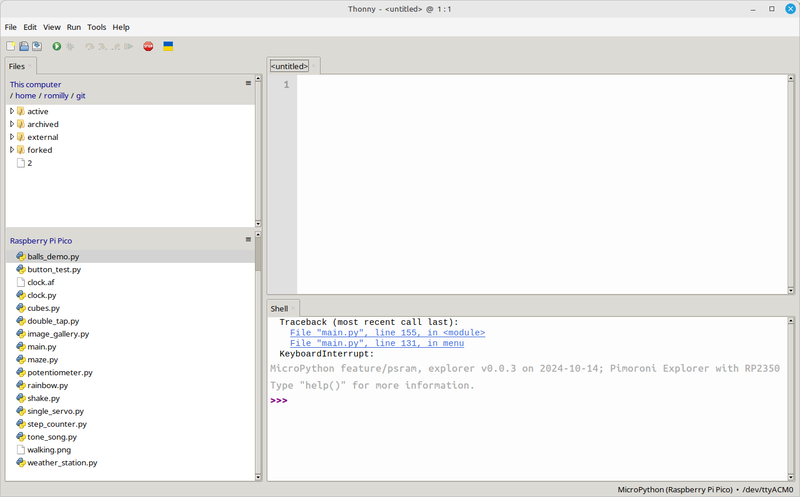
In the top left window, you can see a list of files on your computer.
In the bottom left window, you can see a list of files on your Explorer.
❗ If you don't see the Files window, you can make it them visible using 'View > Files`
The top right window allows you to write, see and edit your code.
The bottom window is a REPL (Read-Eval-Print Loop) where you can type Python code and run it on the Explorer, line by line.
❗ If you don't see the >>> prompt then Explorer might be busy running some other code - press the red STOP button in Thonny's toolbar to interrupt it.
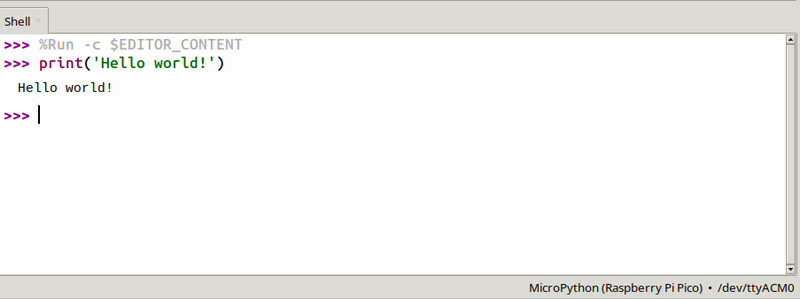
Let's see how the REPL works now! Type print("Hello World") and press Enter. You should see the text "Hello World" appear in the bottom window.
Displaying text
In the first experiment, you’ll use the explorer module to display text on the LCD screen of the Explorer.
Browse to the directory containing the unzipped examples in the top left Files window, locate hew.py and double-click on it.
The code should appear in Thonny's top right-hand pane. You can click the green run button in the toolbar to run it.
The explorer module provides a preconfigured display object which you'll use to control the screen display.
from explorer import display, BLACK, WHITE
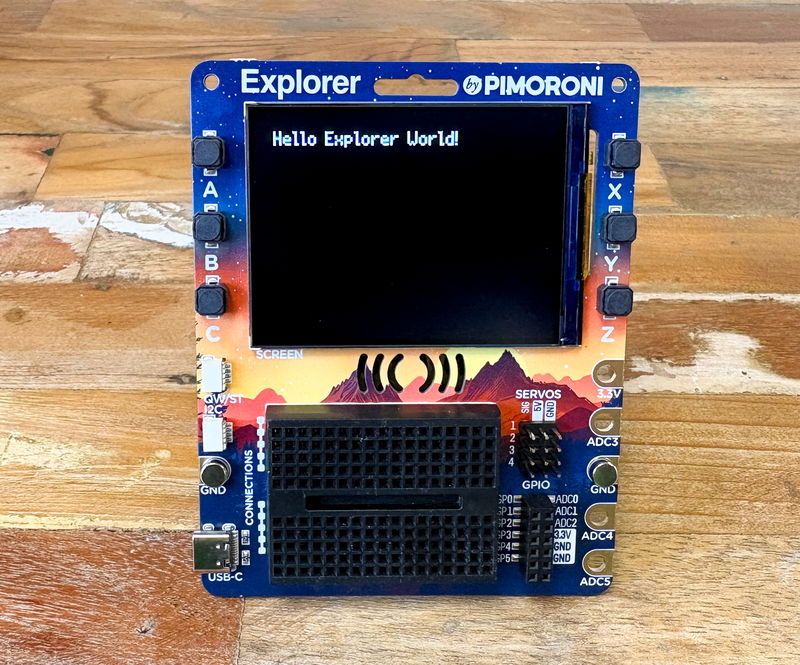
The remaining code clears the screen, sets the font and pen colour, and writes 'Hello Explorer World!' on the display.
# Clear the display to black
display.set_pen(BLACK)
display.clear()

# Set pen to white for text
display.set_pen(WHITE)

# specify the font
display.set_font("bitmap8")

# Display the text (x=20, y=20, scale=2)
display.text("Hello Explorer World!", 20, 20, scale=2)

# Update the display to show the changes
display.update()
Here's what you should see:
Using screen coordinates
To position text and other objects on the screen, you'll need to use screen coordinates.
Unlike in traditional mathematics, in computer graphics the origin point (0,0) is located at the top-left corner. The 20, 20 in the code above shows where to position the text - 20 pixels right and 20 pixels down from the top left corner. Try changing those numbers and re-run the code to see what happens! You can also increase the size of the text by increasing the number naxt to scale.
A fun demo
The next experiment is based on one of the examples provided with the Explorer.
If you press reset at the back of your Explorer, the demo menu will appear.
Use the X button to select the BALLS DEMO and press Y to run it (alternatively you can find the example in the bottom Files window, double click on it and run the code using Thonny).
How the code works
You don't need to type this code in as it's one of the demos that come with the Explorer. Let's see how it works.
from explorer import display, BLACK
This line imports display, and BLACK, a predefined pen colour useful for clearing the screen.
You can get the screen size using:
WIDTH, HEIGHT = display.get_bounds()
This returns the width and height in pixels of the display.
We want to see 100 bouncing balls.
First, we define a Ball class to hold each ball’s position, radius, movement direction, and colour:
class Ball:
    def __init__(self, x, y, r, dx, dy, pen):
        self.x = x
        self.y = y
        self.r = r
        self.dx = dx
        self.dy = dy
        self.pen = pen
Now we create 100 balls with random attributes. Each one gets a randomly chosen pen colour using RGB values:
balls = []
for i in range(0, 100):
    r = random.randint(0, 10) + 3
    balls.append(
        Ball(
            random.randint(r, r + (WIDTH - 2 * r)),
            random.randint(r, r + (HEIGHT - 2 * r)),
            r,
            (14 - r) / 2,
            (14 - r) / 2,
            display.create_pen(random.randint(0, 255), random.randint(0, 255), random.randint(0, 255)),
        )
    )
Next, create a background colour using a dark grey tone:
BG = display.create_pen(40, 40, 40)
Before drawing anything we need to clear both display layers. The Explorer display supports multiple layers which can be useful for complex effects. Clearing both ensures you’re starting with a clean slate:
display.set_layer(0)
display.set_pen(BLACK)
display.clear()

display.set_layer(1)
display.set_pen(BLACK)
display.clear()
Now comes the main animation loop which moves the balls we've created:
while True:
    display.set_layer(0)
    display.set_pen(BG)
    display.clear()

    for ball in balls:
        ball.x += ball.dx
        ball.y += ball.dy

        xmax = WIDTH - ball.r
        xmin = ball.r
        ymax = HEIGHT - ball.r
        ymin = ball.r

        if ball.x < xmin or ball.x > xmax:
            ball.dx *= -1

        if ball.y < ymin or ball.y > ymax:
            ball.dy *= -1

        display.set_pen(ball.pen)
        display.circle(int(ball.x), int(ball.y), int(ball.r))

    display.update()
    time.sleep(0.01)
Each frame:
- Clears the background
- Updates each ball’s position
- Reverses direction if the ball hits a screen edge.
- Draws each ball as a filled circle using its assigned colour.
- Updates the display and sleeps for a short time to control frame rate.
In this section you learned how to use simple text and graphics in your programs.
3. Get the buzz
In this experiment, you'll use the Explorer's audio functions to create a simple sound. Then you'll learn how to check if the buttons on the Explorer are being pressed.
A sound is a great way to get your attention, and you can use buttons to control your program.
Driving the speaker
The following code snippet demonstrates how to play a simple sound for 1 second and then stop it. Let's go through the code step by step.
The program is called tone.py, but you'll learn fastest if you type the code in using Thonny.
First, import the necessary modules:
import time
from explorer import play_tone, stop_playing
Here, you import the play_tone and stop_playing functions from the explorer module and the time module to help you control the duration of the sound.
Next, you set the frequency of the sound you want to produce:
A = 440
In this case you set the frequency to 440 Hz. That's the standard pitch for the musical note A.
Now, play the tone using the frequency you defined:
play_tone(A)
That tells the speaker to play the sound at the specified frequency (440 Hz).
To let the sound play for a certain duration, use the time.sleep() function:
time.sleep(1)
This makes the program pause for 1 second (the value inside the parentheses). That waits for the speaker to play the sound for that long.
Finally, you stop the sound:
stop_playing()
Use a button to control the speaker
In the next program you will use a button to control the speaker.
The program is called button_buzz.py.
import time
from explorer import play_tone, stop_playing, button_x
The script begins by importing the necessary modules. As you saw earlier, the time module can handle time-related tasks. From the explorer module, import the functions to control the speaker (play_tone and stop_playing). You'll also need to import the button_x object which represents the X button on the Explorer.
Once again, define the frequency for the musical note A:
A = 440
Now comes the main loop.
while True:
    if button_x.value() == 0:
        play_tone(A)
        time.sleep(0.1)

    else:
        time.sleep(0.1)
        stop_playing()
The while loop runs until the program is manually interrupted or the device is powered off.
Inside the loop, the program checks the state of the button using the value() method of the button_x object.
If the button is pressed, button_x.value() will return 0 (since the buttons are 'active low') and the code inside the if block will execute.
The play_tone(A) line sets the speaker to play a tone at 440 Hz (cycles/sec). If you're a musician, you'll recognize that as middle A.
The script then pauses for 0.1 seconds with time.sleep(0.1).
If button X is not pressed, the program will execute the else block. It puts the script to sleep for 0.1 seconds and then stops the sound with stop_playing(). The pause is useful. It avoids polling the button state all the time, which would waste CPU resources.
In this section you learned a simple way to create interactive audio feedback in your projects.
4. Tuning up
This example shows you how you can use play a tune by sounding different notes on the Explorer's speaker.
At the same time, you'll use the display to show how the pitch of the notes go up and down as the tune is played.
When you want to run this, you'll need to take an extra step, because the code is split over two files. The main program is called playful.py, and it uses another module (or Python file) called chromatic.py. You'll first need to upload chromatic.py to your Explorer, by navigating to it in the top Files box, right clicking on it and selecting 'Upload to Pico'.
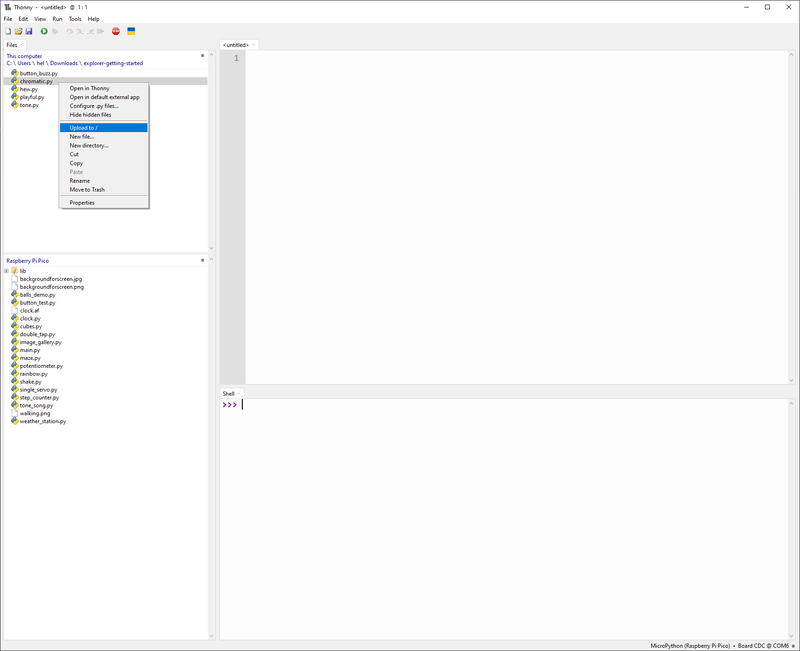
Once you've done that, you should be able to run playful.py through Thonny as usual.
Let's go through the code! First, import the necessary Python modules.
import time
from chromatic import frequency_for_note
from explorer import play_tone, stop_playing, set_volume, display, BLACK, GREEN
Here, you import:
The time module for controlling timing
The frequency_for_note function from the chromatic module that converts note names to frequencies
Several functions and objects from the explorer module: play_tone and stop_playing to control the speaker, set_volume to adjust the volume, display to access the screen, and colour constants BLACK and GREEN
Next, get the dimensions of the display:
WIDTH, HEIGHT = display.get_bounds()
Now you need to define the sequence of notes that will be played. "P" stands for pause. The other text strings represent musical notes with their octave.
For example, "A#6" is A-sharp in the sixth octave.
song = ["A#6", "A6", "A#6", "P", "A#5", "P", "A#5", "P", "F6", "D#6", "D6", "F6", "A#6",
        "A6", "A#6", "D7", "C7", "A#6", "C7", "P", "C6", "P", "C6", "P", "C6", "A#5",
        "A5", "C6", "F6", "P", "F6", "P", "G6", "A6", "AS6", "A6", "G6", "F6", "G6",
        "F6", "D#6", "D6", "D#6", "D6", "C6", "A#5", "A#5", "A5", "G5", "F5", "G5", "A#5",
        "A5", "C6", "A#5", "D6", "C6", "D#6", "D6", "P", "A#5", "P", "A#5"]
Next, define the clear function. It sets the pen to black, clears the display, and then updates it.
def clear():                        # this function clears the screen to black
    display.set_pen(BLACK)
    display.clear()
    display.update()
The playsong function is where the magic happens. It plays the song by iterating over each note in the song and also creates a visualization on the display.
The function takes two parameters: the song to play and an optional volume level (defaulting to 0.4).
The variable a is used to keep track of the visualizer bars that will be displayed on the screen.
def playsong(song, volume = 0.4):                 # this function plays your song
    a = 0
    set_volume(volume)                         # this variable keeps track of the visualiser bars
    for i in range(len(song)):
        if (song[i] == "P"):
            stop_playing()
        else:
            play_tone(frequency_for_note(song[i]))
            display.set_pen(GREEN)  # switch to green pen
            display.rectangle(a, HEIGHT - int(frequency_for_note(song[i]) / 21), 5, HEIGHT)  # draw a green bar corresponding to the frequency of the note
            a += 7
        if a >= WIDTH:  # clears the screen if the green bars reach the right hand edge
            clear()
            a = 0
        display.update()
        time.sleep(0.15)  # change this number if you want to alter how long the notes play for
    stop_playing()
What happens in this function?
It initializes a to 0 and sets the volume to the specified level.
For each note in the song:
- If the note is "P" (pause), it stops playing any sound.
Otherwise, the code:
- Plays the tone corresponding to the note using the
frequency_for_notefunction to convert the note name to a frequency - Draws a green rectangle on the screen whose height corresponds to the frequency of the note
- Increments a to move to the next position for the visualization
- If the visualization has reached the right edge of the screen, it clears the screen and resets
a - Updates the display and waits for 0.15 seconds before moving to the next note
- After playing all notes, it stops any sound
Finally, the main code clears the screen, plays the song at 30% volume, and then clears the screen again:
clear()
playsong(song, volume=0.3)
clear()
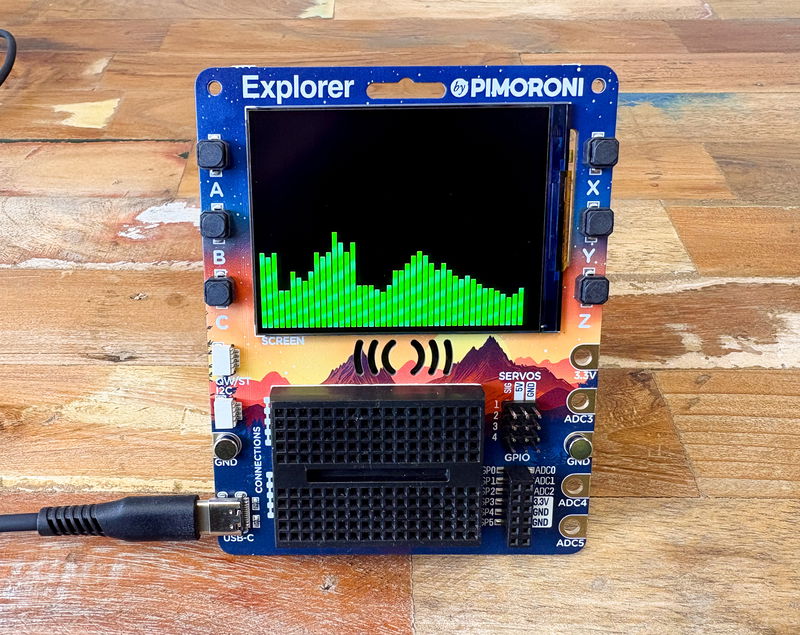
Here's a picture of the Explorer in mid-song:
About the chromatic module
The chromatic.py module is a helper module that converts note names like "A#4" to their corresponding frequencies. Let's look at how it works:
# Define the twelve pitch classes in the Chromatic Octave.
CHROMATIC_OCTAVE = "C,C#,D,D#,E,F,F#,G,G#,A,A#,B".split(',')

# Define the range of octaves to consider.
OCTAVES = range(8)

# Generate all possible note names from 'C0' to 'B7'.
PITCH_CLASS_NAMES = [name(pitch_class, octave) for octave in OCTAVES for pitch_class in CHROMATIC_OCTAVE]

# Calculate the ratio between the frequency of a note and the frequency of the semitone above it.
SEMITONE_FACTOR = 2 ** (1 / 12.0)

# Convert an index in the list of notes to its frequency.
def tone_for(i: int) -> int:
    return round(440 * SEMITONE_FACTOR ** (i - 57))

# Map each note name to its frequency.
NOTE_FREQUENCIES = dict([(name, tone_for(i)) for i, name in enumerate(PITCH_CLASS_NAMES)])
The module uses the well-tempered scale, where:
- Each octave is divided into 12 semitones
- The frequency ratio between adjacent semitones is constant (approximately 1.059)
- The standard reference pitch is A4 at 440 Hz
- The
frequency_for_notefunction takes a note name like "A#6" and returns its frequency in Hz. This is easier to read than a - large dictionary of note frequencies which would be easy to mis-type.
The module also handles enharmonic notes: notes that sound the same but have different names, like C# and D♭. It also allows for both "#" and "S" to be used for sharps.
This is quite a long program, but it's built from several short functions and one helper package (chromatic). You learned how to understand the parts and see the way they combine to make the program work.
Next steps
Hopefully this guide helped you get started with graphics and sound on Explorer. If you found it useful and would like to see more guides from Romilly, drop us a line on our forums or ping us on Bluesky to let us know what you thought. You can also find more guides and tips on Romilly's blog!
Search above to find more great tutorials and guides.