 Intermediate
Build a Thermal Camera with Tufty 2350 and MLX90640
Learn how to make a handheld thermal camera and visualise hot and cold spots in real time.
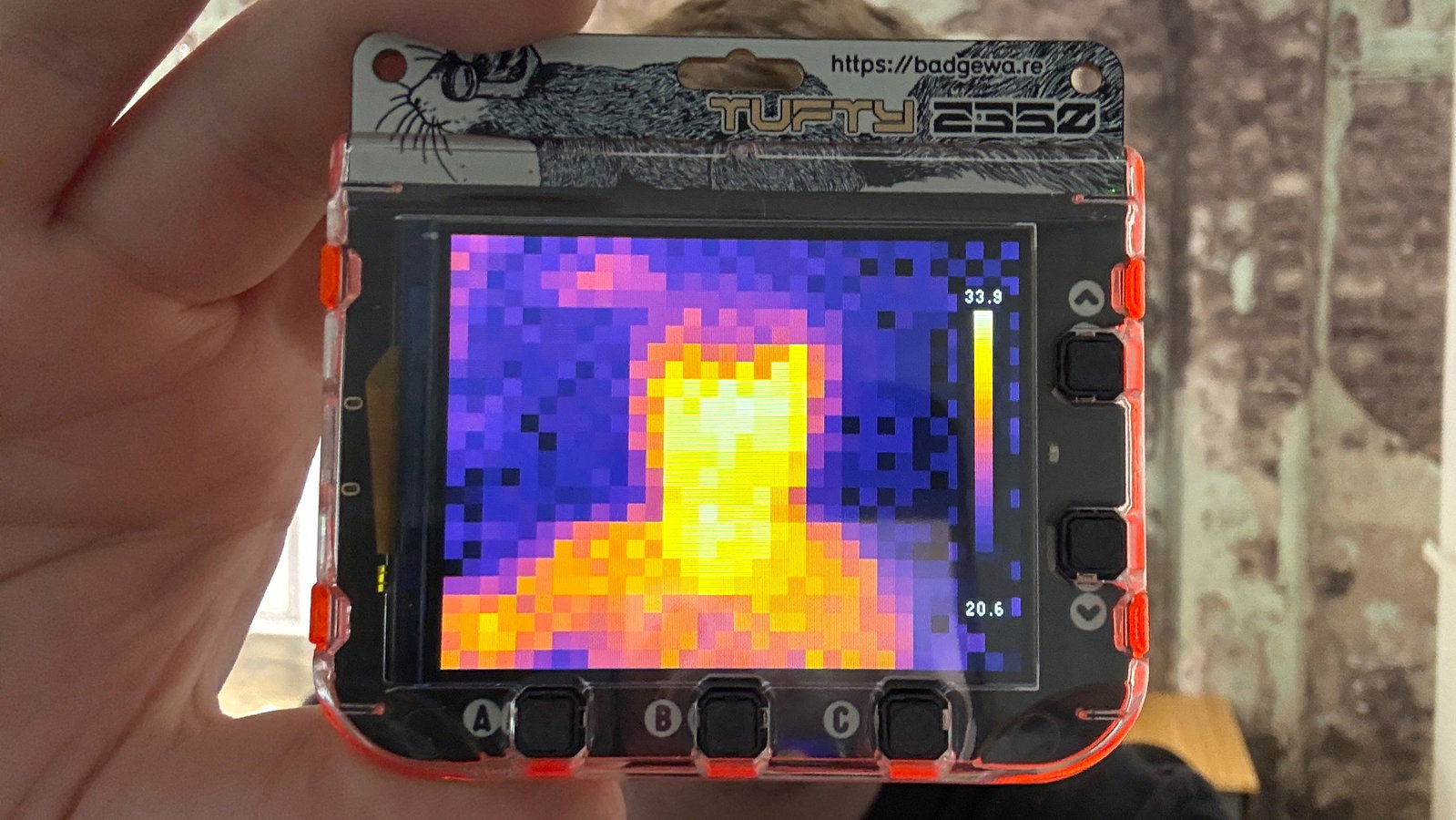
Our Ryan used a MLX90640 Thermal Camera Breakout to turn his Tufty 2350 into a nifty handheld thermal camera. It can spot the cold areas in your home, hot CPUs and chips in computers, and exactly where your cat is hiding under your bed.
Tufty 2350 is one of our Badgeware boards and it features a 2.8 inch, 320 x 240 full-colour IPS display inside of a bright orange case. It's powered by a Raspberry Pi RP2350 microcontroller and has 8MB of PSRAM and 16MB of flash storage, plus a 1000 mAh battery and onboard charging via USB C.
What You'll Need
- Tufty 2350
- MLX90640 Thermal Camera Breakout
- 50mm Qw/ST Cable
- Thin piece of plastic or card
- Double sided tape
Connecting The Thermal Camera
Tufty 2350 and the MLX90640 are connected using a Qw/ST connector which requires no soldering. Simply push the connector into place on each component and you are good to go.
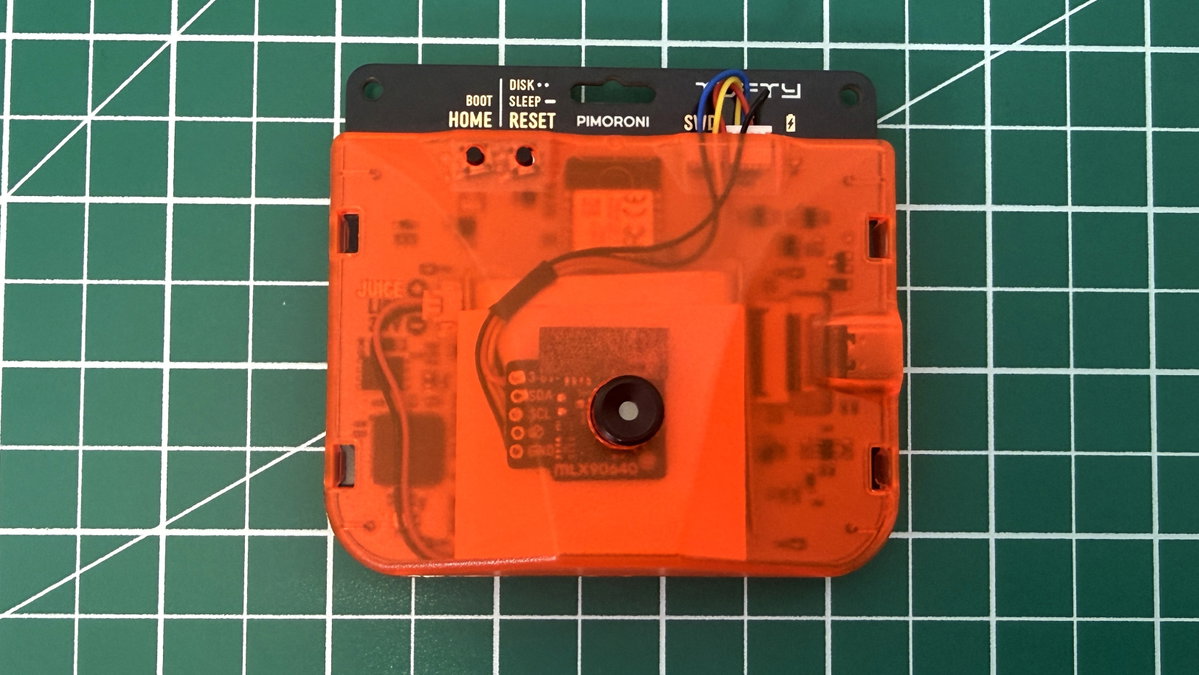
If you wish to embed the MLX90640 inside Tufty 2350's case, you will need to do the following.
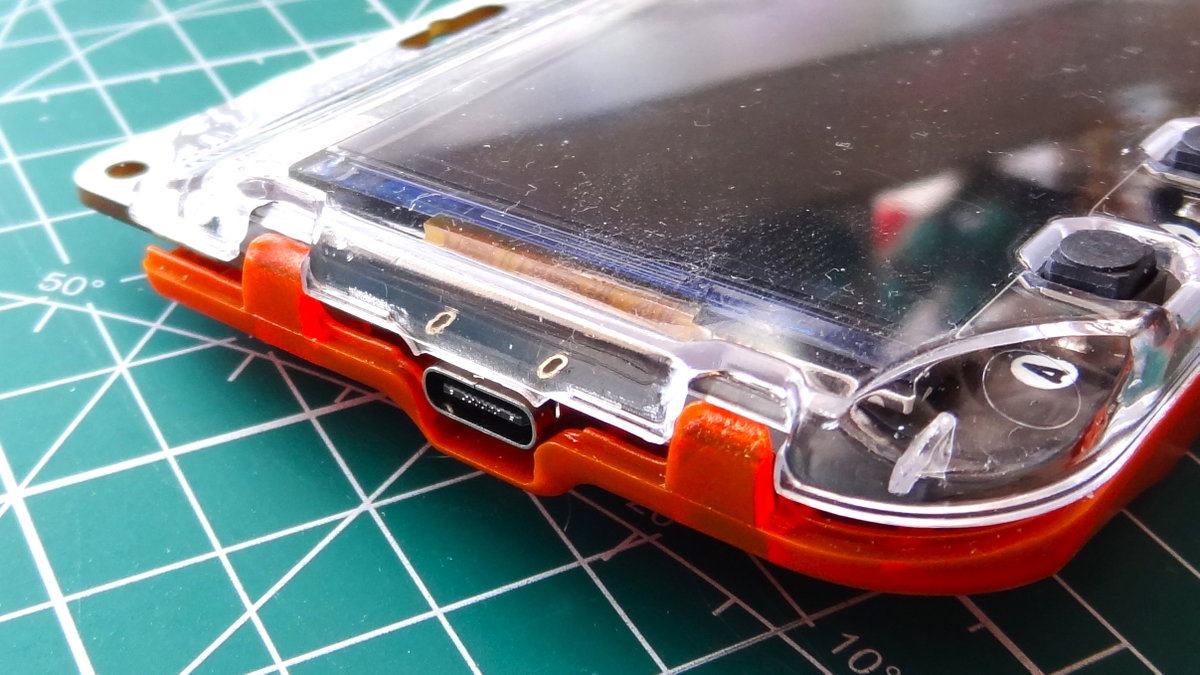
- Using a plastic spudger or pry tool, remove the back case from Tufty 2350. Take care with the plastic clips and work your way slowly around the case until it "pops" off.
- Cut a piece of plastic or card to match the dimensions of the battery. The MLX90640 has four sharp pins on its rear and we don't want them to pierce the battery.
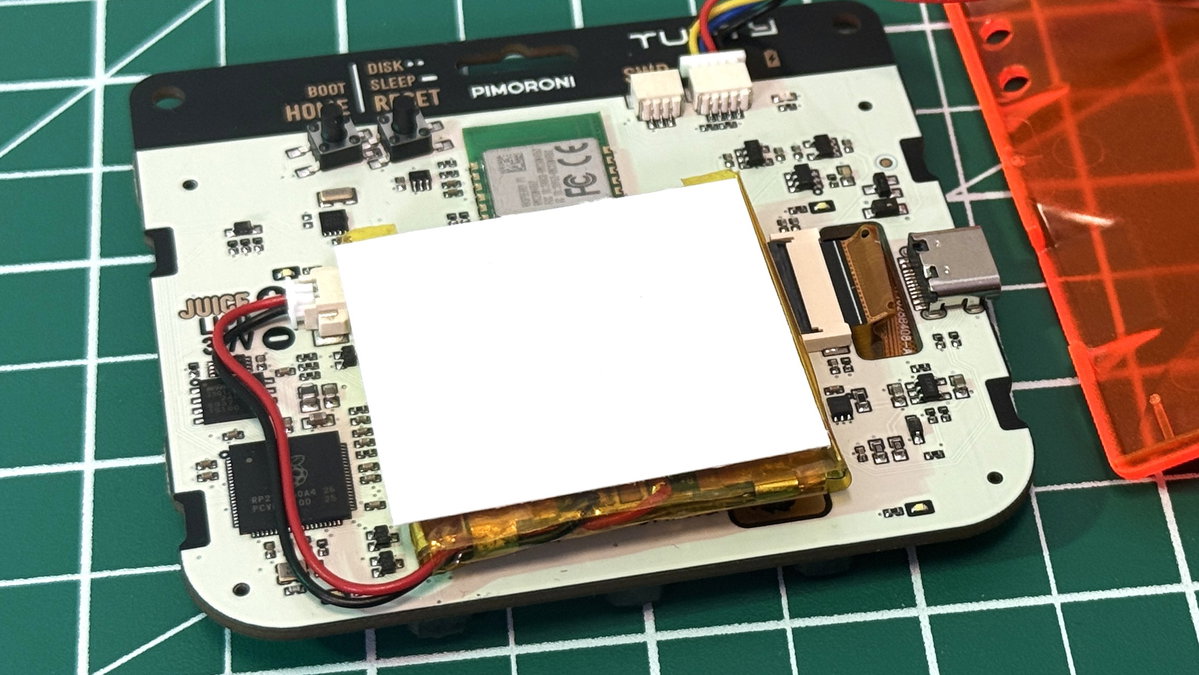
- Stick the piece of card in place with some double sided tape.
- Gently put the back cover on top of the MLX90640's lens and see where the case needs to be cut. Use a pen to make a mark on the case.
- Put Tufty 2350 to one side and with the case held firmly in place, make a hole big enough for the lens to go through. A rotary tool or drill can be used to do this. Just start with a small drill bit and work up until you get to the lens diameter. Use a needle file to remove any sharp edges or burrs.
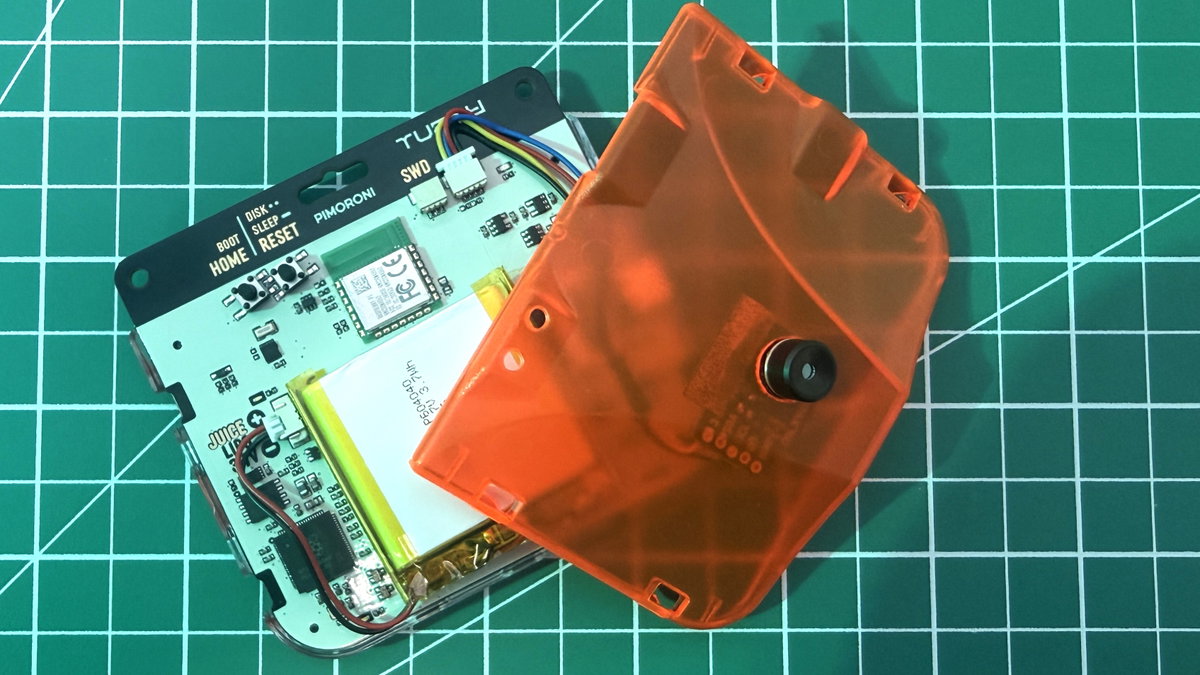
- Dry fit that the MLX90640 fits inside Tufty 2350's shell with the case closed. If so, use a little double sided tape to hold the camera in place. If not, file away the plastic until it fits.
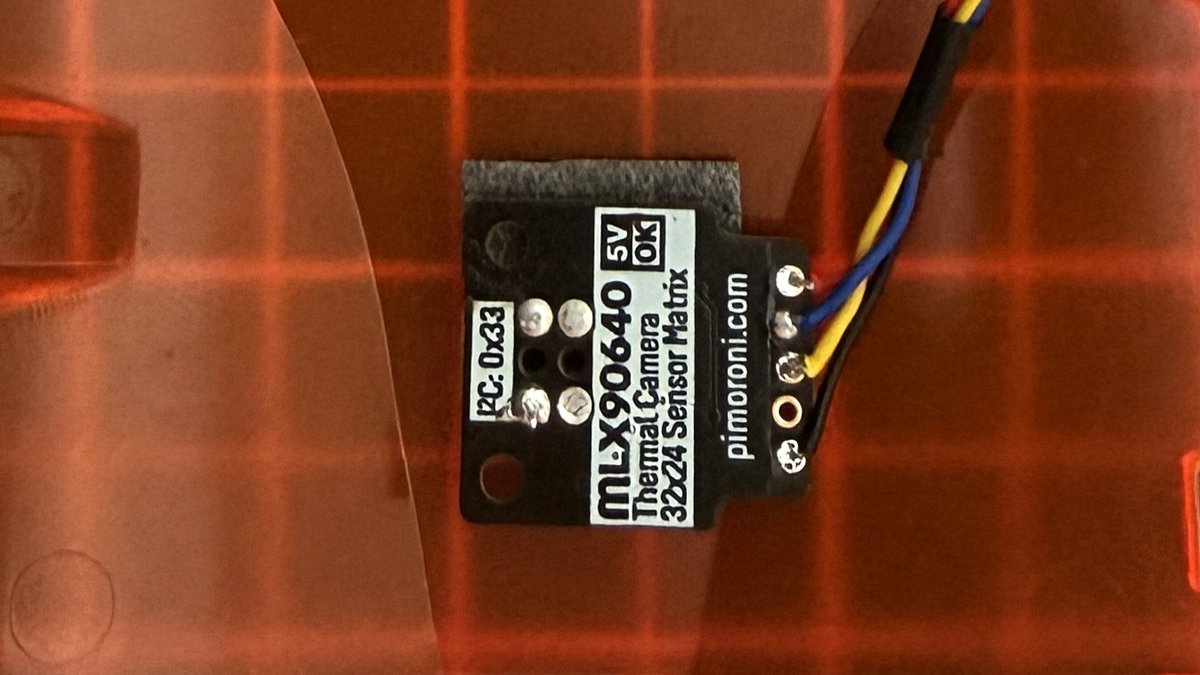
- Optional step: For a little extra space you may want to desolder the QW/ST connector and use the I2C pins on the MLX90640. Remember that the Qw/ST port is plastic, so take care when desoldering.
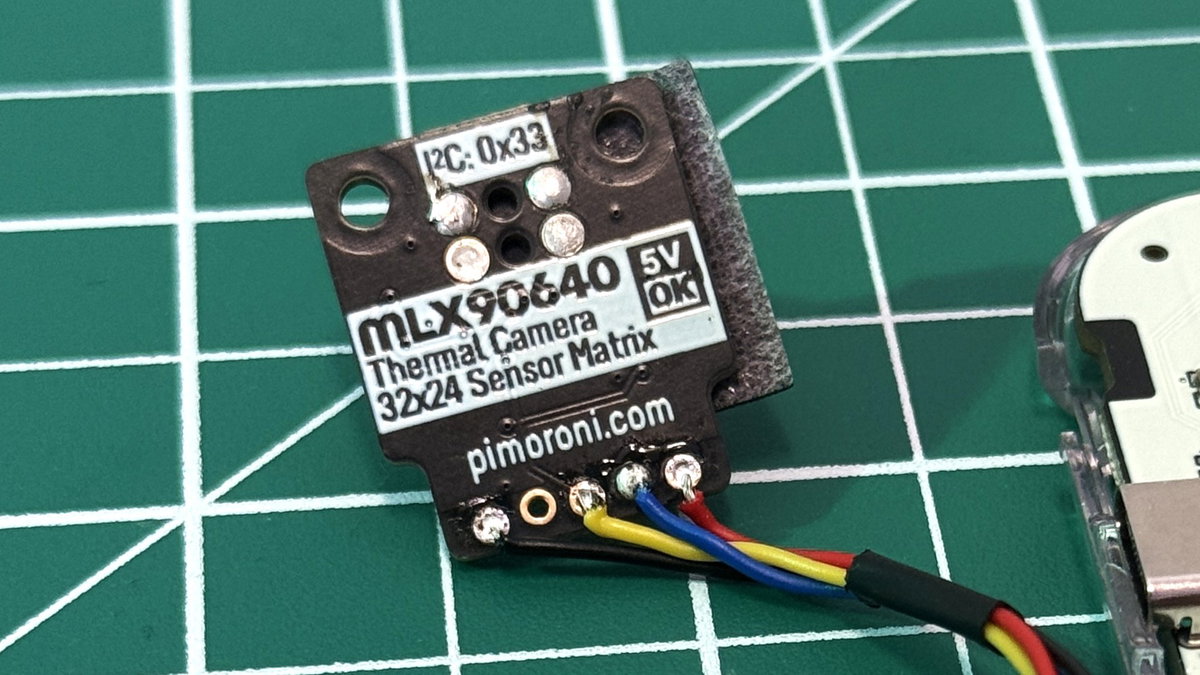
- Close up the case. You are now ready to move on to coding the project.
Writing The Code
- Connect your Tufty 2350 to your computer using a known good USB cable.
- Double press Tufty 2350's Reset button to turn on in USB disk mode.
- Open the file manager on your computer and look for TUFTY.
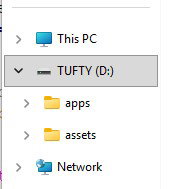
- Inside TUFTY drive open the apps folder and create a new directory called "thermal_camera"
- Open the directory and inside create a folder called "assets". We actually won't be using this folder, but it is good practice to create one should we want to introduce images to our apps.
- Inside the thermal_camera directory place a file called icon.png. This will be the app icon in the main apps menu. You can download the icon from here.
- Download mlx90640.py and typing.py and save them inside the thermal_camera directory.
- Inside the thermal_camera folder, create a blank Python file and name it
__init__.pythen open it in a text editor. - Import a series of modules.
os:For basic filesystem activities.sys:Used for interacting with the Python interpreter and other system-specific parameters.machine:To interact with Tufty 2350's hardware, in this case specifically the I2C interface.ulab:A MicroPython, lightweight Numpy-like module to perform fast, efficient mathematical operations.
import os import sys from machine import I2C from ulab import numpy - Set Tufty 2350's screen to use its highest resolution (HIRES). HIRES is 320 x 240 pixels, low resolution is 160 x 120 pixels and provides a performance boost at the expense of resolution.

badge.mode(HIRES)
- Change the current working directory so that the app is working inside of its directory.
os.chdir("/system/apps/thermal_camera")
- Set the directory which the code will use to import the next module.
sys.path.insert(0, "/system/apps/thermal_camera")
- Import the mlx90640 module so that we can use the thermal camera in our code. This will use mlx90640.py which in step 7 we downloaded and copied to Tufty 2350.
from mlx90640 import MLX90640, RefreshRate, init_float_array
- Using try, initialise the camera and its refresh rate. If there is an error, then it is captured and printed to the Python REPL.
try:
    mlx = MLX90640(I2C(freq=1_000_000))
    mlx.refresh_rate = RefreshRate.REFRESH_16_HZ
except ValueError as e:
    fatal_error("I/O Error",
                 f"\n{e}\n\nMLX90640 not detected. Check your connection and try again.")
- Using an array, store a palette that will ultimately be the colours used to depict the temperatures. The inferno palette is a colour vision deficiency friendly palette and it is generated here.
PALETTE = [[0, 0, 0], [0, 0, 0], [1, 0, 4], [5, 2, 14], [14, 4, 31], [27, 5, 51], [35, 5, 58],
           [44, 7, 62], [54, 10, 65], [63, 13, 67], [72, 16, 68], [82, 19, 69], [93, 23, 68],
           [104, 27, 67], [115, 31, 65], [126, 35, 62], [138, 41, 57], [149, 48, 52], [160, 55, 47],
           [171, 64, 41], [182, 76, 33], [191, 87, 26], [200, 100, 18], [207, 114, 10], [214, 131, 5],
           [220, 147, 11], [224, 164, 25], [228, 182, 43], [229, 203, 68], [231, 222, 96], [237, 239, 130], [252, 254, 164]]
- Create an empty buffer file "raw_frame" which the mlx90640 will later put data into.
raw_frame = init_float_array(768)
- Set the On Screen Display (OSD) to show, and then vertically flip the display. We do this so that the camera orientation matches how the user will hold Tufty 2350.
show_osd = True
show_h_flipped = False
show_v_flipped = True
- Create a function "draw_osd()" to create the OSD on the right side of the display. This will show us the highest and lowest temperatures that the MLX90640 can see. It also generates the colour-coded temperature scale that helps us to understand the thermal image.
def draw_osd(low, high):
    x = screen.width - 25
    y = 40

    screen.pen = color.rgb(0, 0, 0, 150)
    screen.rectangle(x - 10, y - 15, 30, screen.height - 50)

    screen.pen = color.white
    screen.text(f"{high:.1f}", x - 6, y - 15)
    screen.text(f"{low:.1f}", x - 6, y + 160)

    for c in reversed(PALETTE):
        screen.pen = color.rgb(*c)
        screen.rectangle(x, y, 10, 5)
        y += 5
- Create a function, "update()" that will serve as the main body of code. The code inside of update() is constantly run each time the screen updates.
def update():
- Create global variables for the OSD, flipping the display and for storing frames. Global variables can be used inside and outside of functions, and three of which (show_osd, show_h_flipped, show_v_flipped) we have already created outside of the function.
global show_osd, show_h_flipped, show_v_flipped, frame
- Using if conditional tests, check if button B, A or Up are pressed. Button B will toggle the OSD on / off. A will flip the image horizontally and Up, vertically.
    if badge.pressed(BUTTON_B):
        show_osd = not show_osd
    if badge.pressed(BUTTON_A) or badge.pressed(BUTTON_C):
        show_h_flipped = not show_h_flipped
    if badge.pressed(BUTTON_UP) or badge.pressed(BUTTON_DOWN):
        show_v_flipped = not show_v_flipped
- Using try, get a raw frame from the MLX90640.
        mlx.get_frame(raw_frame)
        frame = numpy.array(raw_frame)
- From the raw frame data, get the lowest and highest temperatures.
        low = numpy.min(frame)
        high = numpy.max(frame)
- Map the temperature values to the palette and then reshape the values into a 2D array.
        frame -= low
        frame /= high - low
        frame *= len(PALETTE) - 1
        frame = frame.reshape((24, 32))
- If the user has flipped the display, flip the array data to match.
        # flip!
        if show_v_flipped:
            frame = numpy.flip(frame, axis=0)

        if show_h_flipped:
            frame = numpy.flip(frame, axis=1)
- Using nested for loops, draw the image to the screen using the palette colours.
        for y, row in enumerate(frame):
            for x, pixel in enumerate(row):
                # set the pen and draw the 'pixel'
                screen.pen = color.rgb(*PALETTE[int(pixel)])
                screen.rectangle(x * 10, y * 10, 10, 10)
- Using an if conditional, call the draw_osd() function.
        if show_osd:
            draw_osd(low, high)
- Close the try statement with a series of exceptions for runtime, value and OS errors. These exceptions will handle errors as they occur.
    except RuntimeError:
        pass
    except ValueError:
        pass
    except OSError as e:
        fatal_error("Device Error",
                    f"\n{e}\n\nAn error occurred and the app was forced to stop. Check your MLX90640 connection and try again.")
- Outside of the update() function, use run() to execute the update function every time Tufty updates the screen.
run(update)
- Save the code as
__init__.pyinside the thermal_camera directory. - Safely eject Tufty from the File Manager.
- Select and run the thermal camera app from Tufty 2350's app menu.
- Point the camera at something hot / cold and watch as it reacts. Try waving your hand or pointing it towards a radiator / hot drink to see the colour temperature change.
Complete Code Listing
import os
import sys

from machine import I2C
from ulab import numpy

badge.mode(HIRES)

# Standalone bootstrap for finding app assets
os.chdir("/system/apps/thermal_camera")

# Standalone bootstrap for module imports
sys.path.insert(0, "/system/apps/thermal_camera")

from mlx90640 import MLX90640, RefreshRate, init_float_array

try:
    # init the camera and set the refresh rate
    mlx = MLX90640(I2C(freq=1_000_000))
    mlx.refresh_rate = RefreshRate.REFRESH_16_HZ
except ValueError as e:
    fatal_error("I/O Error",
                 f"\n{e}\n\nMLX90640 not detected. Check your connection and try again.")

# inferno palette
PALETTE = [[0, 0, 0], [0, 0, 0], [1, 0, 4], [5, 2, 14], [14, 4, 31], [27, 5, 51], [35, 5, 58],
           [44, 7, 62], [54, 10, 65], [63, 13, 67], [72, 16, 68], [82, 19, 69], [93, 23, 68],
           [104, 27, 67], [115, 31, 65], [126, 35, 62], [138, 41, 57], [149, 48, 52], [160, 55, 47],
           [171, 64, 41], [182, 76, 33], [191, 87, 26], [200, 100, 18], [207, 114, 10], [214, 131, 5],
           [220, 147, 11], [224, 164, 25], [228, 182, 43], [229, 203, 68], [231, 222, 96], [237, 239, 130], [252, 254, 164]]


raw_frame = init_float_array(768)
show_osd = True
show_h_flipped = False
show_v_flipped = True

def draw_osd(low, high):
    x = screen.width - 25
    y = 40

    screen.pen = color.rgb(0, 0, 0, 150)
    screen.rectangle(x - 10, y - 15, 30, screen.height - 50)

    screen.pen = color.white
    screen.text(f"{high:.1f}", x - 6, y - 15)
    screen.text(f"{low:.1f}", x - 6, y + 160)

    for c in reversed(PALETTE):
        screen.pen = color.rgb(*c)
        screen.rectangle(x, y, 10, 5)
        y += 5

def update():
    global show_osd, show_h_flipped, show_v_flipped, frame

    if badge.pressed(BUTTON_B):
        show_osd = not show_osd

    if badge.pressed(BUTTON_A) or badge.pressed(BUTTON_C):
        show_h_flipped = not show_h_flipped

    if badge.pressed(BUTTON_UP) or badge.pressed(BUTTON_DOWN):
        show_v_flipped = not show_v_flipped

    try:
        # Get the frame data from the MLX90640
        mlx.get_frame(raw_frame)
        frame = numpy.array(raw_frame)

        # Get the highest and lowest temperature values from the frame
        low = numpy.min(frame)
        high = numpy.max(frame)

        # map the temperature values to our palette and reshape to a 2D array
        frame -= low
        frame /= high - low
        frame *= len(PALETTE) - 1
        frame = frame.reshape((24, 32))

        # flip!
        if show_v_flipped:
            frame = numpy.flip(frame, axis=0)

        if show_h_flipped:
            frame = numpy.flip(frame, axis=1)

        # draw the 'pixels'
        # each pixel from the camera is drawn as a 10x10 rectangle
        for y, row in enumerate(frame):
            for x, pixel in enumerate(row):
                # set the pen and draw the 'pixel'
                screen.pen = color.rgb(*PALETTE[int(pixel)])
                screen.rectangle(x * 10, y * 10, 10, 10)

        if show_osd:
            draw_osd(low, high)

    except RuntimeError:
        pass
    except ValueError:
        pass
    except OSError as e:
        fatal_error("Device Error",
                    f"\n{e}\n\nAn error occurred and the app was forced to stop. Check your MLX90640 connection and try again.")

run(update)
What Have We Learnt?
This project was a challenge, so lets look at what we learnt.
- How to wire up a sensor to Badgeware boards.
- How to work with modules of pre-written code.
- How to change Tufty 2350's screen resolution.
- How to use arrays.
- How to translate numerical sensor data into visually interesting and useful outputs.