 Easy
Easy
Track Your YouTube Subscribers with Badgeware Blinky
Learn how to use the YouTube API to display your live subscriber stats
You've probably seen many YouTube videos where the creator has a subscriber count hidden in the shot. My favourite, Pileofstuff has his across a series of SPI displays. But how does he get the subscriber details? He uses the YouTube API.
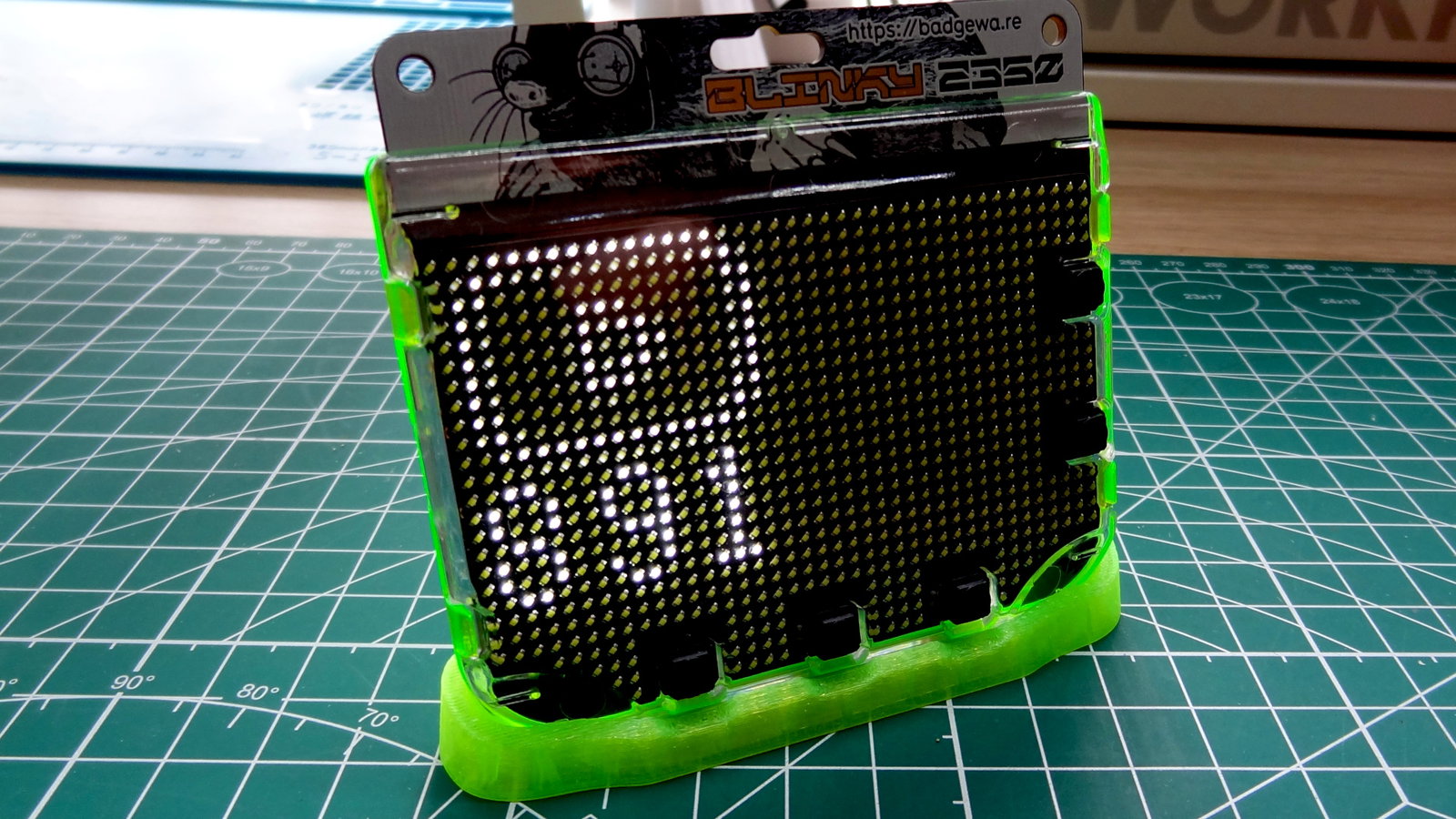
In this project we will build our own YouTube subscriber counter using Blinky 2350, our Badgeware board with a 3.6 inch, 872 brilliant white LED pixel display. Our goal is to show the number of subscribers, formatted (if necessary) to show thousands / millions of subscribers. We will also add the YouTube logo to give the project a more polished appearance.
What You'll Need
- Blinky 2350
- The latest Badgeware firmware release.
- A computer running Microsoft Windows, MacOS.
- Thonny or a text editor of your choice.
The YouTube API
YouTube has a full API (Application Programming Interface) which we are going to use to pull live data every hour. APIs make working with data much easier than scraping the details from a website. APIs expose the data in a predetermined format that programmers can use in their apps. To access the API we need an API key and to get that we need to use Google Cloud. This is a free service and provides us with a myriad of analytics, but for this guide we are focusing solely on the number of subscribers.
Getting YouTube API Access
To get the API key, follow these steps.
- In a browser, go to Google Cloud. You will need to log in, or sign up if this is the first time using this service.
- In the top left of the screen click on
Select a project. We need to create a project so that we can use the YouTube API.
- Click on
New project.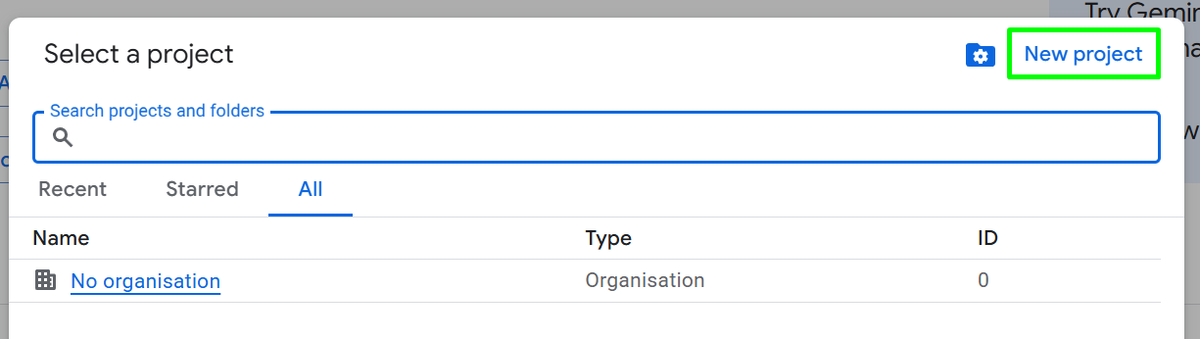
- In the next window, call the project
Blinky-YouTube-Subscribersand clickCreate. There is no need to create an organisation but you can if you wish.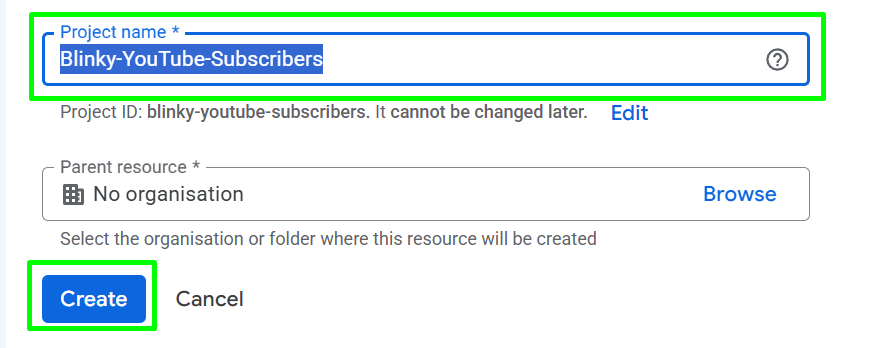
- Under
Notificationsclick onSelect projectto start using it.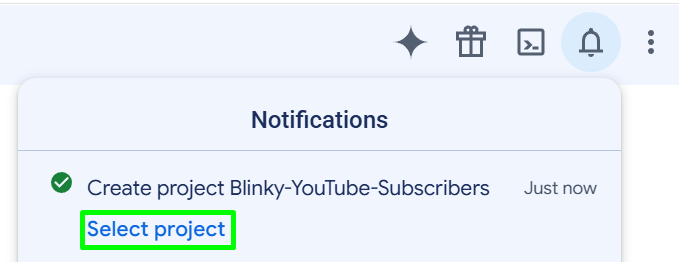
- In the left hand menu, under
APIs and servicesclick onLibrary.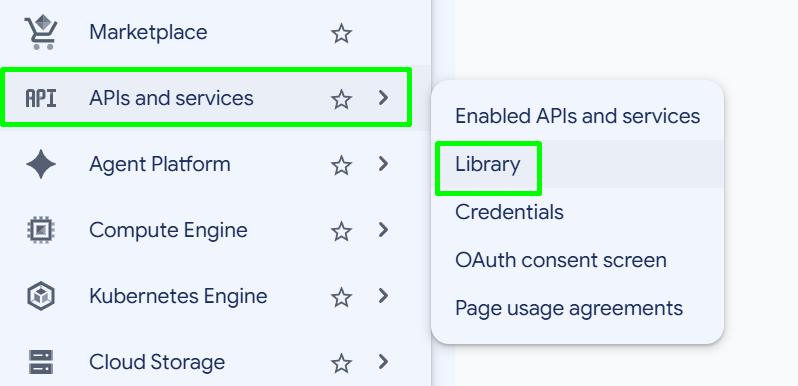
- In the library, search for
YouTube Data API v3and select it. You will only need to type in a few letters before the suggestions kick in.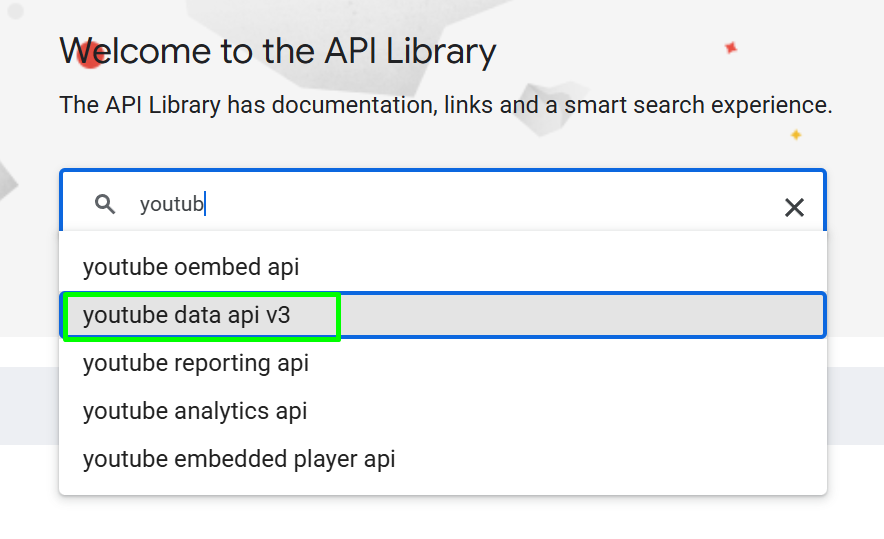
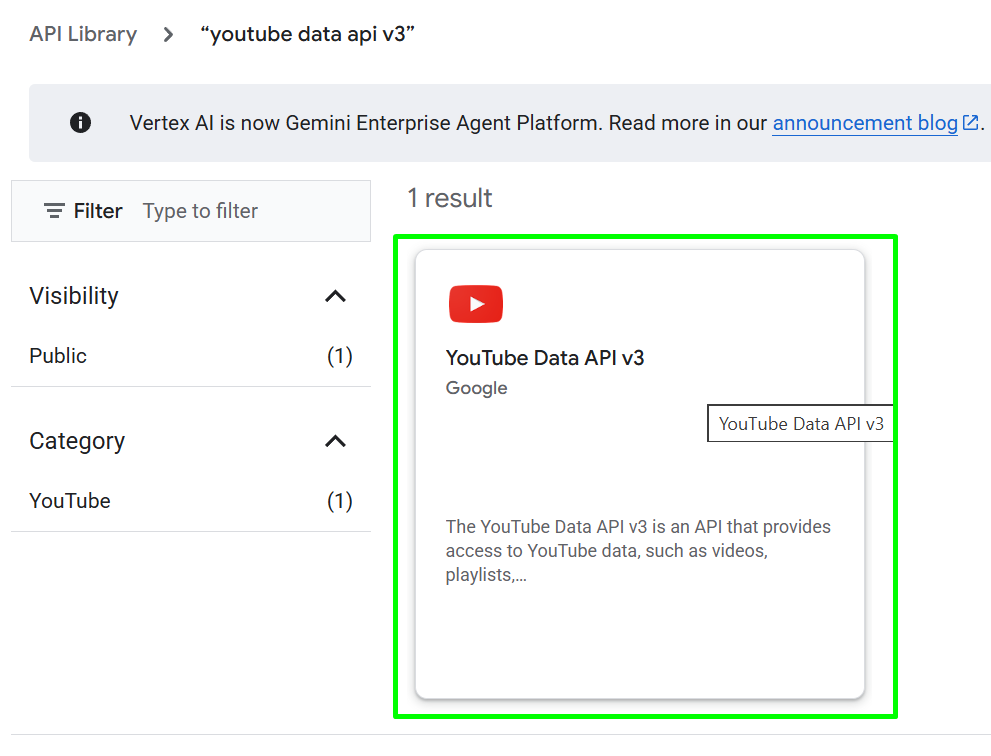
- Click on the YouTube Data API v3 result card to enter its product details (configuration) page.
- Click on
Enableto start using the API.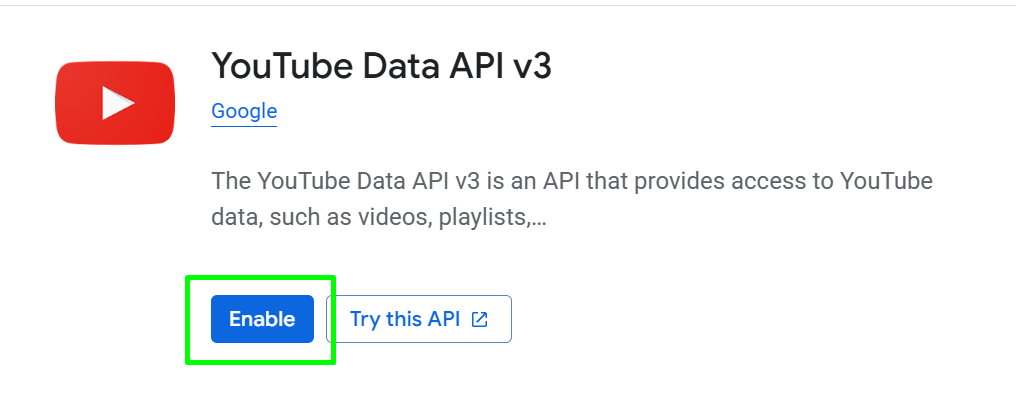
- Click on
Create credentialsto start the process of creating an API key.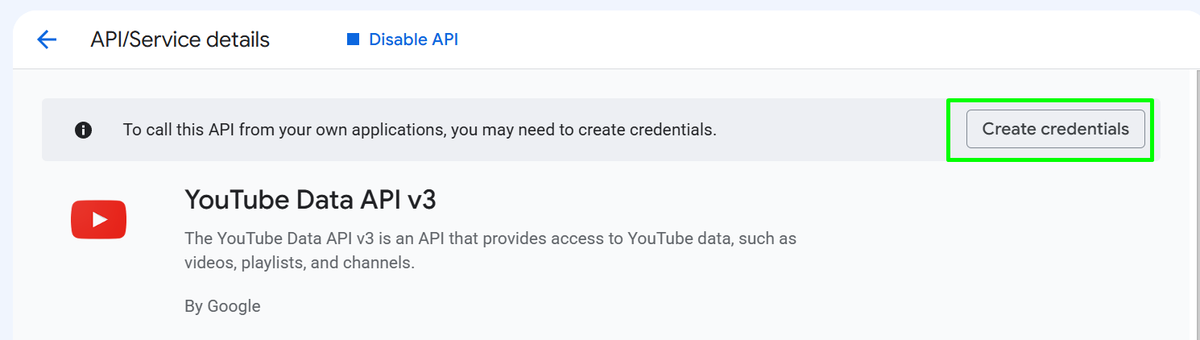
- Select
Public dataand clickNext.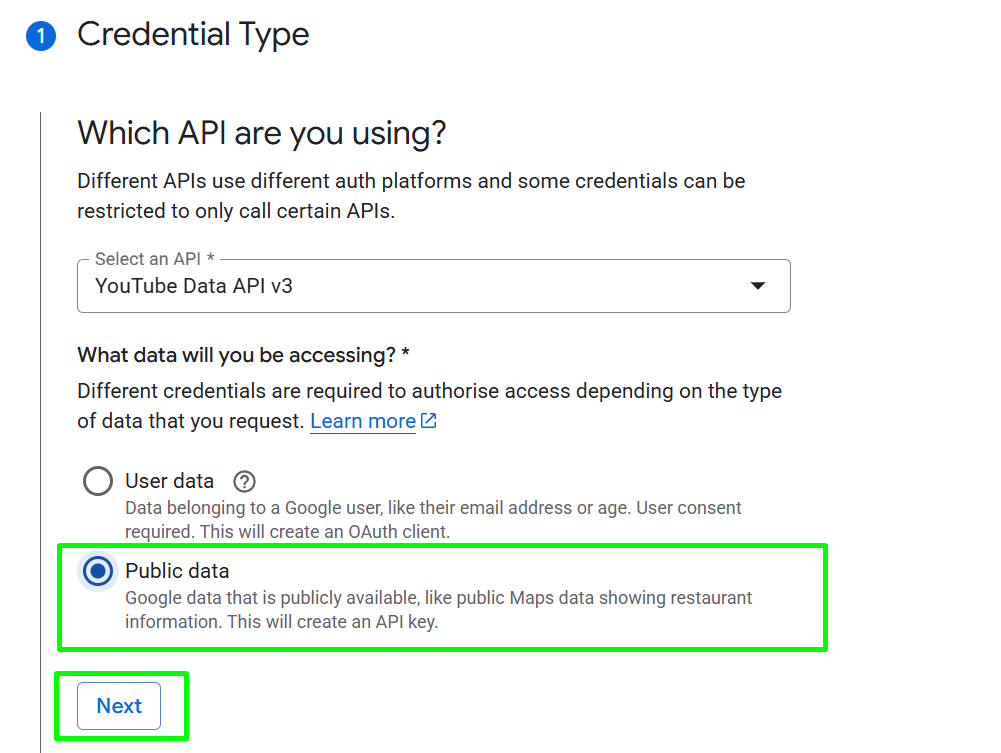
- Copy your API key and paste it into a text file for later use. Click on
Donewhen ready. Do not share your API key with anyone, or save it to a public repository.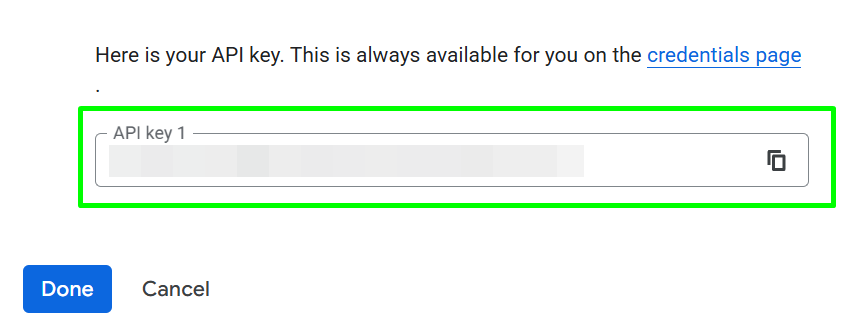
- Close the Google Cloud page, it is no longer needed.
Getting Your YouTube Channel ID
The YouTube channel ID is a unique and permanent identification assigned to every YouTube channel. It is used to identify a user / channel without the need for their username, which can be easily copied. We're going to use it with the YouTube API to get the number of subscribers.
- Open YouTube and click on your profile picture in the top right of the screen.
- Click on
Settings.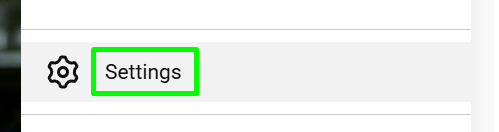
- Select
Advanced settings.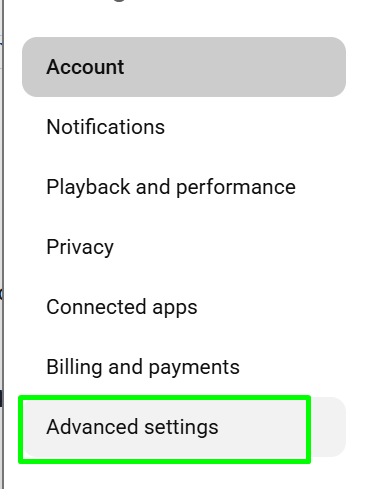
- Copy your
Channel IDand paste it into a text file for later use. Do not share your channel ID.
Coding The Project
We're going to build a typical Badgeware app and that means that we need to create an app inside the apps folder. Inside the folder for our app, we need a file called __init__.py which will contain the code for the project. We also need to create an icon for the app and then create an assets folder inside our app folder for any images used in the app. So let's get started.
Connect Blinky to your PC and press RESET twice to enter USB drive mode. Your PC will treat Blinky just like a typical USB flash drive.
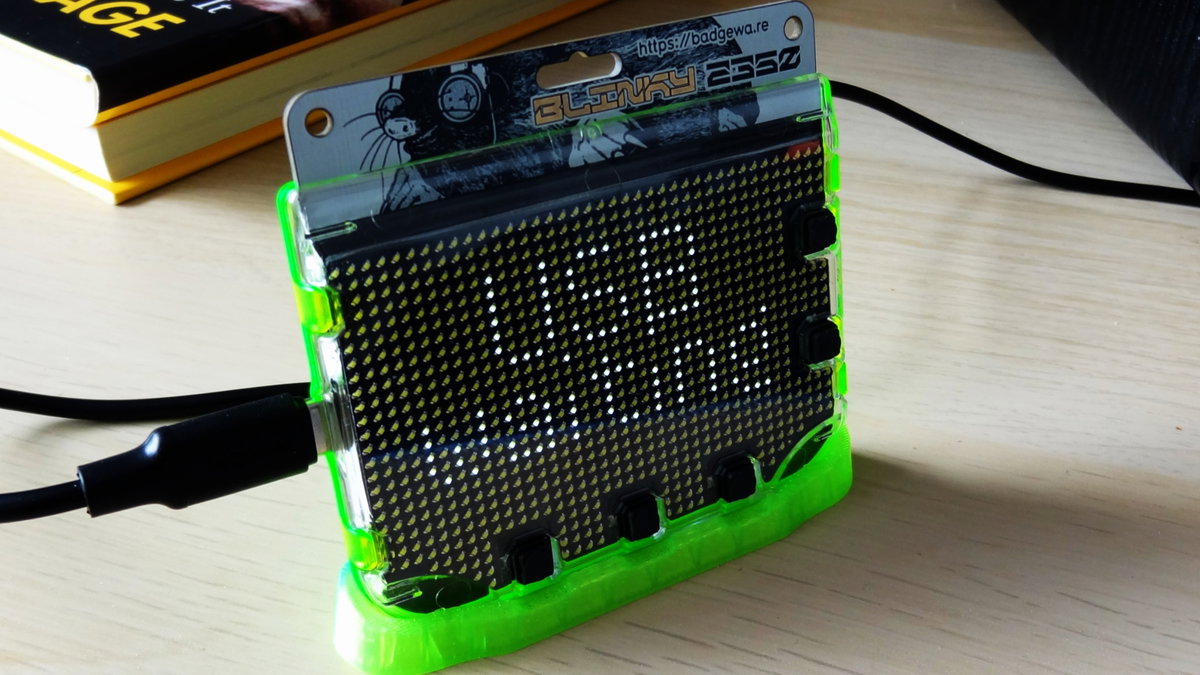
Open your operating system's file manager and navigate to a drive called
BLINKY.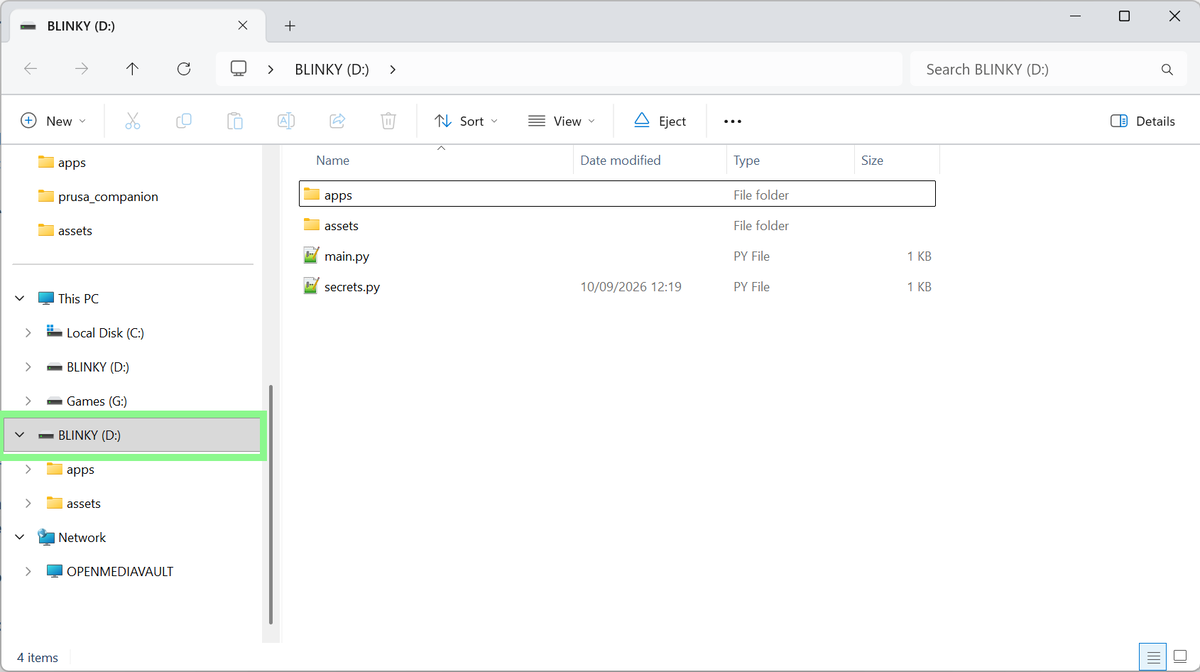
Open
secrets.pyin a text editor and enter your Wi-Fi SSID and password in theWIFI_SSIDandWIFI_PASSWORDconstants.
Create two new lines in the file and enter your YouTube API key and channel ID then save and close the file. We are creating two constants for the
API_KEYand theCHANNEL_ID.API_KEY = "YOUR YOUTUBE API KEY" CHANNEL_ID = "YOUR CHANNEL ID"
Inside
BLINKYdrive, openappsand create a new folder calledyoutube_substo contain our app.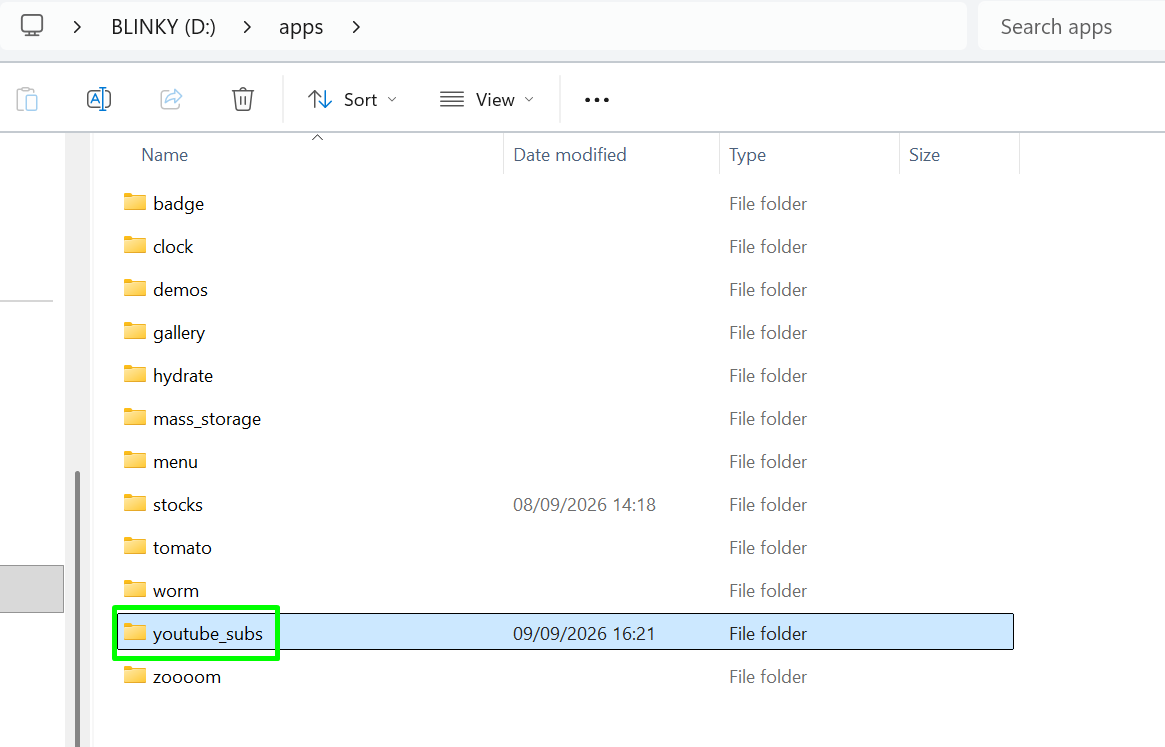
Open the
youtube_subsfolder and create a new folder calledassets. In here is where we will store an image used in the app. Here is the image for you to download.- yt.png: The YouTube "play button" logo, used in-app to identify that we are showing the YouTube subscriber number.
Inside the
youtube_subsfolder, and notassetssave this file asicon.png.Open your preferred text editor (we are using Thonny) and in a new blank file, we start coding the project.
Save the blank file as
__init__.pyinside theyoutube_subsfolder. You should now have ayoutube_subsfolder identical to this.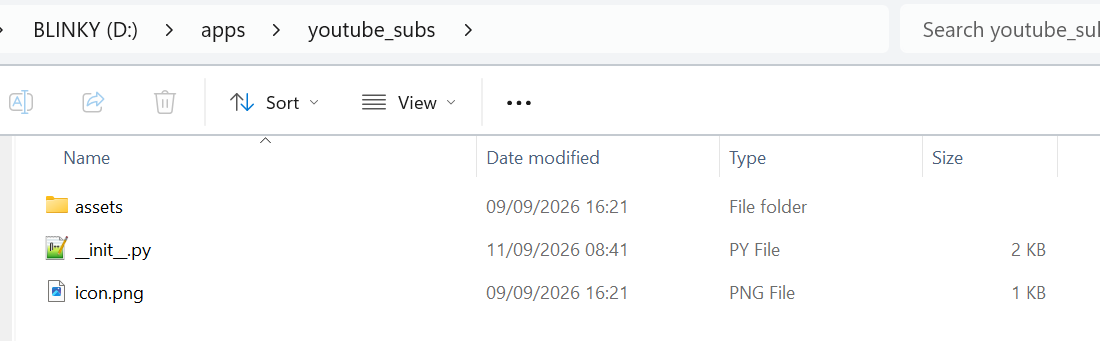
Import a series of modules (pre-written libraries of Python code that provide extra functionality) for the project.
- wifi: Badgeware specific helper function to use Blinky's onboard Wi-Fi chip to connect to a network and the Internet.
- secrets: Where our Wi-Fi SSID, password, and YouTube API key, and Channel ID are stored.
- time: Controls the pace at which the code runs.
- fetch: Badgeware specific helper function that we use to download data from the YouTube API.


import wifi
import secrets
import time
import fetch
- Ensure that the Wi-Fi is disconnected. This is strictly an optional step, but we found it prudent to ensure that any lingering Wi-Fi connections were dropped, and fresh connections made before moving onward.
wifi.disconnect()
- Using a
while notloop, check that we are not connected to Wi-Fi. In essence this loop will try to connect to Wi-Fi. Each time it isn't connected, it will blink Blinky's case lights to show that it is doing something.
while not wifi.connect():
    badge.caselights(1)
    time.sleep(0.1)
    badge.caselights(0)
    time.sleep(0.1)
- Print the connection details to the Python Shell, and then keep the case lights permanently on. The print to the Python Shell is a debug step used to confirm Blinky's IP address. The case lights staying on is there to visually identify that we have a Wi-Fi connection.
print("Connected! IP address:", wifi.ip())
badge.caselights(1)
Build the URL that will be used to access the YouTube API. The URL will use our API key and Channel ID, which are stored inside
secrets.py.API_URL = ( "https://www.googleapis.com/youtube/v3/channels" "?part=statistics&id={0}&key={1}" ).format(secrets.CHANNEL_ID, secrets.API_KEY)Create an object
statusto store the returned data from the YouTube API every one hour (3,600 seconds). Usingfetchand the freshly createdAPI_URLwe grab the data and store it in the object.status = fetch.url(API_URL, every=3600)Create an object,
last_subscribersand store aNonevalue. This prevents the app from crashing out if the API has a "blip" and doesn't provide any data.last_subscribers = NoneCreate a function
format_countthat takes the current YouTube subscriber number and checks if it is greater than or equal to a million or greater than or equal to one thousand. If the value is over a million, then the subscriber number is 1,500,000 formatted to show the value as "1.5M". For 1,500 subscribers this is formatted as "1.5K". This keeps the output neat and tidy across Blinky's screen.def format_count(n): if n >= 1_000_000: return "{:.1f}M".format(n / 1_000_000) if n >= 1_000: return "{:.1f}K".format(n / 1_000) return str(n)The next function
draw_subscriberstakes the subscriber valuecountand passes it to theformat_countfunction and then sets up Blinky's screen to show the subscriber number and the YouTube logo. We clear the screen by setting all the pixels toblackand then set the pen colour to white, load in the YouTube logo and then write the subscriber number to the left-middle of the display.def draw_subscribers(count): value = format_count(count) screen.pen = color.black badge.clear() screen.pen = color.white sprite = image.load("assets/yt.png") screen.blit(sprite, vec2(0, 0)) screen.text(value,0,9) badge.update()This function
get_youtube_statshandles extracting the subscriber stats from what the YouTube API returns. It prints the value to the Python Shell, for debug, and updates thesubscribersvariable. The function also handles if their is an error in the returned data.def get_youtube_stats(data): global last_subscribers try: stats = data["items"][0]["statistics"] subscribers = int(stats["subscriberCount"]) print("Subscribers:", subscribers) if subscribers != last_subscribers: draw_subscribers(subscribers) last_subscribers = subscribers except (KeyError, IndexError): print("Unexpected response:", data)Finally a
while Trueloop is used to continuously run a check to see ifstatushas data from the YouTube API. If so, theget_youtube_statsfunction is called which displays the YouTube subscriber stats on Blinky's display.while True: if status: get_youtube_stats(status.json())Save the code and press RESET on Blinky to restart in badge mode,
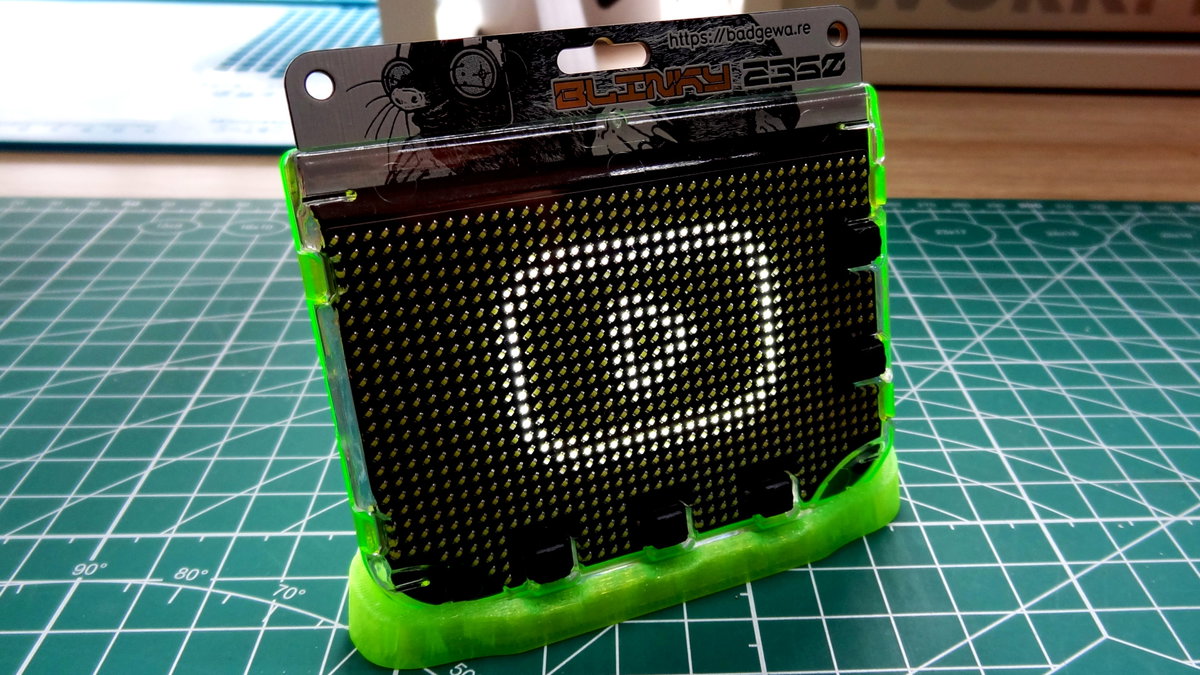
Scroll to the app, you should see the YouTube logo bounce on the screen.
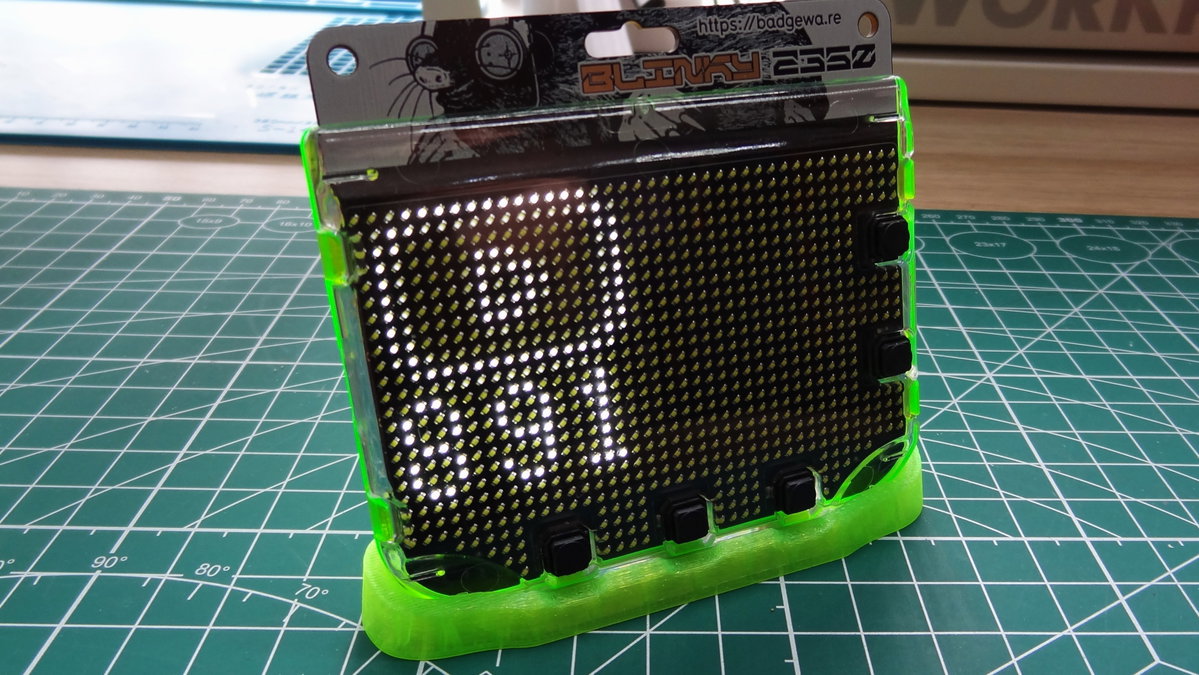
Press B to start the app. The case lights will flash until a solid Wi-Fi connection is made. Once connected, an API call is made and after a few seconds we will see the details on Blinky's display.
Complete Code Listing
import wifi
import secrets
import time
import fetch
wifi.disconnect()
while not wifi.connect():
badge.caselights(1)
time.sleep(0.1)
badge.caselights(0)
time.sleep(0.1)
print("Connected! IP address:", wifi.ip())
badge.caselights(1)
API_URL = (
"https://www.googleapis.com/youtube/v3/channels"
"?part=statistics&id={0}&key={1}"
).format(secrets.CHANNEL_ID, secrets.API_KEY)
status = fetch.url(API_URL, every=3600)
last_subscribers = None
def format_count(n):
    if n >= 1_000_000:
        return "{:.1f}M".format(n / 1_000_000)
    if n >= 1_000:
        return "{:.1f}K".format(n / 1_000)
    return str(n)
def draw_subscribers(count):
    value = format_count(count)
    screen.pen = color.black
    badge.clear()
    screen.pen = color.white
    sprite = image.load("assets/yt.png")
    screen.blit(sprite, vec2(0, 0))
    screen.text(value,0,9)
    badge.update()
def get_youtube_stats(data):
    global last_subscribers
    try:
        stats = data["items"][0]["statistics"]
        subscribers = int(stats["subscriberCount"])
        print("Subscribers:", subscribers)
        if subscribers != last_subscribers:
            draw_subscribers(subscribers)
            last_subscribers = subscribers
    except (KeyError, IndexError):
        print("Unexpected response:", data)
while True:
    if status:
        get_youtube_stats(status.json())
What Have We Learnt?
- How to use the YouTube API.
- How to display graphics and text on Blinky 2350.
- How to connect to Wi-Fi with Badgeware.
- How to format values to fit our display.